My older iPhone has been lagging after recent iOS updates, so I turned on Reduce Motion hoping it would speed things up. Animations feel different, but apps still open slowly. Does this iPhone setting actually improve performance or just make the phone feel faster?
If an older iPhone feels slow, don’t jump straight to a restart or factory reset. Those can help in some cases, but they usually don’t fix the bigger reasons the phone is lagging.
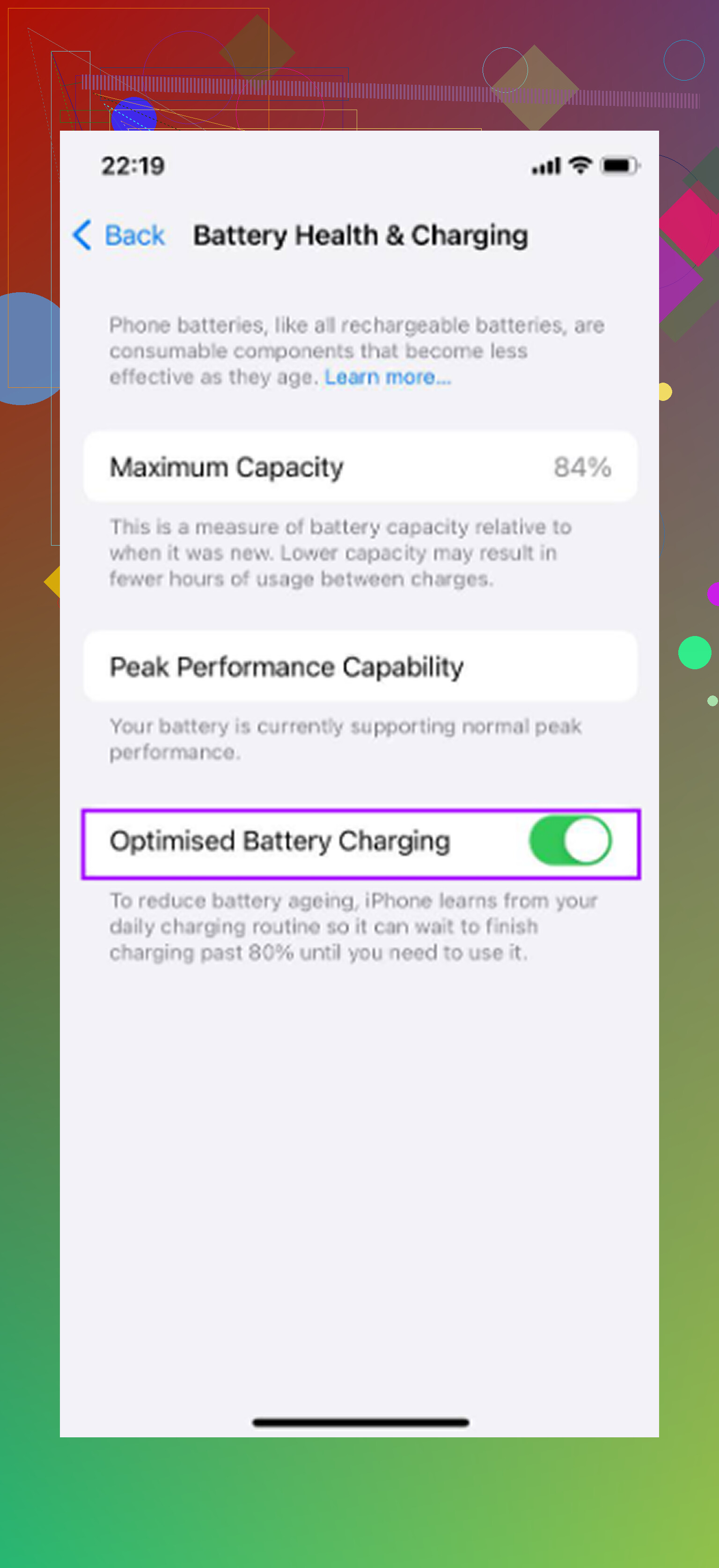
The first thing to check is battery health. Go to Settings > Battery > Battery Health and Charging. If Maximum Capacity is under 80%, iOS may be limiting performance to keep the phone from randomly shutting down. At that point, changing settings or deleting a few apps is secondary. A battery replacement is usually much cheaper than buying a new phone, and it can make a much bigger difference than most software tweaks.
If the battery is still above 80%, then it’s worth looking at the other common slowdowns.
Turn on Reduce Motion under Settings > Accessibility > Motion. This cuts down the zoom animations that happen when apps open and close, replacing them with simpler fades. On older iPhones, those little animations are more work than they look like, and removing them can make the phone feel snappier right away.
Next, go to Settings > General > Background App Refresh and turn it off. Apps do a lot in the background, like checking servers and updating content when you are not even using them. Newer phones can usually hide that pretty well. Older chips feel it.
There are a couple more settings worth changing too. In Settings > Accessibility > Display and Text Size, enable Reduce Transparency. iOS uses blur and glass-style effects in a lot of places, and those effects put extra work on the GPU. Removing them makes the interface lighter.
Also, don’t leave Low Power Mode on all the time if speed matters more than battery life. It intentionally slows the phone down to save power.
Storage is the part people overlook. iOS needs free space for caches, indexing, temporary files, and normal system work. Once an older iPhone gets close to full, especially around the 85% range or higher, it can start dragging badly. Apps open slower, the camera may hang for a second, and typing can feel delayed. It usually creeps up slowly, so it feels like the phone is aging when really the system is running out of room to breathe.
Changing settings helps, but if storage is packed, the lag tends to come back.
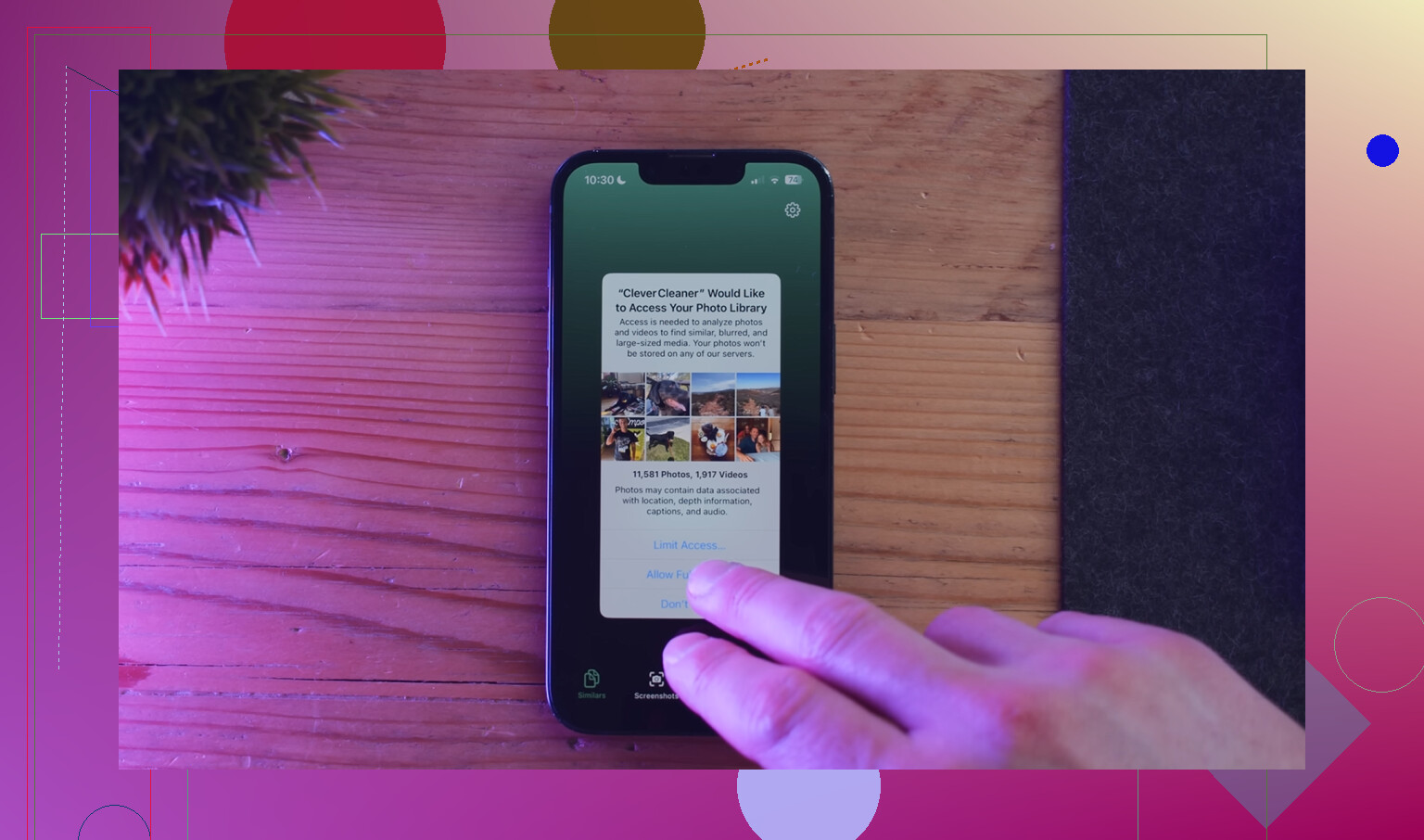
Manually digging through thousands of photos is a pain, so using a cleaner app can make the storage cleanup less miserable. Clever Cleaner is the one mentioned here because it’s free, has no ads, and doesn’t require a subscription.
The most useful cleanup flow is pretty simple:
- Start with the Heavies tab. It sorts files by size, so big screen recordings and old 4K videos show up first. A handful of those can take more space than hundreds of regular photos.
- Then check Similars. It groups near-duplicate photos and marks the sharpest one in each set, which is useful for bursts, repeat shots, and slightly different versions of the same picture.
- Look through Screenshots too. Seeing the file size for each one makes it easier to delete the junk without overthinking it.
- The cleanup runs on the device, so the files are not uploaded somewhere else.
The best order is battery first, settings second, storage third. After deleting photos or videos, empty Recently Deleted in Photos too, or the storage won’t actually free up yet.
Each step fixes a different bottleneck: battery health deals with throttling, the settings reduce background and visual load, and the storage cleanup gives iOS enough working space again. Put together, those changes can make an older iPhone feel a lot closer to normal without doing a full reset.
40 Likes
Reduce Motion won’t make a slow app load faster.
It mostly changes how the wait looks. The zoom-in and zoom-out animation gets toned down, so moving around iOS can feel less sluggish, especially when closing apps or switching screens. But if an app is taking five seconds because the phone is short on RAM, storage is nearly full, the battery is worn, or the app itself is heavy, Reduce Motion is not fixing that part. It can make the phone feel cleaner, not actually turn an old chip into a newer one.
I agree with the battery/storage angle already mentioned, but I’d add one boring caveat: if the lag started right after an iOS update, give it a day or two on Wi-Fi and plugged in before judging it. Photos, Spotlight search, app updates, and background cleanup can make an older iPhone feel awful for a while after an update. If it is still slow after that, then check Battery Health, free up storage, and maybe turn off Background App Refresh for apps that don’t need it.
So yes, leave Reduce Motion on if you like the feel. Just don’t expect it to shorten real loading time. It is more of a “less visual drag” setting than a performance repair.
Don’t keep swiping every app out of the app switcher thinking it will make the phone faster. On iOS that usually does the opposite for apps you use all day, because the phone has to launch them from scratch again instead of waking them from a paused state.
Reduce Motion is real, but it’s easy to misunderstand what “real” means here. It can make the phone feel less bogged down because you are seeing shorter, simpler transitions. That matters more than people admit, because half of “slow” is waiting for iOS to finish showing you a zoom animation. But it is not going to make Instagram, Maps, Safari tabs, or a banking app finish loading their data faster.
I’d push back a little on the idea that turning off every visual setting is automatically a speed fix. Reduce Transparency, Reduce Motion, fewer widgets, fewer live wallpapers, all that stuff can make an old phone feel calmer. Fine. But if the delay is after you tap the icon and the app sits there on a blank screen, that is usually storage, app bloat, network, battery throttling, or the phone being too old for the current app version.
A thing people forget is heat. If the phone is warm, charging, sitting in a thick case, or being used in the sun, iOS may slow it down to protect itself. Reduce Motion will not do anything for that. Same with Low Power Mode. People leave it on permanently and then wonder why the phone feels lazy. It saves battery partly by cutting performance.
For a quick sanity check, try this:
- Turn Reduce Motion on if you prefer the feel.
- Stop force-closing apps unless one is frozen.
- Restart once after a big update, but don’t keep doing it like a ritual.
- Check iPhone Storage and make sure you have real free space, not just a few hundred MB.
- Check Battery Health if the phone is old enough for that to matter.
- Test speed when the phone is cool and not in Low Power Mode.
If you want a broader checklist, this guide to speeding up an older iPhone lines up with the practical stuff people usually try before a reset.
So yes, Reduce Motion “does something,” but it is more like removing the slow-looking theater around the wait. If your phone is actually struggling to load apps, keep it on if you like it, but don’t treat it as the fix. The bigger win is usually freeing space, replacing a tired battery, avoiding heat, and not making iOS relaunch the same apps over and over.
Expect it to change the feel of iOS, not the amount of work your phone has to do. Reduce Motion is basically a shortcut around some of the visual hand-holding. The phone still has to load the app, restore its state, pull data, render the screen, and deal with whatever the app is doing in the background. If the delay is a white splash screen or a spinner inside the app, Reduce Motion has already done all it can.
I’d be a little careful with the Background App Refresh advice too. Turning it off can help battery and cut some background noise, but it can make certain apps feel worse when you open them because they have to update everything right then. Mail, weather, news, messaging apps, widgets, and maps-type apps are good examples. On an old iPhone I’d turn it off per app instead of nuking it globally, especially for apps you actually expect to be current when opened.
A simple way to tell what kind of “slow” you have: open Settings, Messages, or Photos and see if the delay is mostly the transition. Then open something like Instagram, YouTube, or a banking app. If the Apple apps feel okay but third-party apps sit there loading, the problem is probably app weight, storage, network, battery health, or just the phone being near the end of what current apps expect. Leave Reduce Motion on if you like it, but treat it as a comfort setting, not a repair.
Time one thing before you change any settings: tap an app and count how long until it’s actually usable. If it’s the icon-to-open animation dragging, Reduce Motion genuinely shaves off real seconds there, because those transitions have a fixed duration the phone has to play through. That part isn’t just cosmetic. Where everyone above is right is that it does nothing once you’re staring at a spinner inside the app. So it depends which half of the wait annoys you.
The thing nobody’s said plainly: on a truly old iPhone, the iOS version itself can be the bottleneck, and you can’t roll back once Apple stops signing the old one. People update chasing security fixes, then the phone feels heavier and there’s no undo. If your lag lined up exactly with a major version jump and never recovered after a few days, that’s often just the chip being asked to do more than it was built for. No setting fixes that.
On the storage advice, I’d agree it matters more than the animation tweaks, and a cleaner like Clever Cleaner is fine for clearing the obvious junk fast, big videos and duplicate bursts. Just don’t expect freeing space to feel dramatic unless you were genuinely near full. Going from 90 percent used to 70 percent helps. Going from 60 to 50 does basically nothing, so don’t gut your photo library for no reason.
One correction to the Background App Refresh talk: @viajantedoceu has it right that turning it off globally can backfire. The blunt version is that on iOS, offloading unused apps (Settings, General, iPhone Storage) usually does more for a cramped phone than toggling refresh, since it clears the app binary but keeps your data. Underrated and reversible.
So keep Reduce Motion on if the navigation feels snappier to you, treat storage and battery as the real levers, and accept that a phone several iOS versions past its prime has a ceiling you can’t tweak your way past.
Try reinstalling the slowest apps first. Old app caches and bloated local data often cause long launch times after iOS updates.
Delete one heavy app, such as Instagram or Facebook, then reinstall it from the App Store. Test launch speed before changing anything else. Your account data returns after sign-in, but check saved drafts or downloads first.
For apps you rarely use, open their website in Safari and add it to your Home Screen. Web versions use less storage and background activity. This wont fix system-wide lag, but it often makes daily use smoother with minimal effort.