I’m overwhelmed by all the universal TV remote options and need help picking one that can easily control my TV, soundbar, and streaming box. My current remotes are old, some buttons don’t work, and my family struggles to switch inputs or adjust volume. What universal remote are you using that’s reliable, easy to program, and works well with modern smart TVs and streaming devices? Any brand or model recommendations, plus setup tips, would really help me decide.
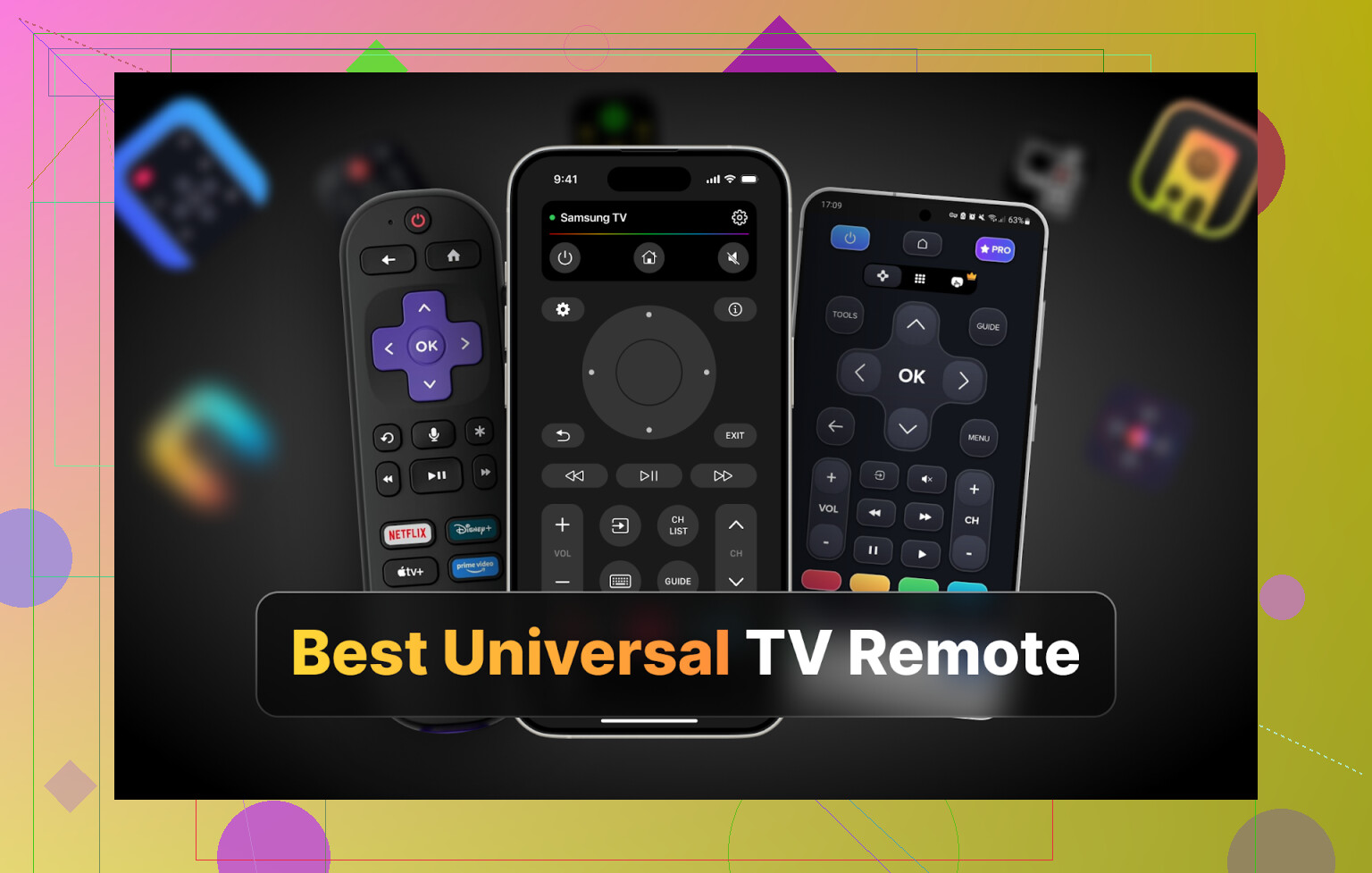
Hi all,
At some point this year I realized I was spending more time hunting for remotes than watching TV. We have two TVs at home, Samsung in the living room and LG in the bedroom. Each has its own remote, both regularly disappear into couch cushions, kid toys, blankets, whatever.
So I gave up and went down the phone-remote rabbit hole. I tested a bunch of “universal” TV remote apps on three devices:
• iPhone
• An Android phone
• My MacBook
Below is how it went, what I’d actually keep using, and which ones I’d uninstall without thinking twice.
I’ll split it by platform so you can jump to what you use.
Part 1: TV remote apps I tried on iPhone
On iOS I focused on four apps:
• TVRem Universal TV Remote
• TV Remote – Universal Control
• Universal Remote TV Smart
• TV Remote – Universal
I pulled them from the App Store top lists, then used each one with a Samsung and an LG TV on the same Wi‑Fi network.
TVRem Universal TV Remote – my iPhone keeper
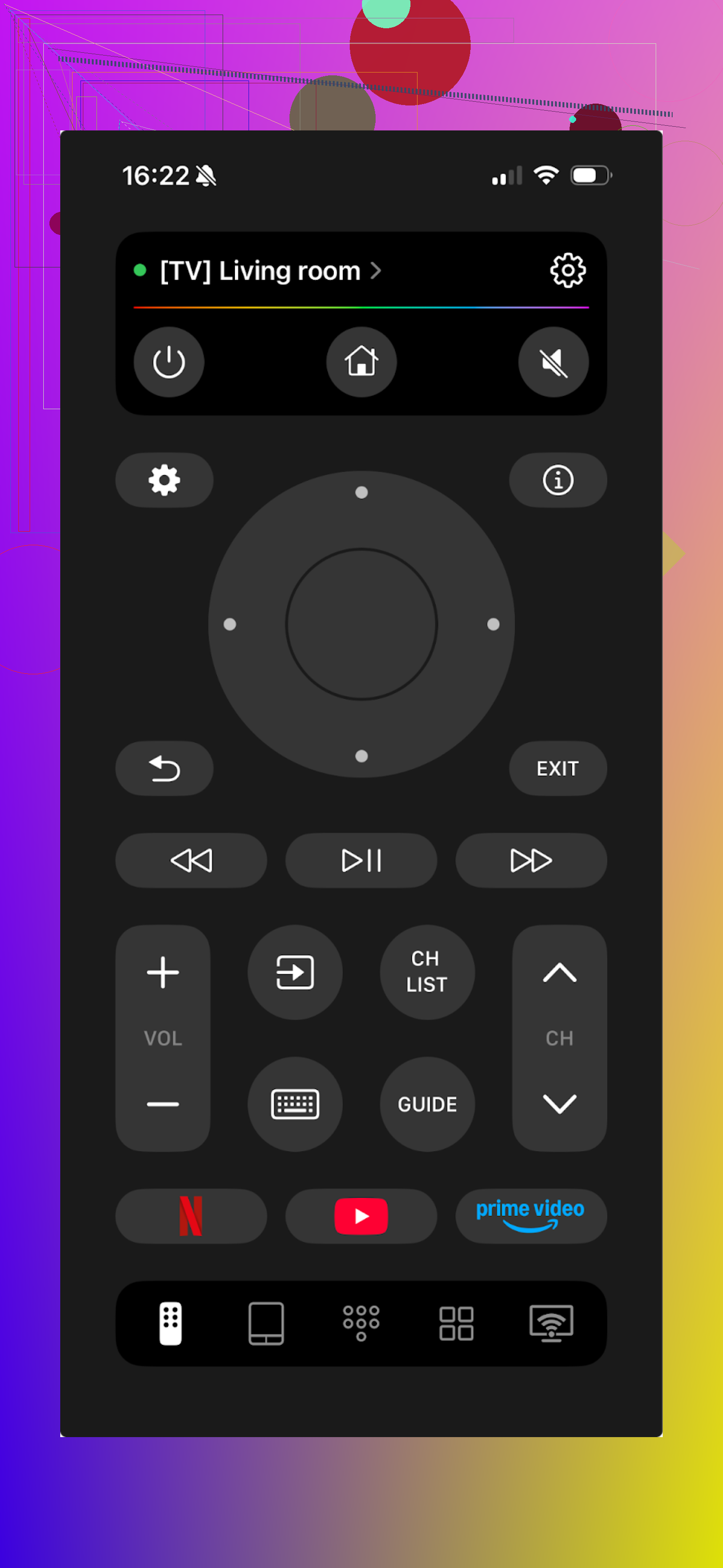
This one surprised me. I expected some “free but not really free” trap. Did not see that here.

What I used it with: Samsung and LG smart TVs. The app also lists Sony, Android TV, Roku and others.
Stuff that worked well for me:
• Setup took under a minute. TV popped up, I tapped it, done.
• The interface is simple. No clutter, no random extra “tools” nobody asked for.
• Touchpad feels close to a real trackpad. Good for moving around smart TV menus.
• Built‑in keyboard is a life saver for login screens and YouTube searches.
• Voice support through Google Assistant or Alexa on models that support it.
What I liked most: it stayed free. No popups asking for a subscription every tap. No fake “free” mode where every second button is locked.
Pros
- Easy to use without reading anything
- Connection to both TVs was straightforward
- Fully free, I did not hit a paywall anywhere
- Works with a lot of brands and platforms
- Covers everything I expect from a normal remote
Cons
- No Vizio support, so that is a hard “no” if your main TV is Vizio
Price
Free
Link
https://apps.apple.com/us/app/tvrem-universal-tv-remote-app/id6746162794
Verdict
This is the only iPhone remote app from my list that I would install for my parents and not worry. It works, it is free, it does not annoy you.
Someone also posted a detailed comparison thread here if you want more opinions from other people:
https://www.reddit.com/r/DataRecoveryHelp/comments/1qqa2bh/best_universal_tv_remote/
Check the product page for further details:
Relevant topics
TV Remote – Universal Control
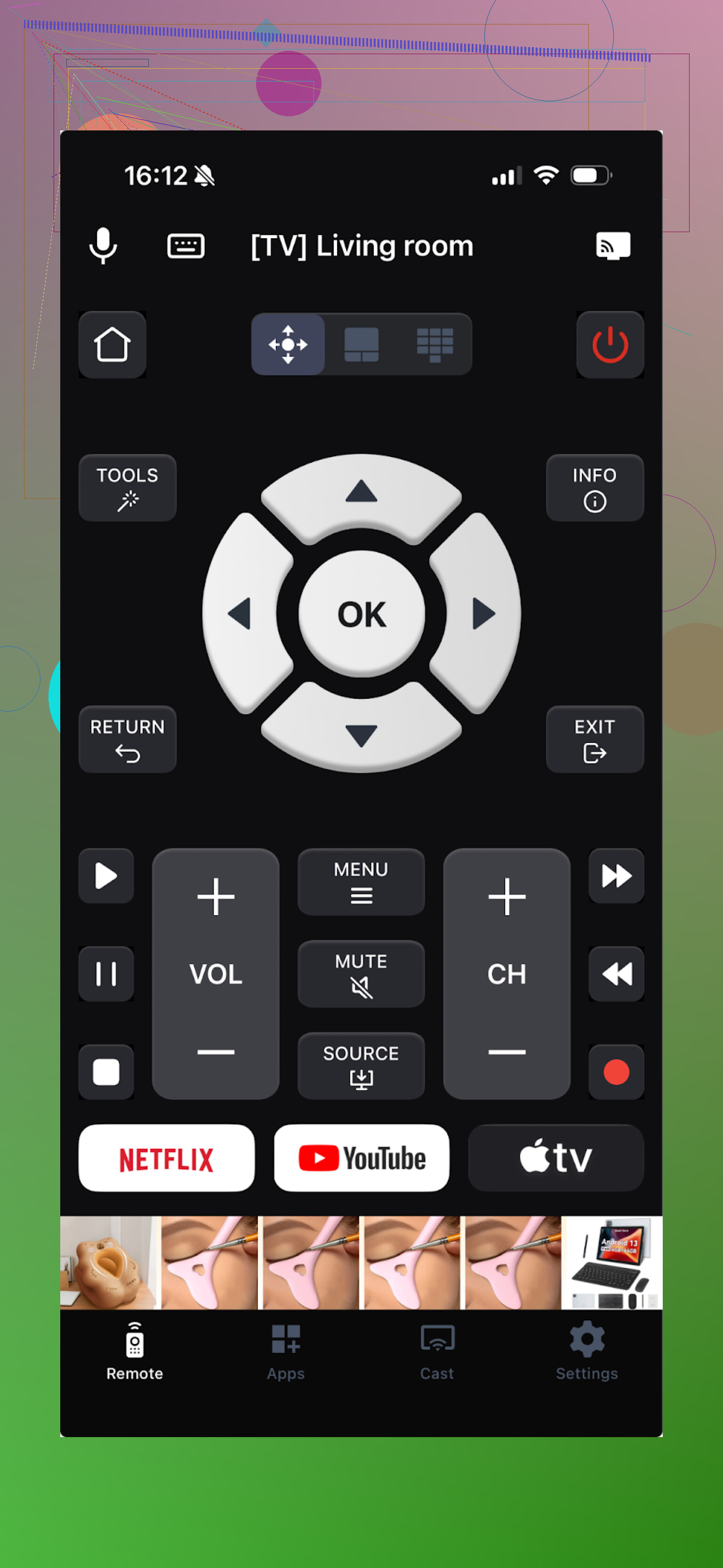
This one looks good at first. It supports a bunch of brands and connects over Wi‑Fi without drama.
What I used in the app:
• Touchpad
• Voice control
• Channel launcher
• On‑screen keyboard
There is also media casting. I tried it once, then ignored it because I only wanted a basic remote replacement.
The catch: almost everything I touched asked me to start a trial or buy something. I did start the free trial to see what is behind the wall.
Pros
- Has the core remote tools I needed
- Supports many platforms and TV brands
Cons
- Ads inside the app
- Most of the useful stuff is paid, including things I consider “basic”
- I had the app crash a few times when opening menus
Price
From $4.99 up
Link
Verdict
Usable, but you are dealing with constant upsell friction. For someone ok with paying for a remote app and ignoring the price, it works. I was looking for lower cost, so I skipped it after testing.
Universal Remote TV Smart
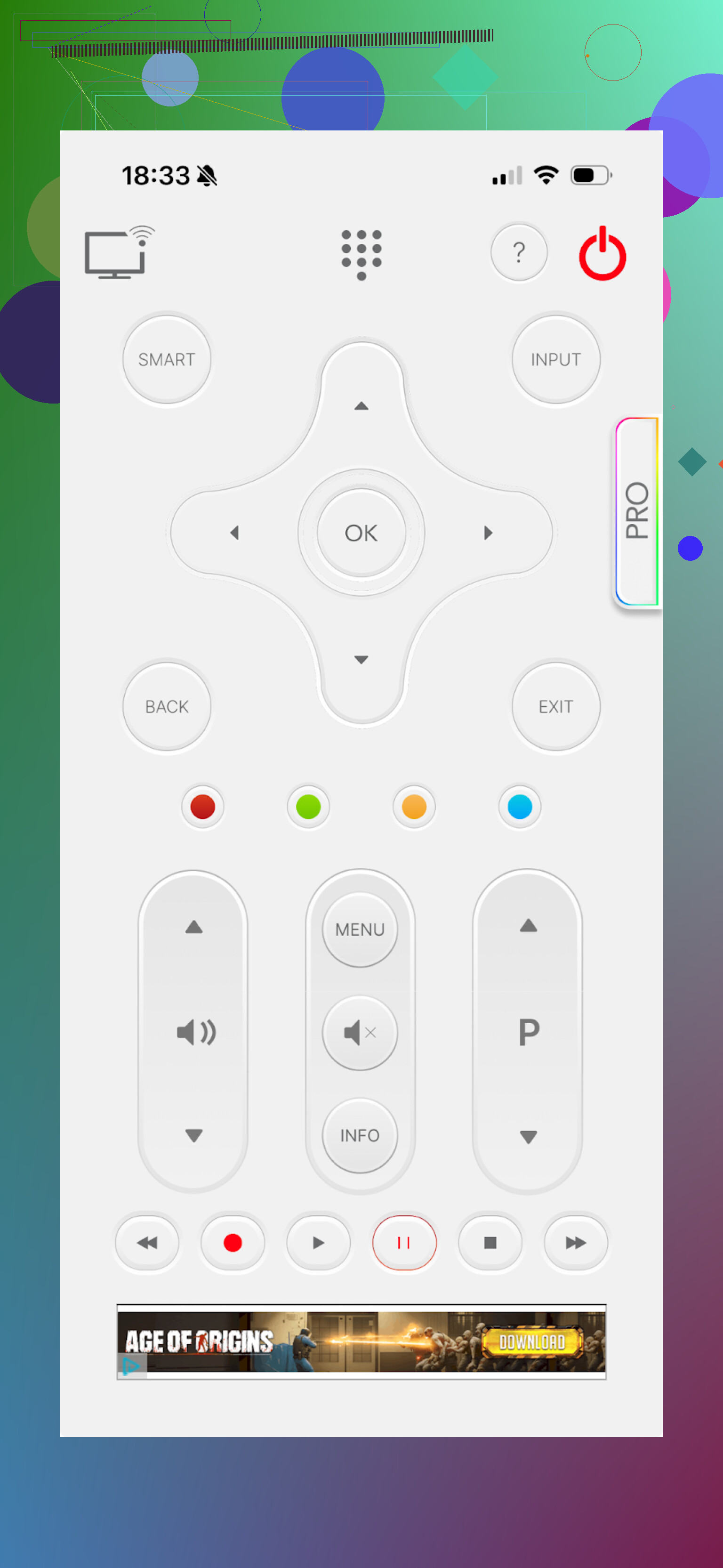
This one rubbed me the wrong way right after launch. Interface feels awkward, the buttons are cramped, and it never felt like a normal remote in my hand.
Functionally, it does the basics:
• Keyboard
• App navigation
• Volume
• Channel switching
But that is where the good part stopped for me.
Pros
- Supports many brands
Cons
- Clunky, uncomfortable layout
- No voice control at all
- Aggressive ads, including forced video ads
- Almost everything tries to push you to pay. Example: I clicked to open YouTube, hit OK, and instantly got thrown into a payment offer
Price
From $7.99 up
Link
Verdict
Out of all iOS apps I tried, this one felt the worst to use. Interface annoyed me, the ads were over the top, and the price did not match the experience.
TV Remote – Universal
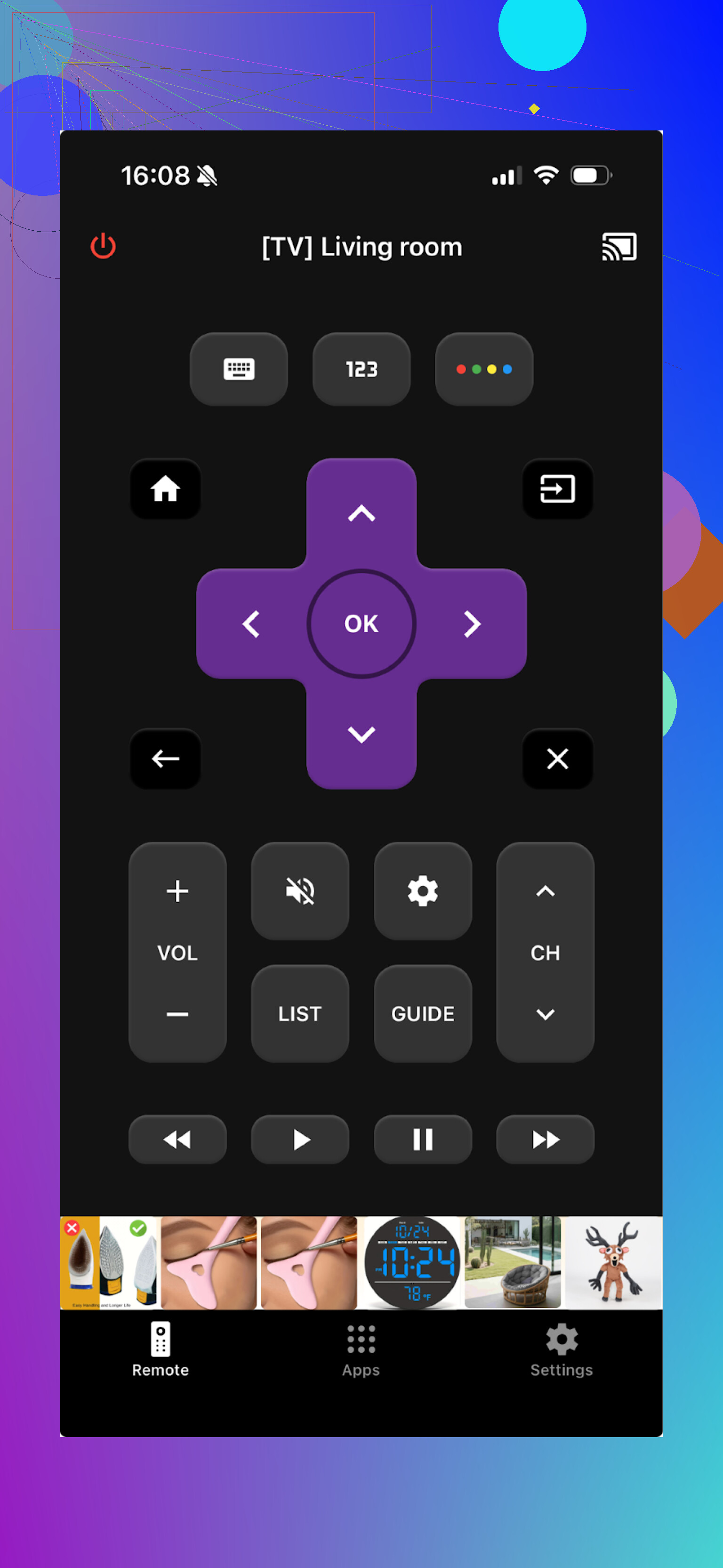
This is a more middle‑of‑the‑road option. It supports LG, Samsung, Sony, Vizio, Android TV and a few others. Good if you have a mixed setup.
The connection is Wi‑Fi based, so your iPhone and TV need the same network.
What is inside:
• Switching apps and channels
• Keyboard input
• Rewind, pause, play, the usual media buttons
Pros
- TV detection and connection were quick
- Interface is easy enough to understand
- The basics are there and work
- Comes with a free trial
Cons
- Ads in the free mode, you need to pay to remove them
- Advanced functions are locked, and almost every extra button opens a purchase screen
Price
From $4.99 up
Link
Verdict
I used the trial to unlock the paid parts. The home screen lagged a bit on my phone, but the rest of the app behaved. My main complaint is the heavy paywalling and ads. It works, but it feels like you are renting your own remote.
Part 2: TV remote apps I tried on Android
On Android, I picked four apps from Google Play that kept popping up in searches and recommendations.
Universal TV Remote Control
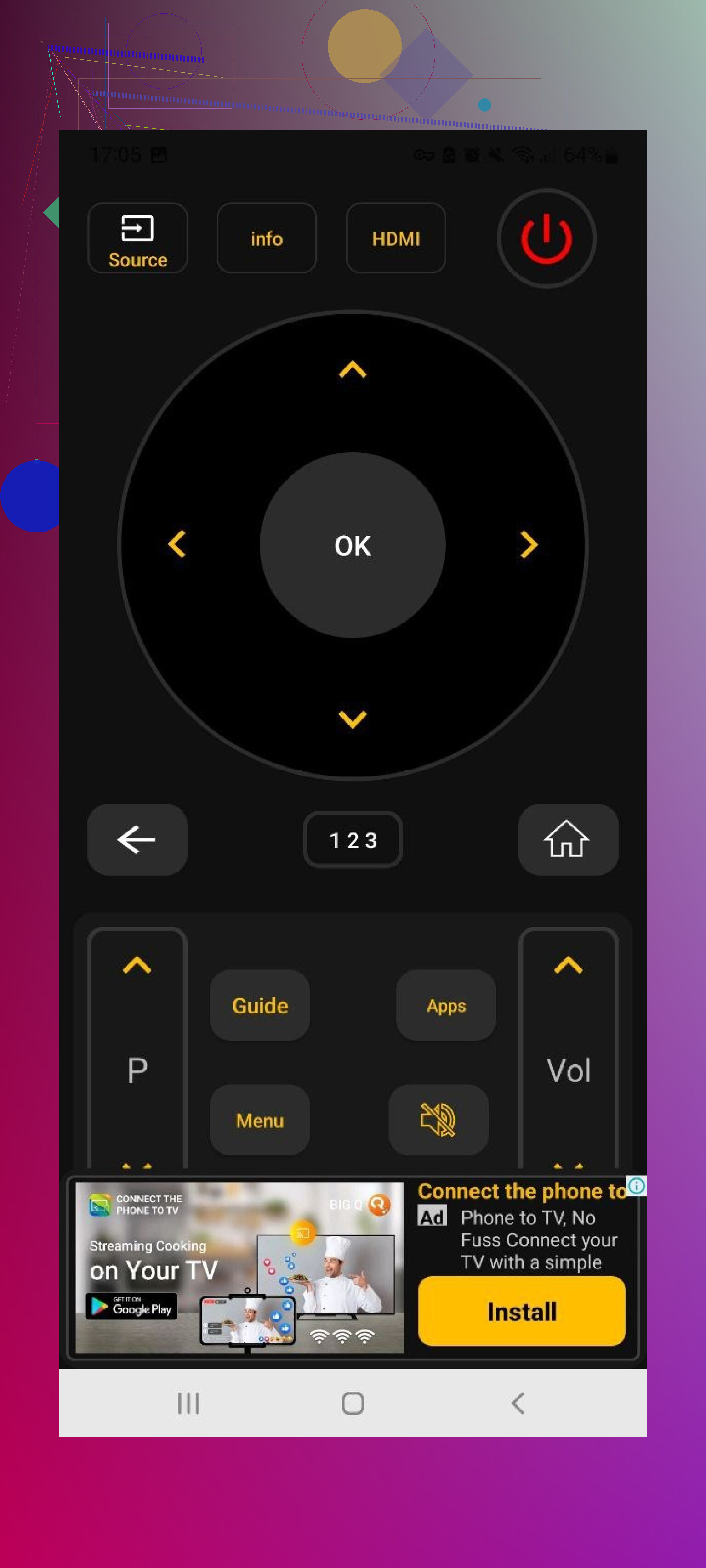
This one is popular, and I see why at first glance.
It supports:
• Sony
• Samsung
• LG
• Philips
• TCL
• Hisense
• Panasonic
• Plenty more lesser‑known brands
Features I liked:
• Trackpad navigation
• Voice search
• App navigation
• On‑screen keyboard
Plus, it works both over Wi‑Fi and as an IR remote if your phone has an IR blaster. That part is useful for older TVs.
The problem: ads. Not “some” ads. A lot of them. Sometimes I got full‑screen ads that were hard to close. It started to feel like playing whack‑a‑mole.
Pros
- Wide support across TV brands
- Works over Wi‑Fi and IR
- Core features are not locked behind payment
Cons
- Massive ad load, including screens I struggled to close
- The app crashed more than once, forcing me to reconnect
Price
Free
Link
Verdict
From a features only view, this would be a solid pick. In real use, the ads broke the experience for me. I would only keep this as a backup, not as my main remote.
Remote Control For All TV | AI
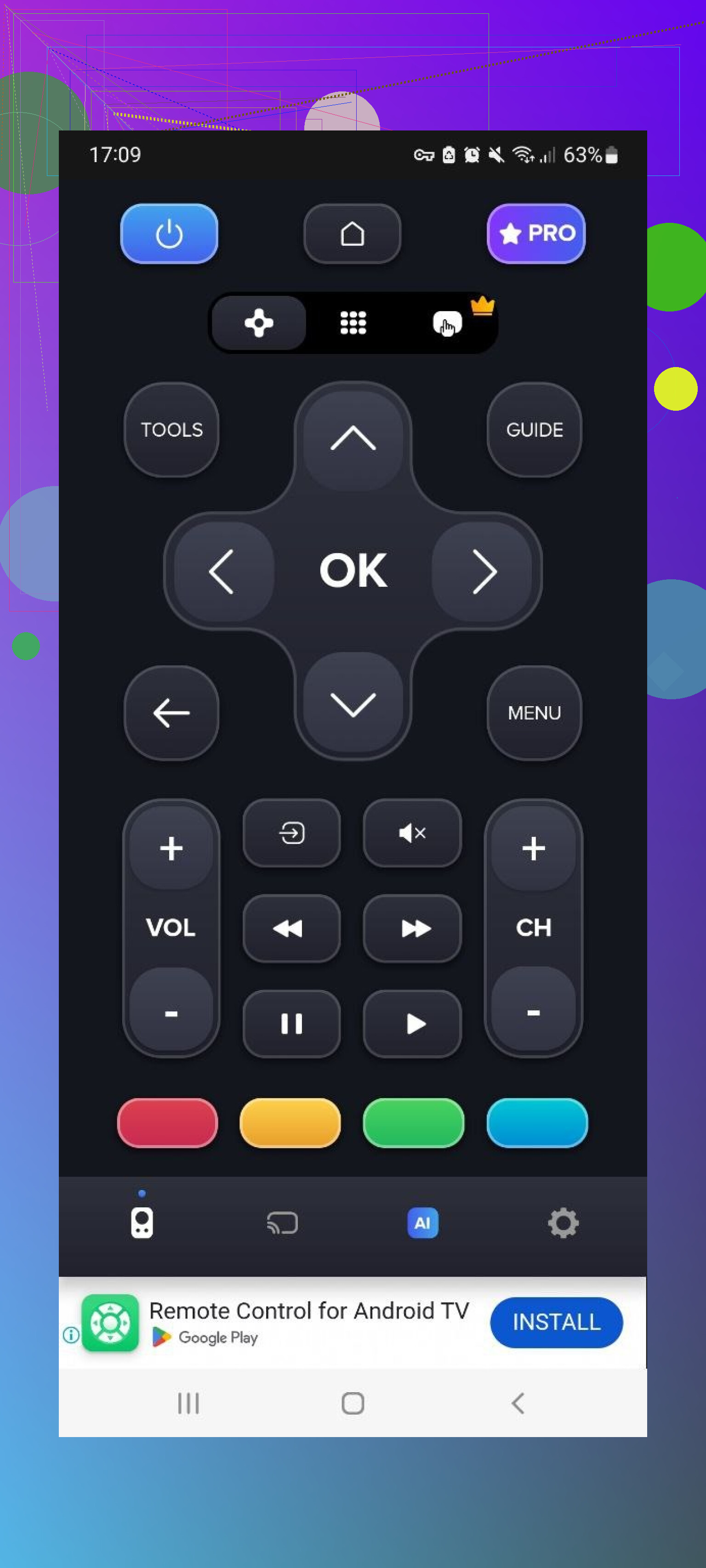
I tried this one on my wife’s phone out of curiosity.
Free version:
• Gives you basic remote buttons
• Has a lot of ads
• Takes a while to find and connect to the TV
Paid version adds:
• Ad removal
• An “AI assistant”
• Full keyboard with voice input
• Screen mirroring
I did not see a strong reason to pay for those in my own use, but some people might like the voice input and mirroring combo.
Pros
- Works with many TV brands
- You get the main remote controls without paying
Cons
- Ad-heavy free tier
- TV detection felt slow compared to others I tested
- Most of the interesting tools sit behind a paywall
Price
From $4.99 up
Link
Verdict
If you only want channel and volume control and you tolerate ads, this is okay. For daily use where you switch TVs or open apps often, the lag and ads started to bother me.
Universal TV Remote Control (Unimote)
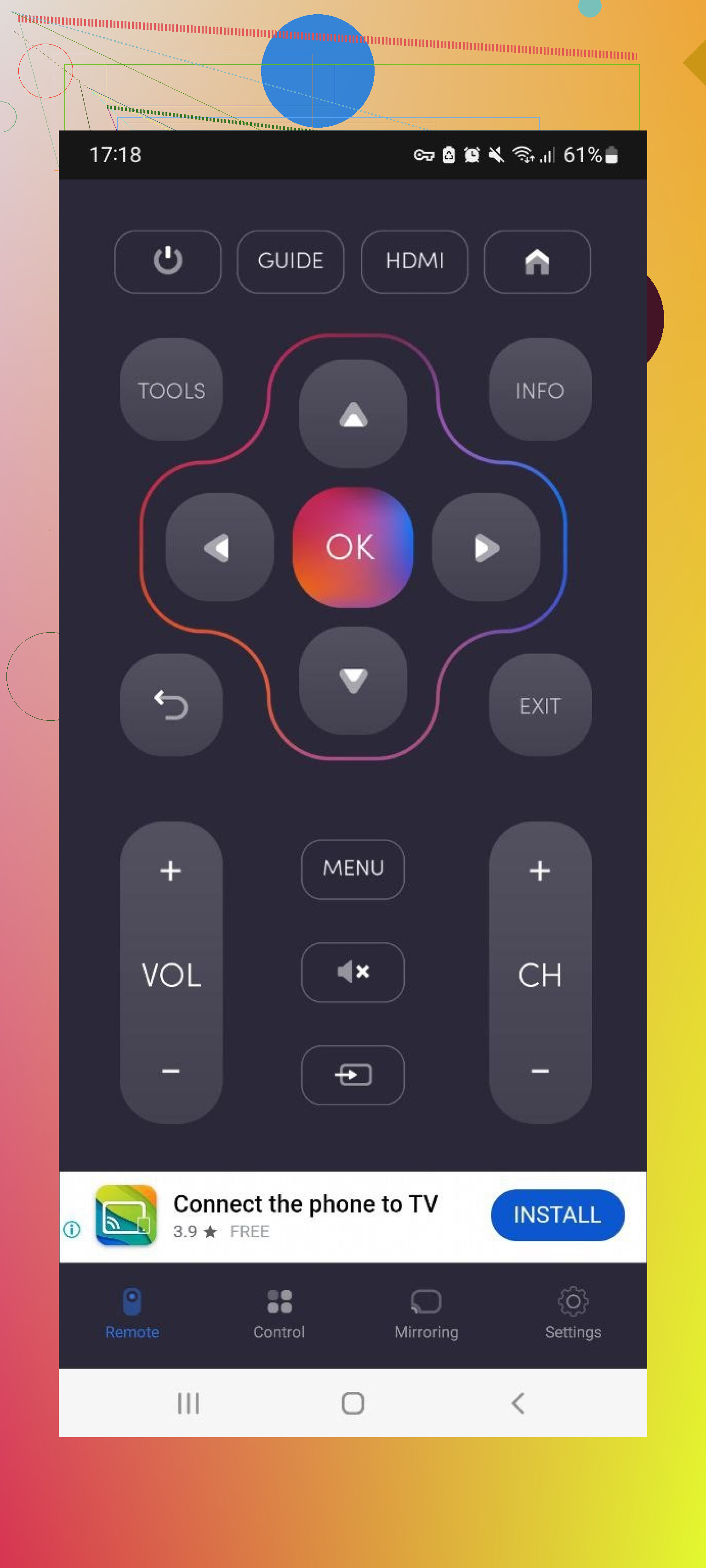
This one works over Wi‑Fi and IR, similar to the previous “Universal TV Remote Control” app, but it is a different developer.
Good things first:
• It detected my TV quickly
• The interface is simple enough
Bad part:
• Connecting took a few tries
• Full‑screen ads appeared so often it felt like a free game, not a remote
• Random disconnects during use
Pros
- Simple UI for navigation
- Works with both IR‑enabled phones and Wi‑Fi smart TVs
Cons
- Heavy use of full‑screen video ads
- Many options locked into in‑app purchases
- Connection stability was weak, I had to reconnect multiple times
Price
From $5.99 up
Link
Verdict
Fine as an emergency backup remote if you mainly rely on a physical one. For regular use, the disconnects and ads made it more hassle than help.
Universal TV Remote Control (another one)
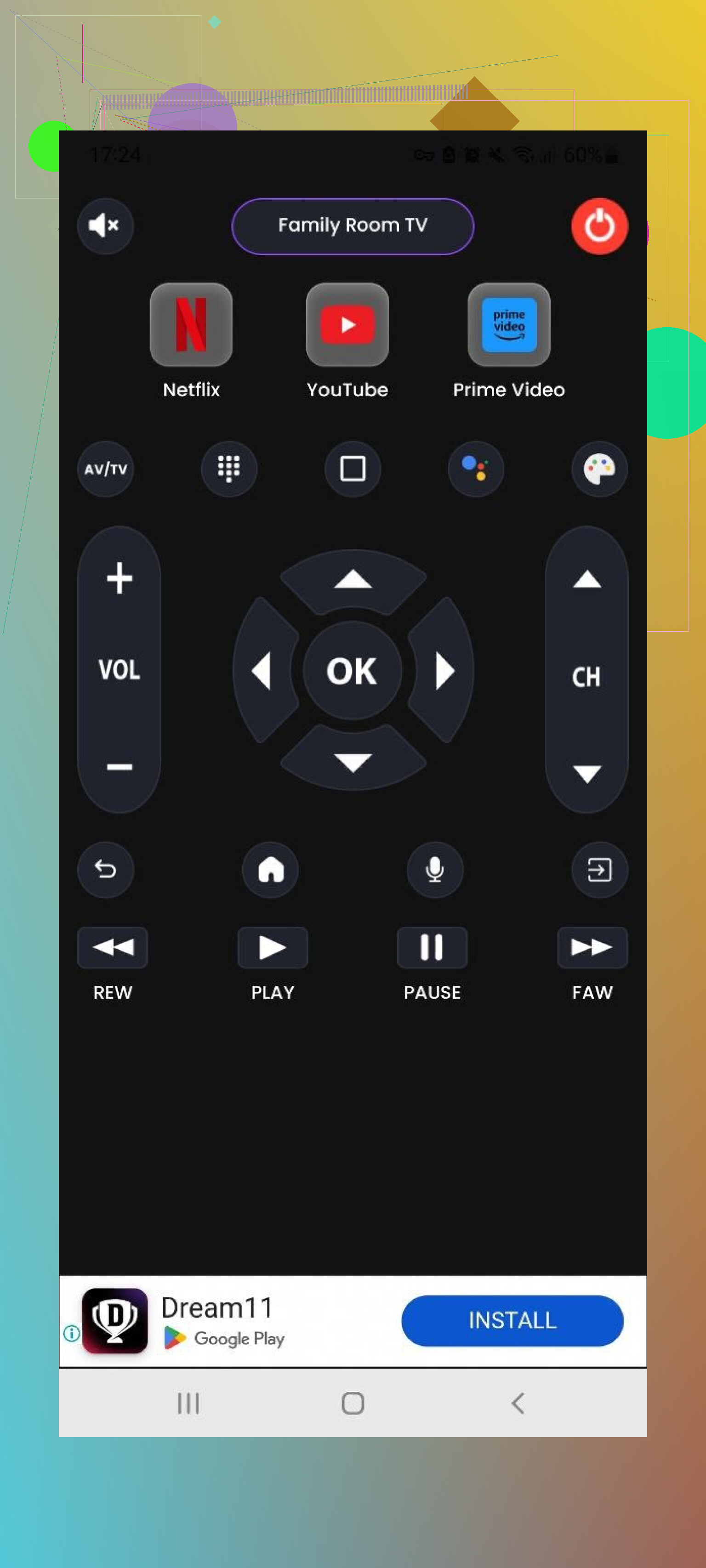
Yes, the names on Google Play are a mess. This is a different Universal TV Remote Control app, and it supports LG, Samsung, Sony, TCL, etc., over both Wi‑Fi and IR.
Core features:
• Power on/off
• Main control screen
• Home/Menu button
• Play, Stop, Back, Forward
So, nothing fancy, but it covers basics.
Pros
- All basic controls are there
- There is a free trial
Cons
- Ad spam all over
- Most of the useful bits are paywalled
Price
From $3.99 up
Link
Verdict
It works, it controls the TV, and then the paywalls and ads start chipping away at your patience. Not worth it for me since there are better behaved options even among the ad‑heavy ones.
Part 3: Mac apps to control a TV
This part surprised me. Controlling the TV from a Mac feels a bit odd at first, but it ended up being nice when watching something while working or mirroring the screen.
I tested two Mac apps from the Mac App Store.
TVRem Universal TV Remote (Mac)
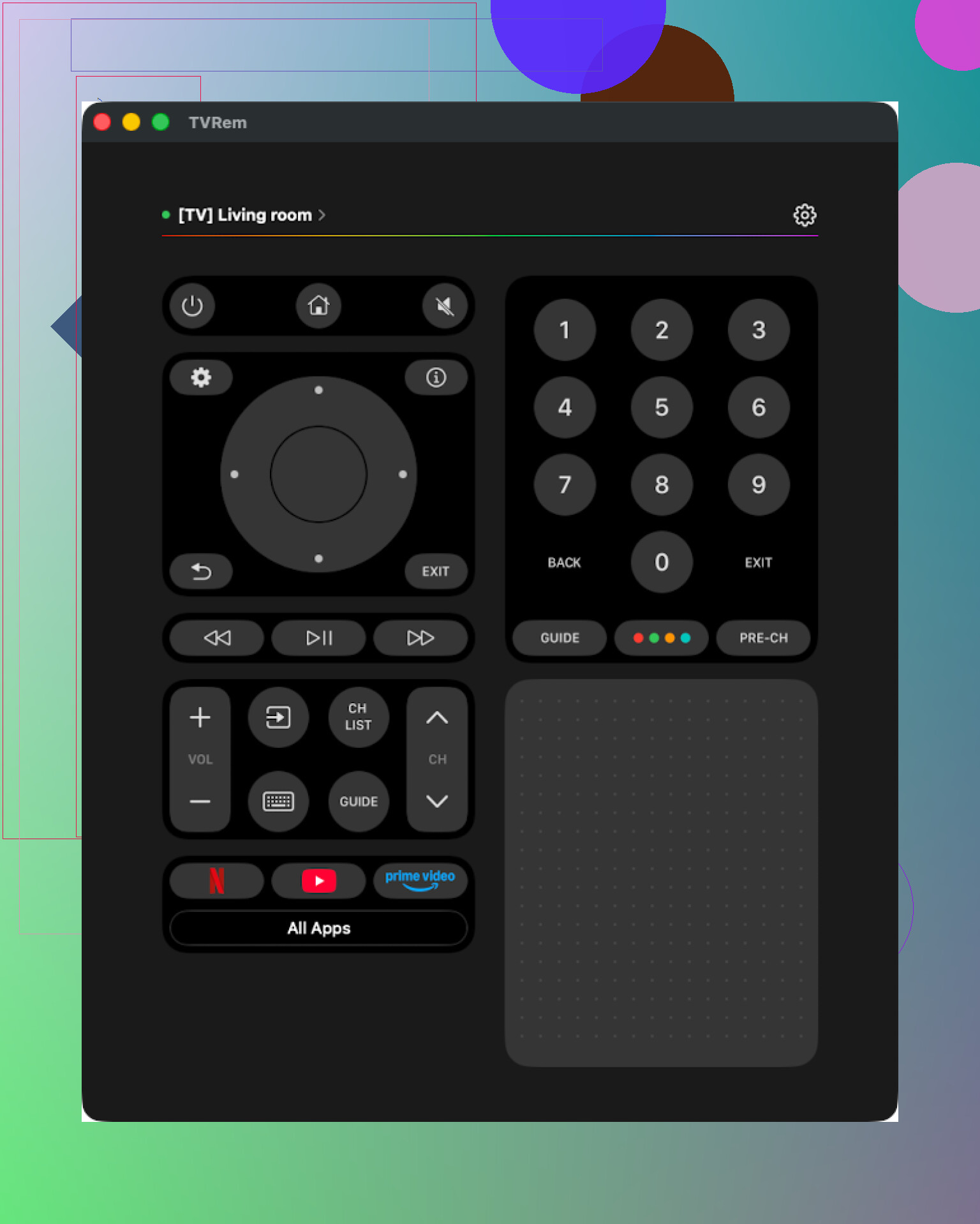
Same name as the iOS app, same dev.
What I did:
• Installed from Mac App Store
• Paired it with a Samsung TV on the same Wi‑Fi
It detected the TV fast, and the UI is clean. You do not have to dig through nested menus. Everything remote‑related is close.
Features that mattered to me:
• Touchpad
• Built‑in keyboard
• App launcher for smart TV apps
• Basic playback controls
No ads popped up, no surprise “subscribe to continue” walls.
Pros
- Simple and clean interface
- No ads, no hidden payment screens
- Works with a bunch of TV brands
- Has all main remote tools without bloat
Cons
- No Vizio support
Price
Free
Link
https://apps.apple.com/us/app/tvrem-universal-tv-remote-app/id6746162794
Verdict
If you want to control your TV from your Mac for basic daily use, this one is hard to fault. The only hard limit is the lack of Vizio support.
TV Remote, Universal Remote (Mac)
Another Mac universal remote app that supports popular brands.
Setup:
• Downloaded from Mac App Store
• Paired to TV easily, no issues there
What bothered me:
• A lot of features I wanted to try were behind a paywall
• I ran into a couple of random crashes during testing
Pros
- Interface is acceptable, not confusing
- Basic controls exist and brand support is wide
Cons
- Many features require payment
- Occasional crashes, so it is not the most reliable
Price
From $4.99 up
Link
Verdict
Usable if you are ok paying for a Mac remote and dealing with an app that might quit once in a while. I would not rely on it as the only way to control the TV.
Part 4: Phone remote apps vs physical remotes
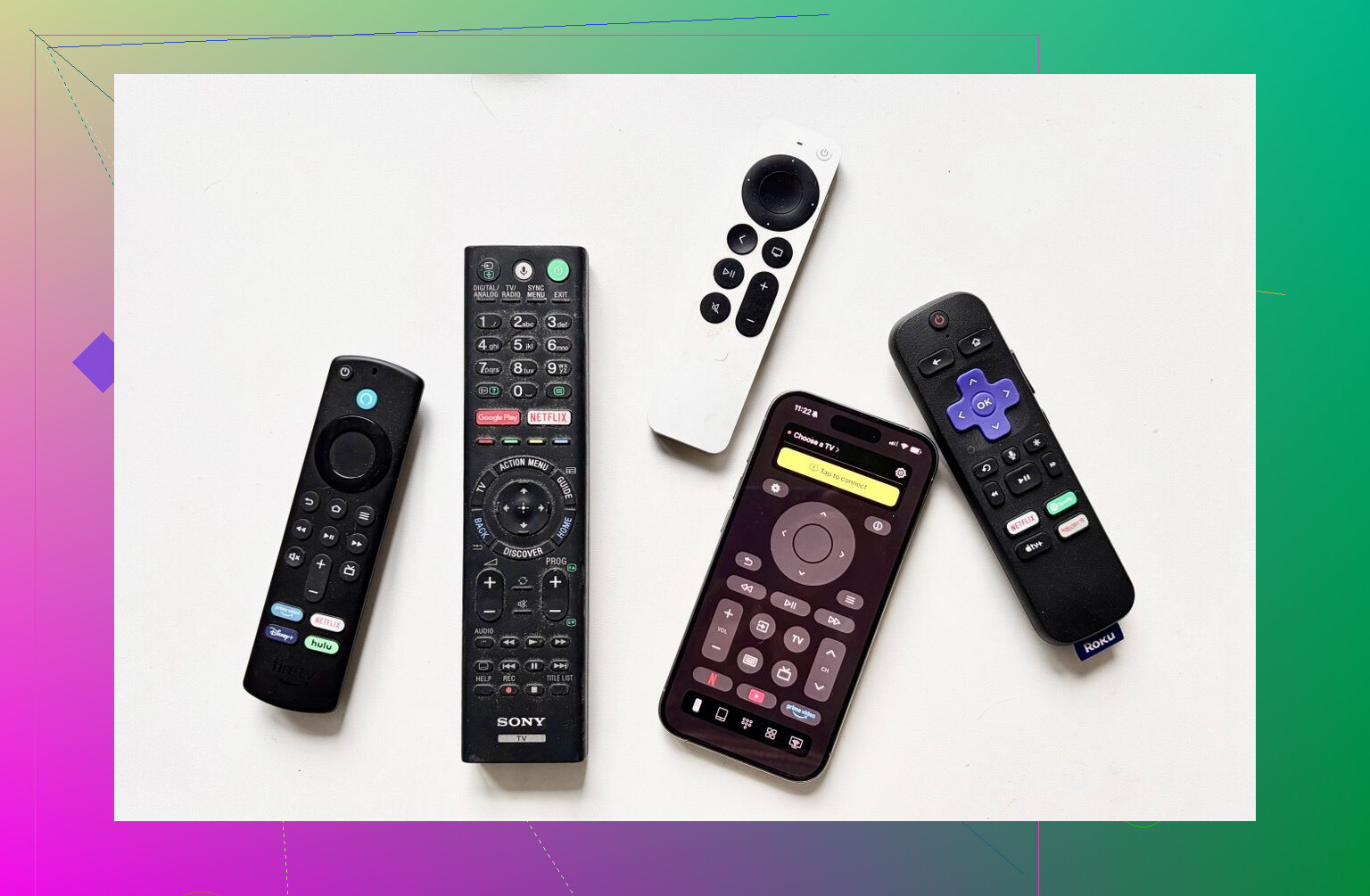
Quick definitions:
Physical remote
The plastic remote that ships with your TV or that you buy as a replacement.
Remote app
Software on your phone or tablet that sends commands to your TV over Wi‑Fi, Bluetooth, or IR.
Why I ended up preferring remote apps in daily use
-
Less chance of losing it
My phone is either on my desk, in my pocket, or near the charger. The TV remote is anywhere except where I need it. -
Text input is not painful
Typing passwords or searching on Netflix with a D‑pad is a chore. Remote apps give you a full keyboard and sometimes voice input. That made sign‑ins much faster for me. -
Cost difference
Replacement physical remotes for recent Samsung TVs (2019–2025) on Amazon sit around 15–20 dollars. Replacement LG remotes easily go from 13 to 35.
Free remote apps skip that cost entirely. Even paid ones usually stay below the price of a new branded physical remote. -
One app, multiple TVs
I control the Samsung and LG from the same phone. No swapping remotes, no guessing which one is which in the dark. -
Nicer interface
Most remote apps I liked have a cleaner layout than the average smart TV remote with 40 random buttons. That made daily navigation faster for me.
Limitations I ran into with remote apps
• Wi‑Fi or Bluetooth dependence
If your TV or router hangs or your phone falls off Wi‑Fi, the app stops working. Some TVs also do not wake from deep sleep over Wi‑Fi.
• Phone dependency
If your phone battery is dead or your kid ran away with it, you are stuck. With a physical remote, at least it is dedicated to the TV.
• Feature coverage
Older or cheaper TV models sometimes only support power, volume, and basic navigation. No advanced stuff like app launching or keyboard.
My takeaways after testing everything
After a couple of weeks using all of these, I ended up with a simple setup.
On my iPhone
TVRem Universal TV Remote became my default. The reasons are boring but practical:
• It is free, no subscriptions hit me later
• It covers all the basic functions I use daily
• The touchpad and keyboard solve most of my smart TV annoyances
• It stayed stable, no crashes on my side
• The only real gap is no Vizio support, which is not an issue in my house
If you need Vizio support, then TV Remote – Universal is worth a trial. When I tried its free trial, it performed well enough to justify buying for users who do not mind paying for a smoother remote. I still preferred TVRem because I did not want another subscription or one‑off cost.
On Android
My wife tested a few with me and landed on Universal TV Remote Control on her phone. From my side, I still dislike the amount of ads in that app. Feature wise it works, supports many brands, and it has both Wi‑Fi and IR. If your tolerance for ads is higher than mine, it might be fine for you.
On Mac
If you want a Mac remote, TVRem Universal TV Remote again was the only one that felt simple and free of friction. The second Mac app I tried needed payment for a lot of functions and crashed occasionally.
If you are trying to pick something for your own setup, I would start like this:
• iPhone with non‑Vizio TV
Try: TVRem Universal TV Remote
• iPhone with Vizio
Try: TV Remote – Universal (with trial first)
• Android with IR blaster and tolerance for ads
Try: Universal TV Remote Control
• Mac control for non‑Vizio
Try: TVRem Universal TV Remote from the Mac App Store
Hope this saves you a few evenings of testing and a few dollars on replacement remotes.
172 Likes
Short version. For a TV, soundbar, and streaming box, I would skip phone apps as the main solution and go with one physical universal remote that speaks HDMI‑CEC and, if needed, IR or Bluetooth.
Here is a simple path that works for most living rooms.
-
Check your gear first
• TV brand and year
• Soundbar brand and how it connects to the TV (HDMI ARC/eARC, optical, or HDMI in)
• Streaming box (Roku, Fire TV, Apple TV, Chromecast, etc.)If TV and soundbar use HDMI ARC/eARC, the TV remote often controls soundbar volume already through HDMI‑CEC. That fixes half your pain without buying much.
-
Easiest all‑in‑one physical remotes right now
a) Sofabaton U2
• Price around 50–60 USD
• Controls up to 15 devices
• Uses IR for TV, soundbar, older boxes
• Activity style buttons, you press one thing and it sends a sequence
• Good if everything sits in the same room and mostly uses IR
• No hub, so you need line of sightb) Sofabaton X1
• Price around 160–200 USD
• Remote plus hub
• Talks to devices over IR, Bluetooth, and Wi‑Fi
• Handles Apple TV, Fire TV, Roku, game consoles
• App setup is clunky but once you finish it, family only touches the remote
• Best pick if you want one button to turn on TV, switch input, set soundbar, and start the streaming boxBetween those two, for a simple living room with TV + soundbar + one streaming box, U2 is often enough. If you have multiple boxes or any stuff in a cabinet, X1 is safer.
-
How to wire stuff for less remote drama
• TV HDMI ARC/eARC port to soundbar HDMI ARC/eARC port
• Streaming box into TV HDMI input
• Enable HDMI‑CEC on TV and soundbar menus
Result, TV power and volume control soundbar and auto switch inputs for the streamer. Your universal remote then replaces the TV remote and controls everything through the TV. -
Simple presets for family use
On something like Sofabaton X1:
• Activity 1: “Watch TV”
Turns TV on, soundbar on, sets TV input to cable/antenna, volume on soundbar.
• Activity 2: “Stream”
Turns on TV, soundbar, streaming box, sets correct input.Remove extra buttons from the screen. Leave Power, Home, Back, arrows, OK, Volume, Mute. Less confusion.
-
Where I slightly disagree with @mikeappsreviewer
Phone and Mac remotes are nice backups. I would not rely on them as the primary remote for a family.
• Phone battery dies.
• Kids get bored and tap ads.
• Wi‑Fi hiccups.
Physical universal remote on the table plus a phone app as backup works better than only apps. -
When a phone remote still helps
If you refuse to spend on hardware or need something today:
• Use a free remote app to get the TV online and set HDMI‑CEC and ARC right.
• After that, use the streaming box remote as the main one.
Most modern streaming box remotes can control TV power and volume over HDMI‑CEC, so your soundbar and TV follow along.
If you share your exact TV model, soundbar model, and streaming box, you get a much more precise “buy this one remote and wire it like this” answer.
Short version: for TV + soundbar + streaming box, there are really 3 sane paths, and only one of them keeps the family from revolting.
I’d look at it this way:
-
Decide who’s the “boss” device
Don’t start with remotes, start with wiring.• If your soundbar is on HDMI ARC/eARC to the TV, let the TV be the boss.
• If your soundbar is on optical, the TV can’t control its volume over HDMI, so the remote has to speak IR directly to the soundbar.This matters more than which universal you buy. A lot of the “universal” mess is just bad wiring and HDMI‑CEC turned off.
-
Check what you already own
This is where I slightly disagree with @mikeappsreviewer and @sonhadordobosque: I would first try to make the streaming box remote the main one instead of immediately buying a universal.• Roku / Fire TV / Apple TV remotes can usually:
TV power + volume + input via HDMI‑CEC
• If your soundbar is on TV’s ARC, that often means:
Streaming remote = single remote for TV + soundbar volume + appsA surprising amount of people buy a $150 universal to fix something a 2‑minute HDMI‑CEC setting could have solved.
-
When that still doesn’t cut it
If you want one remote that truly handles TV + soundbar + streamer regardless of brand:• Sofabaton U2
- Best if everything is IR and in the same room
- Cheaper, no hub, line of sight only
- Great if your streaming box is older or IR based
• Sofabaton X1
- Adds a hub with IR + Bluetooth + Wi‑Fi
- Much better for Apple TV, Fire TV, newer Rokus, game consoles
- Lets you hide stuff in cabinets
- Activity macros like “Watch Netflix” that power everything and pick the right inputs
@mikeappsreviewer is more gung‑ho on phone remotes; I’d keep those as backups. In my house, phones wander off even faster than remotes, and kids + ad‑filled apps = chaos.
-
Practical setup that usually works
• Plug soundbar into TV’s HDMI ARC/eARC
• Plug streaming box into any non‑ARC HDMI port on the TV
• Turn on HDMI‑CEC on:- TV
- Soundbar (if it has it)
- Streaming box
• Program either: - Your streaming box remote to control TV power/volume
- Or a Sofabaton to run “Watch TV” and “Watch Streaming” activities
After that, your universal remote really just has to talk mostly to the TV and maybe directly to the soundbar if ARC isn’t involved.
-
Where phone apps actually help
Slight agreement with @mikeappsreviewer here: apps are handy to:• Quickly rename inputs
• Log into apps with a keyboard
• Fix settings after the kids nuke somethingBut as a daily family remote, nah. Wi‑Fi drop, low battery, notifications popping up over the buttons… it’s cute until someone misses their show.
If you drop your exact TV model, soundbar brand, and which streaming box you’re on, it’s possible to say “buy Sofabaton U2 / X1, wire it like this, set up these 2 activities, hide the rest” and you’re done. Right now, my default recommendation for a family with mixed gear is:
• Try to make the streaming remote your primary first
• If that fails: Sofabaton U2 for all‑IR setups, Sofabaton X1 if you’ve got Bluetooth streamers or stuff in cabinets
Shortest version: for a simple, family‑friendly “one thing controls TV + soundbar + streamer,” I’d skip pure phone apps and go with a hybrid setup: physical universal remote as the daily driver, phone apps only as backup and for typing.
Since others already covered wiring and apps in detail, here’s a different angle: what actually keeps the family from getting confused six months from now.
1. Pick a hardware universal remote first, not an app
@sonhadordobosque and @mikeappsreviewer leaned harder into app remotes; @shizuka focused on wiring and HDMI‑CEC. I partly disagree with the “apps-first” mindset.
In a shared living room with kids and guests, a dedicated plastic remote still wins over:
- No popups
- No ads
- No Wi‑Fi dependency
- No “where’s my phone?” drama
Use phone apps strictly as tools, not as the main way to watch TV.
2. What I’d actually buy for TV + soundbar + streaming box
You did not list exact models, so I’ll keep it brand‑agnostic and focused on what works across setups.
A. Sofabaton U2 (all‑IR setups, budget choice)
Best if:
- TV, soundbar and streaming box all accept IR
- Gear is in the same room, visible from the couch
- You want physical buttons, no hub
Pros
- Controls up to multiple devices with one remote
- Decent activity macros like “Watch TV” that can power things and set inputs
- Physical volume, channel, navigation keys that feel like a real remote
- Cheaper than most hub systems
Cons
- IR only: no Bluetooth control for newer Apple TV, some Rokus, game consoles
- Needs line of sight
- Setup is more manual than “download app and tap next”
If your streamer uses an IR remote today (older Roku, cable box, basic Android box), Sofabaton U2 can usually learn it.
B. Sofabaton X1 (mixed IR + Bluetooth, cleaner for families)
Best if:
- You have a Bluetooth streamer (Apple TV, Fire TV, newer Roku)
- Some gear is hidden in a cabinet
- You want one remote that behaves close to the old Logitech Harmony style
Pros
- Hub with IR blasters + Bluetooth
- Can control TV, soundbar and streaming box without line of sight
- “Activities” like “Watch Netflix” that do power + inputs in one press
- Cleaner for guests: “Press the top button for TV, that’s it”
Cons
- Costs more than U2
- Setup is mostly through a smartphone app
- Occasional firmware quirks if you like to tinker
If your family struggles now, X1’s biggest win is that they never choose devices. They just pick an activity and everything lines up.
3. Where phone remotes fit in (and where I disagree with others)
@sonhadordobosque and @mikeappsreviewer did nice, detailed app testing. My twist:
- Use something like TVRem Universal TV Remote on iPhone or Mac as a secondary remote.
- Let it handle:
- Keyboard typing for passwords
- Occasional settings changes
- Emergency use if kids lose the physical remote
Pros of TVRem style apps
- Free or very low cost
- No crazy ads if you pick carefully
- Great for inputting text and quick navigation
Cons
- Useless if Wi‑Fi drops or the TV is in a weird network state
- Not great for non‑tech family members who just want volume and power
- Still cannot fully replace a good universal for multiple devices at once
So I’d flip the priority some others suggested:
Physical universal first, apps as a helper, not the core.
4. How to make your setup easy for the whole family
Independent of brand, do this:
-
Wire it so the TV is the center
- Streamer into a normal HDMI port on the TV
- Soundbar into the TV’s HDMI ARC/eARC if possible
-
Enable HDMI‑CEC on TV, soundbar and streamer
- Lets one device send power/volume commands across HDMI
-
Program your universal remote activities
- Example: “Watch Streaming”
- Turn on TV
- Turn on soundbar
- Select right HDMI input on TV
- Optionally ensure soundbar is on the HDMI ARC input
- Example: “Watch Streaming”
-
Hide the old remotes in a drawer
- If people see 3 remotes, they will use 3 remotes
- Leave only the universal on the coffee table
5. How this compares with the others’ advice
- I agree with @shizuka that wiring and CEC are more important than the specific remote brand.
- I partly disagree with @mikeappsreviewer’s preference for phone remotes as daily drivers: on a quiet tech household maybe, but in a family room, a purpose‑built remote keeps chaos down.
- I agree with @sonhadordobosque that a lot of free apps are “fake free” and packed with ads, which is another reason to keep them as tools, not main remotes.
If you share your exact TV brand/model, soundbar brand, and which streaming box you use, I can narrow it to “Sofabaton U2 vs Sofabaton X1” and give you a concrete “press this once, everything turns on” layout. Right now, my honest recommendation for a non‑tech family is:
- Get a Sofabaton (U2 for all‑IR, X1 for Bluetooth or hidden gear) as the main remote
- Use a free app like TVRem Universal TV Remote on your phone or Mac only for typing and rare tweaks
- Turn on HDMI‑CEC and you will not need to touch the TV or soundbar remotes again.
Try one-brand consolidation using your TV’s OEM smart remote.
Example: Samsung One Remote or LG Magic Remote.
Setp: Plug streamer into a TV HDMI. Connect soundbar to HDMI ARC or eARC. Turn on HDMI CEC in TV and soundbar. Pair teh TV remote to control soundbar volume and power. In TV settings, program remote for the streamer.
Result: One remote runs power, input, and volume. Cost 15 to 35 dollars. Setup 10 minutes. I did this on a Samsung 2020 and an LG 2019, both worked clean.