I accidentally formatted an external hard drive that had important photos, work documents, and backups on it, and now I’m trying to figure out the best data recovery method before I make things worse. I need help choosing a reliable hard drive recovery tool or recovery service that actually works after formatting, especially if there’s a good chance of getting files back.
Formatted the Wrong Drive? Here’s what I’d do first
I did this once, picked the wrong disk, hit format, watched the bar finish, then felt sick. The drive showed up empty and I figured I had erased my life in one click. Turned out it was bad, but not always fatal. If you did the same thing, slow down and stop touching the drive.
First step, stop using the drive
This matters more than people think.
If it’s an external drive, unplug it.
If it’s internal, leave it alone. Don’t download stuff to it. Don’t install programs there. Don’t copy files onto it. Don’t run random repair tools because a search result said so.
What hurts recovery is new writes. Once old data gets overwritten, you’re done.
Check for copies before you do recovery work
I’ve seen people panic, then find half their files sitting in cloud sync.
Look in:
- OneDrive
- Google Drive
- iCloud
- Windows File History
It sounds too obvious, I know. Still worth checking. I’ve watched people burn an hour on recovery scans, then realize their desktop folder had been syncing the whole time.
Quick Format vs Full Format, this part changes your odds
A lot of the confusion starts here.
Quick Format
With a Quick Format, the system often removes the file system records and makes the drive look empty. The files themselves may still be sitting on the disk until new data lands on top of them.
So yes, recovery software often works pretty well after a Quick Format.
Full Format
A Full Format is rougher. Modern systems usually write across the disk and check for bad sectors. If the original data got overwritten, recovery tools won’t piece it back together.
So if you did a Full Format, your odds drop hard.
If there’s no backup, I’d move to recovery software
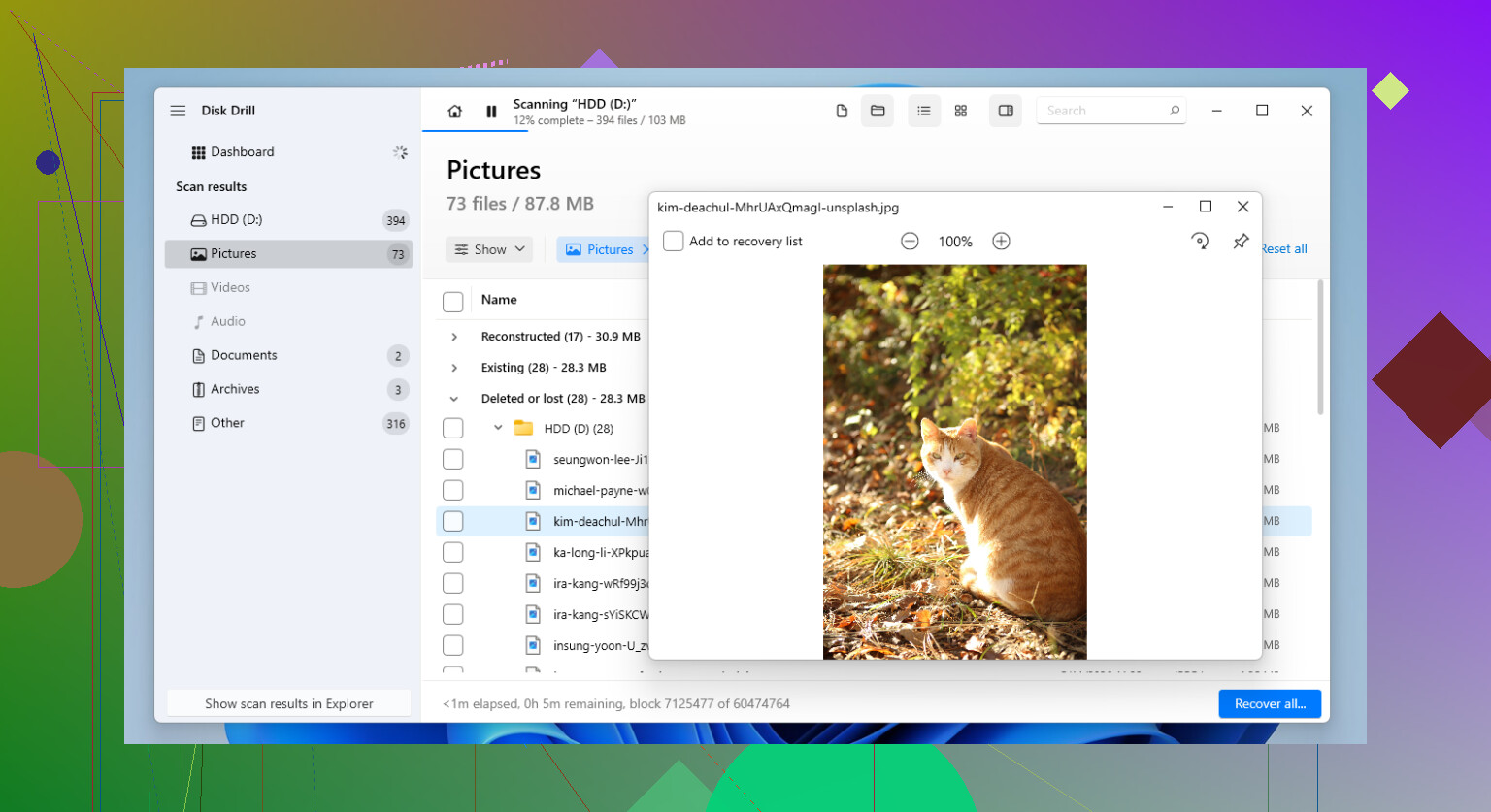
After trying a bunch of tools over time, I’d usually start with Disk Drill for a formatted drive.
What I liked when I used it was simple stuff. It didn’t fight me. It supports common file systems, runs on Windows and Mac, and it tends to find a decent amount after a format.
One feature I’d pay attention to is the Byte-to-Byte Backup option. I prefer scanning an image of the drive instead of hammering the original disk directly, esp if the drive is old or acting weird.
The basic process I’d follow
- Install Disk Drill on a different drive.
- Scan the formatted drive.
- Wait. Some scans take a while.
- Preview what it finds.
- Recover the files you want.
- Save them somewhere else, never back onto the same drive.
That last part is non-negotiable. Writing recovered files back to the source drive is how people wreck their own recovery.
Preview matters more than people expect
I learned this the annoying way.
If a photo opens in preview, or a document renders normally there, your recovered copy has a better shot of being usable. If preview is broken, I’d lower expectations.
So don’t grab a giant batch blindly. Spot check first.
If you want a free option
PhotoRec is worth a look.
It’s good. Also kind of a pain.
You get a lot of raw recovery power, but the tradeoff is mess. File names often come back mangled or missing, and folder structure tends to vanish. If you recover thousands of files, sorting them later gets old fast. I did it once and would not call it fun.
The short version
Recovery after formatting is a time problem.
Use the drive less, and your odds stay higher.
Keep using it, and you chip away at what’s left.
So if this happened to you:
- stop using the drive
- check cloud backups and File History
- figure out if it was a Quick Format or Full Format
- run recovery software only from another drive
- save recovered files to a different location
I’ve seen near-complete recoveries after a format. I’ve also seen people wipe out their own last chance by continuing to use the disk for a day or two. If the files matter, treat the drive like evidence and leave it alone.
7 Likes
If the drive matters, I’d do one thing before any scan. Clone it first.
I slightly disagree with @mikeappsreviewer on jumping straight into a scan, even with decent software. If the enclosure, cable, or disk is flaky, repeated reads make things worse. A sector-by-sector image gives you one stable source to work from. On Windows, HDD Raw Copy Tool works. On Linux, ddrescue is better if the drive has bad sectors.
Then test recovery against the image, not the original.
For software, Disk Drill is a solid first pick if you want a clean UI and preview support. R-Studio is stronger for damaged file systems and mixed partitions, but it’s less beginner-friendly. PhotoRec finds a ton, but filenames come back trashed, which is a pain for work docs and photo libraries.
My order would be:
- Make an image.
- Scan the image with Disk Drill.
- If results look weak, try R-Studio.
- Recover to a different disk.
One more thing people miss. If this was an SSD in a USB enclosure, TRIM might have wiped blocks fast. Recovery odds drop a lot there. Old spinning HDDs usually give better odds after a quick format.
For a clean walkthrough, this step by step guide to recover files from a formatted hard drive is worth watching.
If the files are business-critical or irreplaceable family photos, stop DIY at the first sign of clicking, disconnects, or I/O errors. Lab recovery is expensive, but so is making it unrecoverable.
I’d split this into one decision first: do you need file-system recovery or raw file carving. That’s where I slightly part ways with @mikeappsreviewer and @mike34, because people often obsess over quick vs full format and forget the type of files matters too.
If you need original folder structure, filenames, and timestamps for work docs, projects, backups, etc, use something that can rebuild the file system view. That’s where Disk Drill makes sense for a formatted external drive, mostly because previewing results is easy and you can tell fast whether it’s finding real metadata or just a pile of generic files. If all you care about is “just get the JPGs back somehow,” then even messy carving tools can work.
One thing I would not do yet is run CHKDSK, First Aid, or any “repair this drive” tool. Those are for fixing a usable disk, not for preserving deleted/formatted data. People mix that up allll the time.
Also, if the drive was used for backups, be careful with expectations. Backup containers, archives, and virtual disks can recover as one giant damaged file instead of nice clean folders. Photos usually recover better than complex backup sets.
If you want a readable walkthrough before picking software, this Disk Drill review and recovery guide for formatted drives is probly worth a look.
My practical take:
- photos and docs: decent chance after quick format
- backup archives: lower chance, more all-or-nothing
- SSD in USB case: much worse odds
- clicking/disconnecting drive: stop DIY stuff
So yeah, Disk Drill is a reasonable first pass, but judge it by preview quality and recovered folder structure, not just by “wow it found 300,000 files.” That number can be total nonsense tbh.