I found an old USB thumb drive with important photos and documents, but my computer will not open it and sometimes does not recognize it at all. I need help finding the best USB recovery tool or method to recover files from an old thumb drive without making the problem worse.
I’ve had this happen enough times that I stop trusting my own flash drives after a while. You plug one in, expecting your files, and Windows gives you an empty folder or the lovely ‘you need to format the disk’ message. Since deleted USB files skip the Recycle Bin, it feels sudden. One bad click, then your stuff looks gone.
If this happened to you, don’t start throwing random recovery apps at the drive yet. A few boring steps matter more than people think.
First things I check
-
Open Disk Management and see if Windows still sees the USB stick at all. If it shows up as RAW, unallocated, or with a broken partition, software recovery still has a shot. If the drive is missing there too, I’d stop assuming this is a software issue. At that point it smells more like hardware failure.
-
Pull the drive out right away. I learned this the hard way. The more you write to it, the more you risk replacing the files you want back.
-
Don’t save recovered files onto the same USB drive. Put them on your PC or another external disk. Writing them back to the damaged drive is how people lose round two.
Picking a recovery tool
For most people, I’d start with Disk Drill. It covers the stuff USB drives usually screw up on: deleted files, accidental format jobs, RAW file systems, messed-up partitions, and other logical damage.
What stood out to me was its scan approach. It doesn’t stick to one method and call it a day. It runs through multiple recovery routines and checks for a long list of file types in one pass. If your drive got hit in a normal, messy Windows way, this tends to help.
There’s also a byte-to-byte backup option, and I think more people should use it when a USB drive starts acting flaky. If the stick disconnects on its own, freezes Explorer, or vanishes mid-scan, making an image first is safer. Scan the copy, leave the original alone. Less stress on a dying device.
The preview tool helps too. I like being able to see whether a file opens before spending time exporting a pile of junk.
If you want a free route
PhotoRec is still one of the better no-cost picks. It works differently from the usual recovery apps. Instead of depending on the file system, it scans the raw data on the device and looks for known file signatures. If the file system is trashed or flat-out missing, PhotoRec still pulls stuff out sometimes when nicer-looking tools don’t.
The catch is the interface. It’s old-school, text-heavy, and not friendly if you haven’t used tools like this before. Also, file names and folders usually do not come back in a usable way. You end up with a pile of generically named recovered files and get to sort them yourself. I did this once with a large photo folder. Never agian. It worked, but sorting the output was a chore.
What I’d do first
I’d try Disk Drill before anything else. If it sees your files with the original names and folder layout, you save yourself a lot of cleanup later.
If it doesn’t, then I’d look at PhotoRec as the backup plan, mostly for cases where the file system is too far gone and you’re willing to trade convenience for a better shot at pulling raw files back.
17 Likes
Stop plugging it in and hoping Windows changes its mind. Intermittent detection is a bad sign.
I agree with part of what @mikeappsreviewer said, but I would not start with file recovery first if the drive drops in and out. First, clone it. Use USB Image Tool, HDD Raw Copy Tool, or ddrescue on Linux. Read the stick once, save an image, work from the image. Old thumb drives tend to get worse fast, and repeated scans are rough on them.
If the USB shows a size of 0 bytes, disappears from Disk Management, or gets hot, skip software. That points to hardware trouble. A recovery shop is the safer route if the files matter.
If the image works, then use Disk Drill on the image file. It is one of the easier options for photos and docs, and the preview helps weed out junk fast. For a plain-English overview, this Disk Drill review is decent, watch this Disk Drill recovery walkthrough.
Small check too. Clean the USB contacts with isopropyl alcohol and try a rear motherboard port, not a front panel hub. Sounds dumb, but I’ve seen it fix wierd reads more than once.
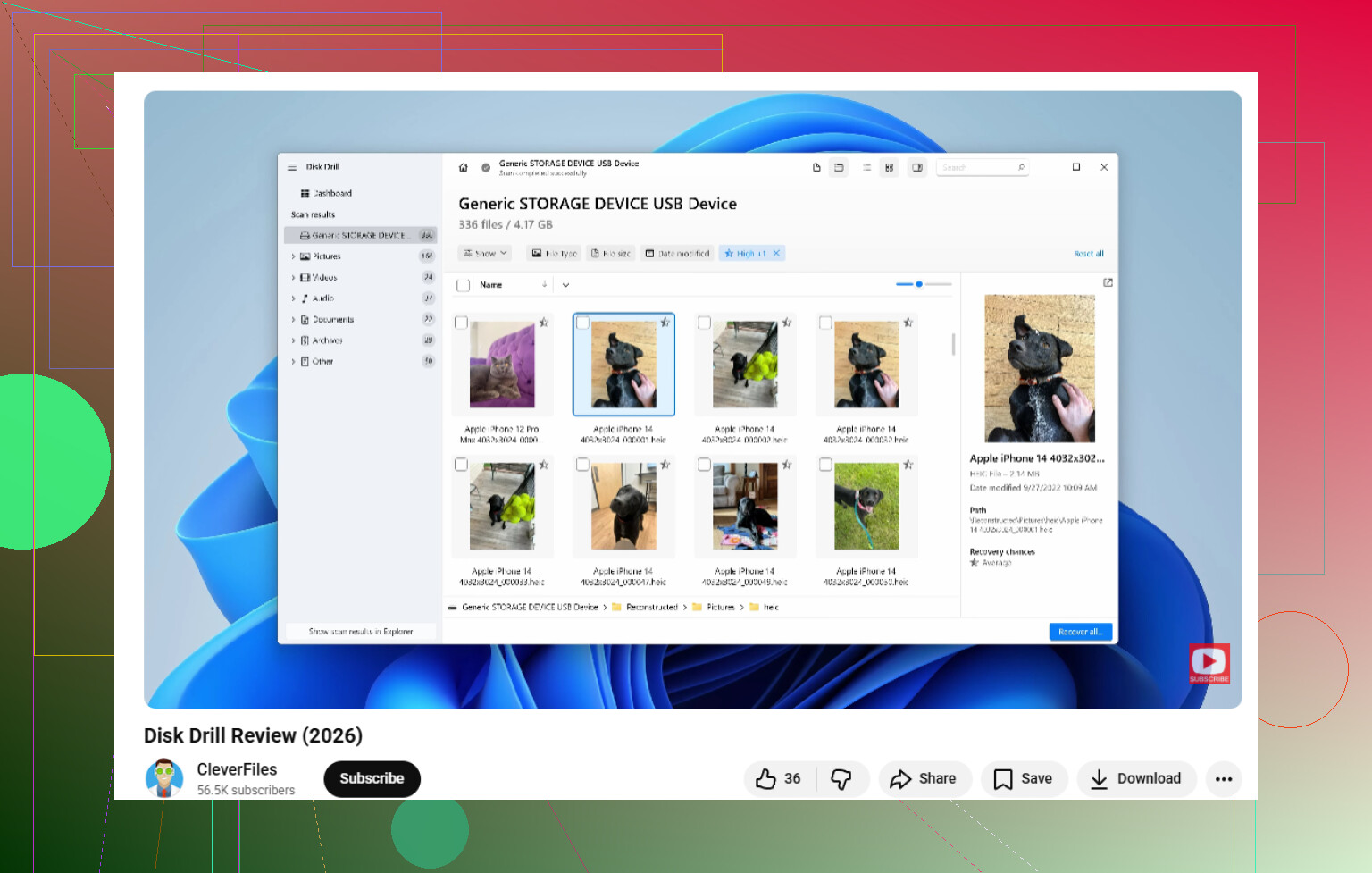
If it’s only sometimes recognized, I’d actually split this into 2 paths instead of jumping straight into the same recovery flow @mikeappsreviewer and @reveurdenuit mentioned.
If the stick appears consistently enough to read, use a SMART-ish USB check or at least watch Event Viewer for disconnect spam. Intermittent connect/disconnect can mean the controller is flaking out, not just file system corruption. In that case, long deep scans can do more harm than ppl expect.
One thing I’d try that rarely gets mentioned: test it on a different OS. A Linux live USB can sometimes mount a stubborn flash drive read-only when Windows just throws a fit. If Linux sees the partition, copy the important stuff first, ask questions later.
If it does mount but folders are missing, then yeah, Disk Drill is a solid pick for USB recovery because it’s easier to sort photos/docs without digging through total chaos. If the structure is gone, that’s where the pain starts.
Also worth reading: real-world RAW USB data recovery tips
My order would be:
- Try another cable/port/PC/OS
- If readable, copy files manually first
- If not, image it if possible
- Run Disk Drill on the image or the drive
- If it keeps vanishing, stop messing with it and consider pro recovery
If the photos are irreplaceable, dont do ten different scans “just to see.” That’s how old flash media turns into ewaste with memories attached.
I’d add one check nobody mentioned: look in Device Manager under Disk drives and USB controllers while plugging it in. If it appears for a second as “USB Mass Storage Device” and then drops, that often points to controller or power instability, not just a bad file system. In that case, I actually disagree with doing too many “test scans” even on different machines. Every reconnect can be the one it doesn’t come back from.
If it stays visible long enough, try a read-only environment if you can. A write-blocked setup is ideal, but even booting into a live OS and avoiding Windows auto-fixes helps. Also disable any prompts to “scan and repair.”
On software, Disk Drill is a reasonable middle ground after imaging or if the stick is stable enough:
- Pros: easy preview, good for photos/docs, handles RAW and lost partitions decently, less painful than command-line tools
- Cons: not magic for failing hardware, deep scans can return lots of renamed files, paid limits can annoy people
If Disk Drill doesn’t find structure, I’d switch tactics and target the file types you care about most rather than doing endless full-device passes.
@reveurdenuit, @sterrenkijker, and @mikeappsreviewer all covered the main lane pretty well. My only twist is this: if the drive is intermittently detected, spend less time “recovering” and more time verifying whether the USB controller is even staying online. That diagnosis changes everything.