I’m a designer starting to manage my own website files and I’m overwhelmed by how many FTP tools are out there. I need suggestions for 3 reliable, user friendly FTP clients that work well for design workflows, like quick file previews, syncing, and easy uploads. What are your go to FTP clients for designers and why do you prefer them?
Design work usually looks glamorous on the surface, but a lot of it is just… shuffling files around. Mockups, exports, fonts, assets, staging sites, client revisions, “final_v3_really_final.psd” type chaos. If your FTP / file setup sucks, you feel it every single day.
Here’s how I’ve been juggling three different tools in that space and where each one actually makes sense instead of just bloating your dock.
Using Cyberduck when everything lives in the cloud
Design these days is half “local files” and half “somebody dropped this in a shared drive at 2 a.m. with no context.”
Cyberduck ends up being that slightly boring, dependable app you keep opening because:
- It talks to traditional FTP/SFTP, sure, but also:
- Google Drive
- Dropbox
- OneDrive
- Amazon S3
- A bunch of other cloud storage setups you forget the names of until the client brings them up
- The UI is straightforward. Not pretty, not ugly. Just there, and it doesn’t fight you.
- You can jump between a web host and a cloud folder without doing the “download to desktop then reupload” dance.
So a very real example:
Client keeps all their product photos in Google Drive, but the website is on some cheap shared hosting with FTP access. With Cyberduck, I hook both up, drag from the Drive folder to the server, done. No syncing, no browser tabs, no exporting ZIPs.
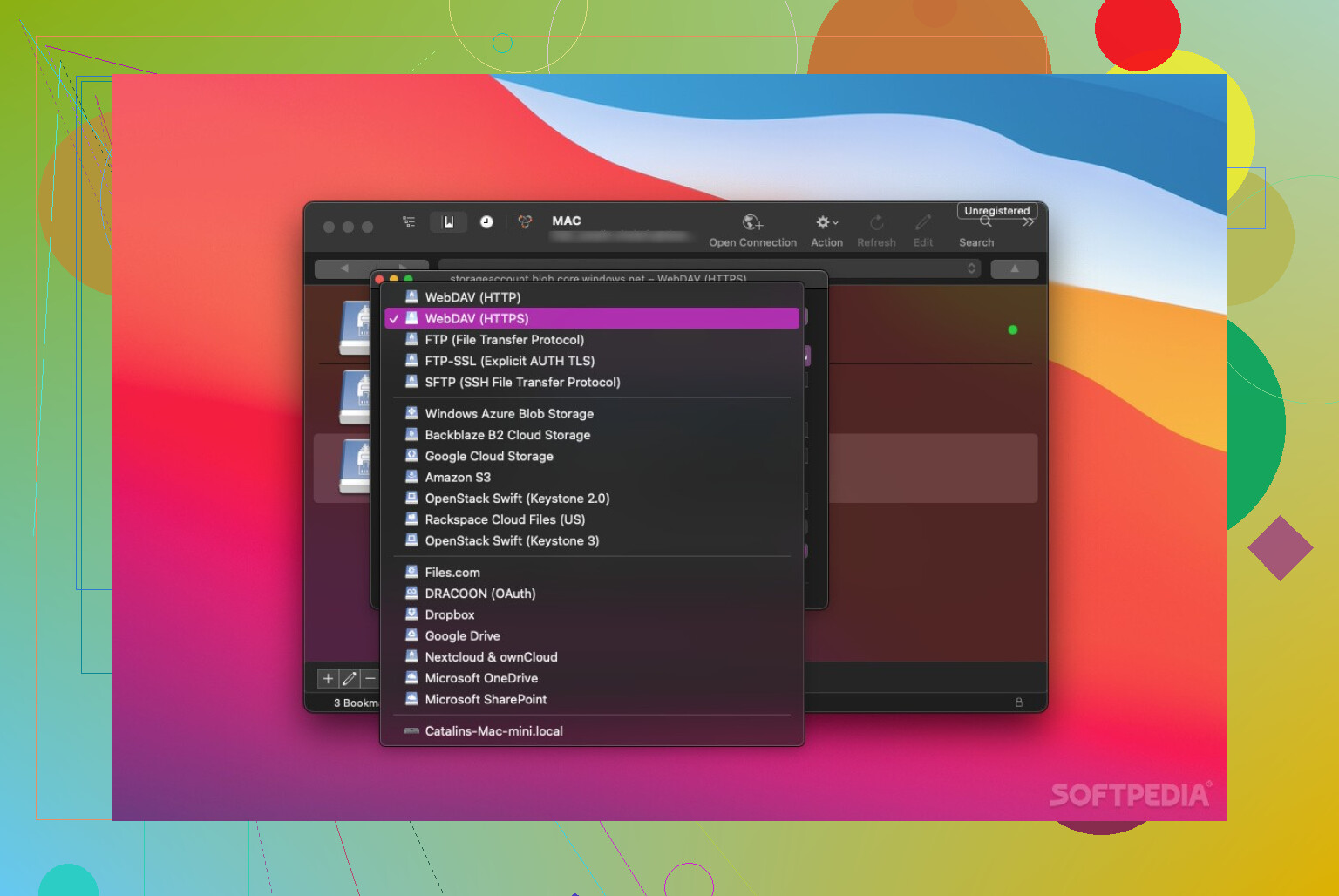
If your workflow is scattered between different services and you’re constantly asking “where did they put that file again?”, this one is worth having around just for its ability to sit in the middle and not complain.
Commander One when you basically live on macOS
If you’re on a Mac all day and love the Finder but also kind of hate it, Commander One scratches a specific itch.
What it does well:
- Dual‑pane view, so you can have:
- Local project folder on the left
- Server / cloud storage on the right
- Drag files across like you’re just moving stuff between two folders.
- Handles archives (ZIP, etc.) in a way that doesn’t make you want to scream when clients send you nested zip-inside-zip insanity.
- Plays nicely with a bunch of cloud platforms and connections, not just plain FTP.
Typical use case for me:
Left pane: /Users/me/Projects/BrandSite/v2
Right pane: /public_html/wp-content/themes/brand-v2
I can:
- Compare exported images vs what’s live
- Replace only what changed
- Clean out junk files I forgot I even uploaded
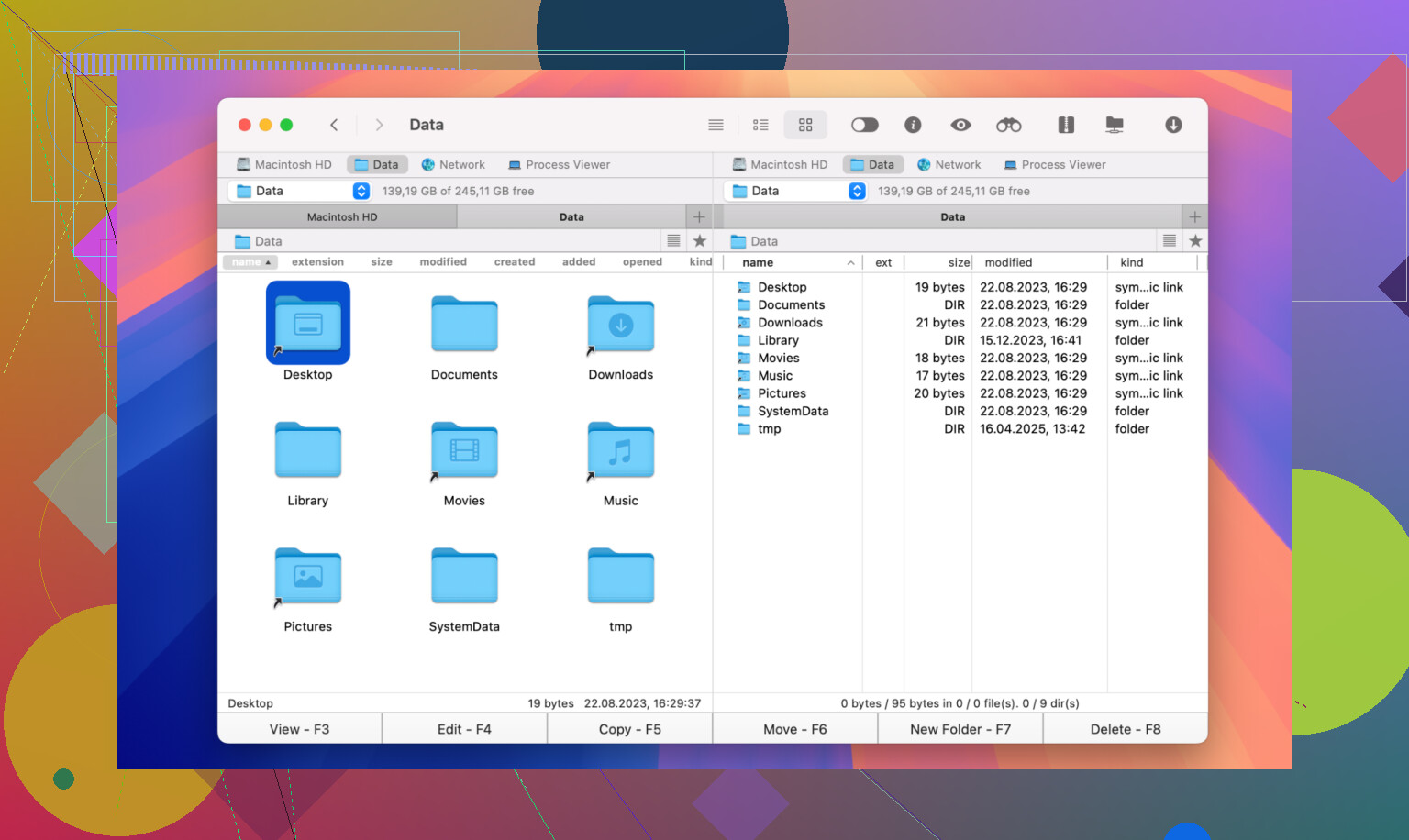
If you’re constantly syncing design exports, custom fonts, WordPress theme tweaks, etc., the side‑by‑side layout alone saves you from a ton of tab-switching.
FileZilla when you just need “it works” and it’s free
FileZilla is that app you probably installed years ago, shrugged at the UI, and then kept using because it refuses to die.
What it’s good for:
- Free, and not “free but super limited.” You get real functionality.
- Sturdy for:
- Uploading a new site build
- Swapping out images or CSS files
- Pushing quick fixes straight to the server
- Handles multiple sites through saved connections, so you can hop between client servers without retyping everything.
Yes, the interface looks like it got frozen in time around the same era as skeuomorphic buttons and bevels. But if your job is literally “upload this and don’t break it,” FileZilla does that without drama.
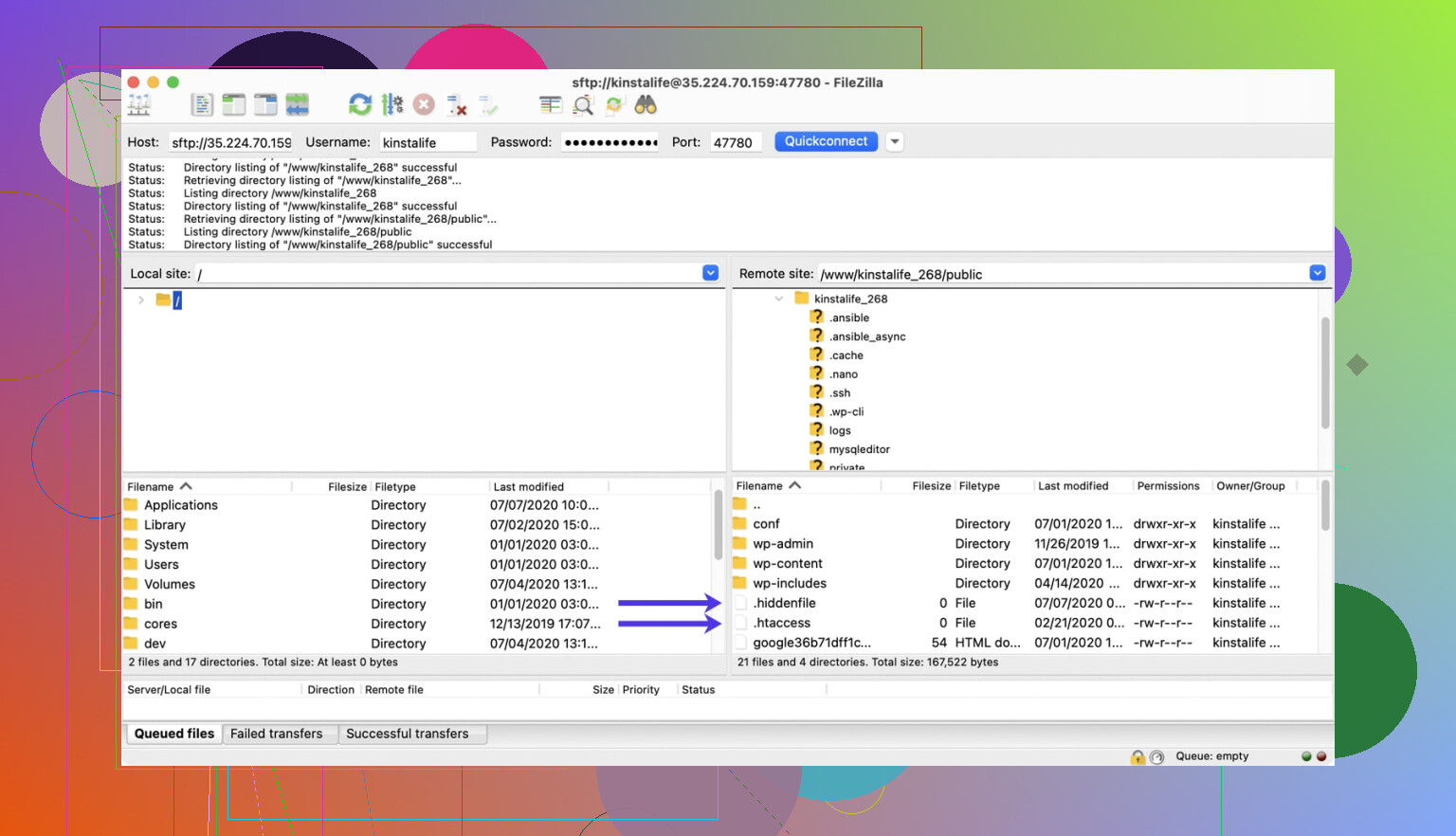
It’s also the one I throw on a backup machine or recommend to people who just need working FTP and nothing fancy.
How they fit together instead of competing
If you’re wondering “Which one should I use?” the more honest answer is “Probably more than one, for different tasks.”
Here’s how they break down in practice:
- Use Cyberduck when your files are scattered across cloud services and you want one app that connects to all of them plus traditional servers.
- Use Commander One when you’re deep in macOS and want a dual‑pane file manager that treats servers and local files almost the same way.
- Use FileZilla when you want a free, dependable FTP tool that gets the job done without requiring you to care about anything beyond uploads, downloads, and permissions.
Together they cover:
- Cloud integration
- Mac‑native workflow
- Zero‑cost, no‑nonsense FTP
Pick the one that matches the mess you’re dealing with today, and keep the others installed for when your workflow inevitably mutates again next week.
28 Likes
If you’re a designer just getting into FTP, you basically want “don’t think about it” tools, not sysadmin toys. @mikeappsreviewer covered some solid options already, but here’s a slightly different angle with 3 that tend to click with visual workflows:
1. Commander One (macOS)
If you’re on a Mac, Commander One is honestly one of the few tools that feels like it was designed for people who live in Finder + design apps all day.
Why it works well for design stuff:
- Dual‑pane layout: local files on one side, server on the other, so moving updated exports (images, fonts, CSS) is literally drag from left to right.
- Treats remote servers kind of like normal folders, which makes it way less scary.
- Handles archives decently, so when a client sends you some cursed
assets_final_merged.zipnonsense, you can unpack, tweak, and upload without bouncing through 4 other apps.
Where I slightly disagree with @mikeappsreviewer: I actually think Commander One can be your main FTP tool if you’re Mac‑only, not just a “nice extra.” For design work it’s basically Finder with superpowers.
2. Transmit (also macOS)
This one’s not free, but it’s very “designer‑friendly” in the sense that:
- Clean, modern UI that doesn’t feel like 2003.
- Saved “favorites” for each client/site so you’re not re‑typing login stuff.
- Easy folder syncing so you can mirror your
/assetsfolder locally and on the server without manually guessing what changed.
It’s great when you’re doing small visual tweaks, exporting new hero images, trying different background textures, etc. Just upload only what changed and refresh the browser.
If you care about UI polish and a smooth experience over “I must use the free thing at all costs”, Transmit is usually the one designers fall in love with.
3. FileZilla (Windows / Mac / Linux)
I’ll be honest: FileZilla looks rough. If fonts and spacing matter to you (they do), it will kinda hurt your eyes.
But:
- It’s cross‑platform and free.
- It’s reliable for basic stuff: upload, download, overwrite, change permissions.
- Great “emergency” client on any machine when you just need to shove
style.cssand a few images to the server and be done.
For a design workflow, I’d use this more as your backup / “I’m on a different computer” option than your daily driver, but it does the job.
How I’d pick if I were you
- On Mac and want something that feels familiar and visual:
→ Start with Commander One as your main FTP + file manager. - Want something super slick and don’t mind paying:
→ Add Transmit for everyday site updates. - Need free, cross‑platform, or a backup:
→ Keep FileZilla installed for the boring but necessary tasks.
That combo keeps things simple: one tool that feels like Finder (Commander One), one that’s extra polished (Transmit), and one ugly workhorse (FileZilla) for when everything else fails or you’re on a random machine.
If you strip away all the noise, what you actually need as a designer is:
- something that feels like “Finder, but smarter”
- something that doesn’t terrify you when you just want to upload a new hero image
- something that won’t lock you in or explode on a client’s weird server
@mikeappsreviewer and @vrijheidsvogel already covered some solid ground, but I’d tweak the mix a bit.
1. Commander One (macOS)
If you’re on a Mac, Commander One is honestly the sweet spot for design work.
Why it fits a design workflow:
- Dual‑pane layout: left = local project, right = live server. Drag from export folder straight to the correct theme/asset folder without hunting.
- Treats FTP/SFTP and cloud connections almost like regular folders, so it doesn’t feel like “I’m in a scary server now.”
- Great for housekeeping: cleaning old mockups, unused images, random
test-bg-2-copy.pnggraveyards on the server.
Where I slightly disagree with both of them: Commander One isn’t just “nice to have” or “for power users.” For a visual person, it can absolutely be your main FTP client. It feels more like a file manager than a sysadmin toy.
Use it when: you’re exporting graphics from Figma/Photoshop and want a fast drag-and-drop way to keep local and server in sync.
2. Transmit (macOS)
Transmit is the “I actually enjoy opening this app” option.
- Very clean UI, so you’re not staring at some 2005 Frankenstein interface.
- Folder sync: perfect for when your
/assetsor/imagesfolder changes a lot and you just want “make the server match this.” - Saved favorites for each client/site: click, connect, upload, done.
Compared to what @vrijheidsvogel said, I’d lean on Transmit more when you are iterating designs: new banner, new background pattern, tiny CSS tweak. It keeps the friction low so you don’t dread pushing minor updates.
Use it when: you’re doing lots of small visual tweaks and want something that “just feels nice” to work in.
3. FileZilla (Mac / Windows / Linux)
Yeah, the UI looks like it time traveled from XP.
But:
- Runs on basically anything.
- Free, and not pretend-free.
- Solid for bulk uploads or quick emergency edits.
I treat FileZilla as the “it’s 1 a.m., the client’s site is broken, I’m on some random laptop” tool. @mikeappsreviewer is right that it’s a tank. I just wouldn’t make it your daily driver if visuals matter to your sanity. Still, you should have it installed.
Use it when: you just need brute-force FTP that will probably connect to whatever awful hosting your client is paying 3 bucks a month for.
How to not get overwhelmed
If I were starting from scratch as a designer:
- On Mac:
- Use Commander One as your main tool for structured work: organizing files, mirroring project folder ↔ server, cleaning junk.
- Add Transmit when you start doing more frequent, small tweaks and want something smoother for day-to-day.
- Keep FileZilla as a backup and for any non‑Mac or weird server situations.
You don’t need 10 FTP apps. Two “nice” ones plus one ugly backup is more than enough. Focus on learning:
- how to find your theme / assets / uploads folders on the server
- how to overwrite files safely
- and how to keep a clean local project structure
Get those right and the specific client you use matters way less than it looks right now.
For design work, I’d actually frame it this way: pick one “file manager brain,” one “pretty sync brain,” and keep one “ugly survivor” around.
1) Commander One – your main workhorse
Pros:
- Dual pane feels very natural for designers: local project on one side, server on the other.
- Treats FTP, SFTP and cloud as just more locations, so it behaves like a smarter Finder.
- Great for bulk housekeeping: clearing old sprites, unused hero images, random test exports.
Cons:
- macOS only, so if you jump between Mac and Windows you cannot standardize on it.
- Interface is functional, but not as slick or “designed” as something like Transmit.
- Some advanced features can feel overkill if you literally just need to drop in a new PNG.
Use it when you are doing layout revisions, updating a WordPress theme, or curating asset folders. This is where “Commander One” earns its place in a designer’s dock.
2) Transmit – the smooth daily driver
Where I slightly disagree with @vrijheidsvogel and @mikeappsreviewer is on how “essential” the free tools are for day to day. If you are on Mac and care about flow, Transmit often feels faster to live in:
- Very clean UI, low cognitive load when you are mid‑design and just need to ship.
- Folder sync is ideal when you have an
/imagesor/buildfolder that changes often. - Site favorites and quick connect keep you from retyping host details constantly.
I’d use Transmit for frequent, small updates: swapping a hero image, trying a new background pattern, nudging CSS.
3) FileZilla – the indestructible fallback
@sonhadordobosque and @mikeappsreviewer already touched this, but I see FileZilla as your “I cannot install anything fancy here” option:
- Pros: free, cross‑platform, handles weird shared hosting fairly reliably.
- Cons: dated interface, not pleasant for visual users, lacks the file‑manager feel you get in Commander One.
Good to keep around for emergencies, client laptops, or when IT is locking everything down.
How I’d actually set you up
- If you are Mac only:
- Use Commander One as your structural tool for organizing and mirroring local ↔ server.
- Layer Transmit on top for daily small tweaks that you want to push quickly.
- Keep FileZilla installed strictly as a fallback for hostile servers or non‑Mac environments.
That combo gives you:
- Visual clarity (dual pane in Commander One).
- Low friction for micro‑changes (Transmit).
- A “this will probably connect” backup (FileZilla).
You will spend less time fighting the tool and more time deciding which “final_v3_really_final.psd” actually belongs on the live site.
Skip desktop FTP apps. Use your hosting provider’s browser-based File Manager.
Open cPanel, Plesk, or your host dashboard. Bookmark the site’s root foler. Upload images, CSS, fonts, and ZIP files through your browser. Create a backup before replacing anything. Rename the old file, for example hero-old.jpg, then upload hero.jpg.
This approach needs no installation, saved connections, or tool switching. It also works from Mac and Windows. Use SFTP later if uploads become frequent. For weekly design updates, the host’s file manager is simpler and safer becuase everything stays in one place.
Whatever client you pick, plan on overwriting the wrong file at least once in your first couple of weeks. That’s the real risk for a designer new to this, not which app has the nicer icons. So before anything else, make sure your host lets you roll back or that you keep a local copy of what was live. None of the tools above save you from a bad drag onto the server.
The thing nobody in here really flagged is plain FTP versus SFTP. A lot of cheap shared hosts still hand you FTP by default, and that sends your password in clear text. Whatever you end up using, check that you’re connecting over SFTP or FTPS. All the clients mentioned support it, but the connection type is on you to set correctly. It’s a two second change in the connection settings and worth doing every time.
On the browser file manager idea from @cloudnode5370, it’s genuinely fine for the occasional swap and I’d not talk anyone out of it. Where it falls apart is bigger uploads. cPanel’s uploader tends to choke or time out on large batches, and there’s no real folder syncing, so you’re back to eyeballing which files changed. For a designer pushing a folder of exports every few days, that gets old fast.
I’d also gently push back on the ‘install three apps’ advice that keeps coming up. If you’re Mac only, one dual pane tool covers most of it, and Commander One fits that since it treats the server like another folder and makes cleaning up old asset junk painless. Just know it’s macOS only, so the moment you touch a Windows machine you’ll want that free fallback anyway. One main tool plus one backup is honestly enough. Two paid apps doing nearly the same job is money you don’t need to spend yet.
The habit that matters more than the software: keep your local project folder clean and mirror it to the server, don’t treat the server as your storage. Get that right and switching clients later costs you nothing.