My old iPad has gotten so slow that basic things like web browsing, email, streaming, and opening apps take forever. I’ve already cleared storage, removed unused apps, and restarted it, but it still lags every day. I need help figuring out what actually works to speed up an older iPad, or if there’s a point where it’s just too outdated to fix.
I ran into this with an older iPad too. Mine got slow enough that swiping between Home Screen pages felt delayed, like the touch landed and the tablet thought about it first. Annoying stuff, especially when it used to feel smooth. The good part is you still have a few things to try before replacing it or forcing a big iPadOS update.
Restarting helps. I know people toss out “restart it” like a lazy fix, but I saw a difference on mine. A full reboot clears temporary memory, stops stuck background tasks, and resets small UI hiccups. If your iPad has been asleep for days or weeks, do one. I started doing it about once a month and the system usually felt a bit quicker right after.
The first place I’d check is storage. On old iPads, this is often the main reason things get sluggish, even on the Home Screen, Safari, or YouTube. When storage is almost full, iPadOS has less room for cache files and temp data. Apple says keep some free space, but from what I saw, slowdowns started before the warning zone. If you’re sitting around 95 percent used, I’d treat that as the problem until proven otherwise.
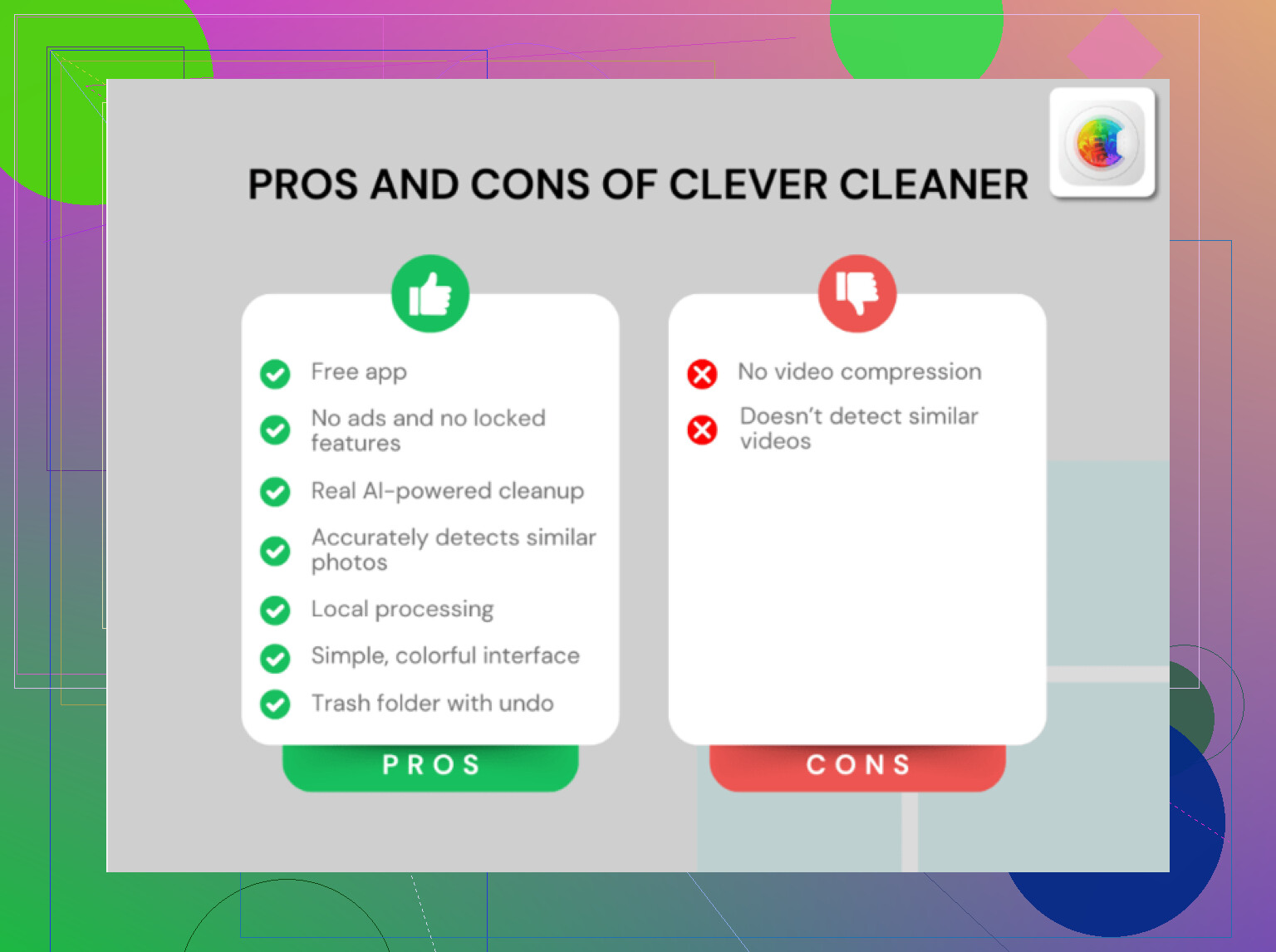
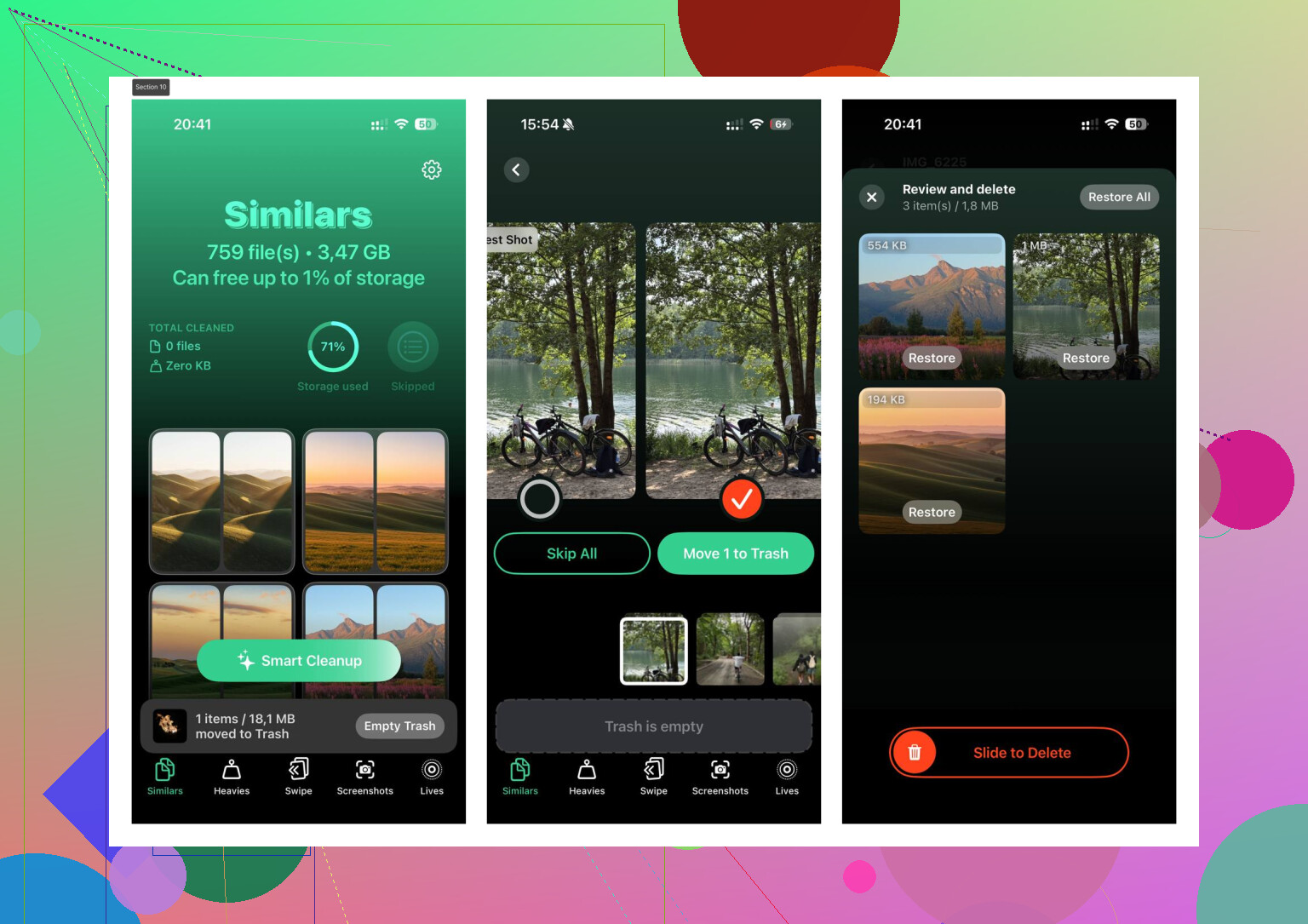
I used to clean photos by hand, which was miserable. Endless scrolling, deleting screenshots one by one, then checking giant videos later. I switched to Clever Cleaner because it sorted the mess faster than I could.
What helped me most was the Heavies section. It groups media by file size, so you spot the huge videos fast and clear a few GB in minutes. The Similars section caught near-duplicate photos and burst shots I forgot existed. It also showed file sizes for screenshots, which made cleanup less random. I liked one practical detail. It processes on the device, so your photos aren’t being sent off somewhere else. After I cleared roughly 10 GB, the iPad felt less bogged down.
If you free up space and it still drags, I’d go through a few settings.
-
Reduce Motion
Go to Settings > Accessibility > Motion, then turn on Reduce Motion. This cuts down the zoom and slide effects. On older hardware, the interface often feels faster right away. -
Background App Refresh
Go to Settings > General > Background App Refresh and switch it off, or trim it down hard. I’ve seen old iPads waste battery and performance on apps refreshing in the background for no good reason. -
Safari cleanup
If browsing feels slow, open Settings > Safari and tap Clear History and Website Data. Safari builds up junk over time. On older devices, clearing it sometimes fixes hangs and page loading delays.
Another thing worth checking is battery health. If the battery is worn out and its max capacity is under 80 percent, the system might reduce performance to avoid random shutdowns. If the battery is the weak point, software tweaks won’t fully solve it. At that stage, a battery replacement makes more sense than chasing settings forever.
If none of this changes much, the last step is a factory reset. It’s the harsh fix, but I’ve seen it work better than anything else on tablets with years of leftovers piled up in the system. Back up your stuff first, wipe it, then set it up clean. Old iPads are stubborn, but a cleanup and reset sometimes gets them usable agian.
11 Likes
If storage is already under control, I’d stop chasing cleanup first. @mikeappsreviewer covered the common fixes. My take is different. Old iPads often slow down because the hardware is at the floor for newer apps and heavier sites. Safari, Gmail, YouTube, streaming apps, all got fatter over time.
A few things worked better for me than endless setting tweaks.
-
Use fewer tabs, and switch browsers.
Safari gets sluggish on old RAM limits. Keep 3 to 5 tabs open, not 20. Also test one alternate browser. On one older iPad, Firefox felt worse, but Edge was less laggy. Small diff, but noticeable. -
Turn off widgets and extra Home Screen clutter.
Widgets poll data. News, weather, stocks, calendar stacks, all add overhead. Remove them for a week and see if scrolling feels less sticky. -
Kill mail fetch.
Set Mail to Fetch manually or hourly. Push email on an old iPad keeps it busy all day. Settings, Mail, Accounts, Fetch New Data. -
Check your network before blaming the iPad.
A weak 2.4 GHz Wi-Fi connection makes old devices feel broken. Test near the router. If video buffering drops there, the tablet is not the only issue. -
Use web apps when native apps drag.
Facebook, Reddit, even Gmail in browser sometimes run smoother than bloated apps. Not pretty, but faster. -
Reset all settings, not full erase first.
Settings, General, Transfer or Reset, Reset, Reset All Settings. This keeps your data but clears years of weird settings cruft. Helped my old iPad more than I expcted.
If you still need space cleanup, Clever Cleaner is decent for finding large files fast. This Clever Cleaner review for speeding up iPhone and iPad storage cleanup gives a solid overview.
Blunt truth, if it has 2 GB RAM and an old chip, there’s a ceiling. Email and light browsing, sure. Heavy sites and modern apps, not so much. At some point the fix is a battery swap or replacement, not more fiddling.
If you already did the obvious stuff, I’d stop chasing “cleanup” as the main cure. I kinda disagree a bit with @mikeappsreviewer there. Full storage can hurt, sure, but if basic taps, typing, and app launches are laggy even after clearing space, the bigger issue is usually old hardware + bloated modern apps.
What actually helped on my old iPad:
-
Turn off Spotlight indexing for junk you never search
Settings > Siri & Search > disable a bunch of apps from Search/Suggestions. Old devices get weirdly sluggish when everything wants to be indexed. -
Disable Location Services for most apps
Settings > Privacy & Security > Location Services. Leave it for Maps/weather if needed. Everything else does not need your location every 5 seconds. -
Stop using the worst offender apps
Facebook app, Gmail app, some shopping apps, even Reddit app can be pigs. Use Safari versions instead. Not as pretty, but often faster. -
Check battery temp and charging behavior
If it gets hot doing almost nothing, performance tanks hard. Old iPads slow down a lot under heat. Take the case off and test it. -
Nuke one app at a time
Sometimes one bad app causes the whole tablet to feel busted. Delete the heaviest apps, test for a day, then reinstall only what you actually use.
I do agree with @sterrenkijker on one thing: there is a ceiling. Some old iPads are just done. Not broken, just old.
If you still need to squeeze out storage fast, Clever Cleaner is fine for finding giant videos and duplicate photos. This article is a decent overview of smart iPhone and iPad storage cleanup with a free AI cleaner.
Blunt answer: if it’s an A8/A9 era iPad and daily use feels painful, a battery replacement might help a bit, but no miracle is comming. At some point replacement is the real fix.
I’d push back a little on @sterrenkijker, @sonhadordobosque, and @mikeappsreviewer on one point: not every “slow iPad” is actually the whole system. Sometimes it is one specific failure mode.
What actually worked for me on an old iPad:
-
Turn off Low Power Mode if it’s always on
People forget this. It can make app refresh, mail, and general responsiveness feel flatter. -
Check Safari content blockers and extensions
Old iPads can choke on too many blockers or helper extensions. Weirdly, removing them made pages open faster for me. -
Disable automatic downloads and app updates
If it keeps trying to update old apps in the background, everything feels busy. Turn those off and update manually. -
Use lighter versions of sites
Request mobile sites, not desktop. Desktop-class browsing on old iPads sounds nice until the CPU gets cooked by modern pages. -
Test with one day in Airplane Mode plus Wi-Fi only
Bluetooth handoff, AirDrop scanning, and cellular searching can create constant little slowdowns on aging hardware.
About Clever Cleaner, only if you still have media junk left:
- Pros: fast at spotting giant files, duplicates, easy to use
- Cons: cleanup apps won’t fix weak CPU/RAM, and sometimes they encourage deleting stuff you may want later
So yes, Clever Cleaner can help if storage bloat is still part of it, but if animation stutter and typing lag remain, that’s hardware age showing. At that point, your best “fix” is lowering expectations, using lighter apps, or replacing the device.