I’m trying to place two pictures side by side on my iPhone, but I can’t tell if the built-in Photos app supports this. I need to combine images for a quick comparison and to share them as one photo, and I’d like to know if there’s a simple way to do it without downloading another app.
I ran into the same mess with my camera roll. Ten sunset shots, six near-identical pet pics, three group photos where somebody blinked every time. In Apple Photos, I kept swiping back and forth and trying to remember what the last image looked like. After a few minutes I gave up and kept all of them. My storage paid for it.
On your first point, iPhone Photos does not give you a real side by side compare view. The Duplicates folder exists, sure, but it only catches exact copies. If your dog turned its head a little, or one frame has softer focus, iOS treats those as separate photos.
If you want to avoid installing anything, there is a clunky workaround through Shortcuts. I tried it once. You make a shortcut, name it something like Side by Side, pick two photos, and it merges them into one wide image. It works. It also gets old fast if you need to review dozens or hundreds of photos. There are also narrower tools like Tidy and Image Compare for zooming and slider checks, which fit better when you are comparing two edited versions of one image.
For cleaning up a photo library, I ended up using a separate cleanup app because the manual route was a slog. I burned time on a bunch of so-called free apps first. They scanned the phone, then blocked deletion behind a weekly subscription. The one I stuck with was Clever Cleaner.
What sold me was simple. No ads. No paywall popping up after the scan. No split between fake free and paid. I also noticed it comes from the Disk Drill team, so it did not feel like some random throwaway app.
The part tied to your question is the Similars tab. This is where it groups photos which are close, but not exact duplicates. Think burst shots, lunch pics from the same angle, or selfies where almost nothing changed except expression. It sorts those into groups and marks a Best Shot. I still checked the picks myself, and in my use it was right most of the time. Their claim is around 95 percent accuracy. I did not measure it, but it was good enough that I stopped second-guessing every pick.
A few bits I kept using:
-
Heavies tab
Shows the largest files first. I found old 4K clips sitting there eating space for no good reason. -
Swipe mode
This felt less stiff than Apple Photos. You move through photos by month, keep one direction, delete the other. Faster, less tapping. -
Screenshot cleanup with exact sizes
This part helped more than I expected. Seeing the file size beside each screenshot made it easier to dump junk without thinking twice. -
Local processing
This mattered to me. My photos stayed on the device. I did not love the idea of personal images being shipped off somewhere so an app could tell me which selfie was sharper.
One feature I almost ignored at first was Lives. It turns Live Photos into regular stills by removing the attached motion clip. I had Live Photos on by accident for ages. The space loss adds up more than you think. Mine did, anyway.
If you are choosing the best shot by hand, zoom in on the eyes or the main subject, around 200 percent. Soft focus shows up fast there. At normal size, a weak shot and a sharp shot often look the same. Once zoomed in, one usually falls apart.
So yeah, if you only need to compare two photos once, the Shortcuts trick is fine. If you are trying to clean up a bloated library, I would skip the DIY route. I did, and I do not miss it. A dedicated tool made the whole thing less annoying, and I spent way less time squinting at two almost identical family photos trying to figure out whose eyes were closed.
1 Like
No, the built-in Photos app on iPhone does not support a true side-by-side layout or collage export. You get compare by swiping, zooming, and using duplicates tools, but not a built-in “put two photos next to each other and save as one image” option.
I’d part ways with @mikeappsreviewer a bit on one thing. Shortcuts is fine for automation people, but for a one-off task it feels like too much setup for too little payoff.
Your easiest options are these:
-
Use a collage app
Search App Store for a simple photo collage app. Pick a 2-photo grid, place both pics, save. Fastest route if your goal is sharing one combined image. -
Use Pages or Keynote
Drop in two photos, resize them side by side, then export or take a screenshot. It’s built into iPhone, so no extra install if you already have Apple’s apps. -
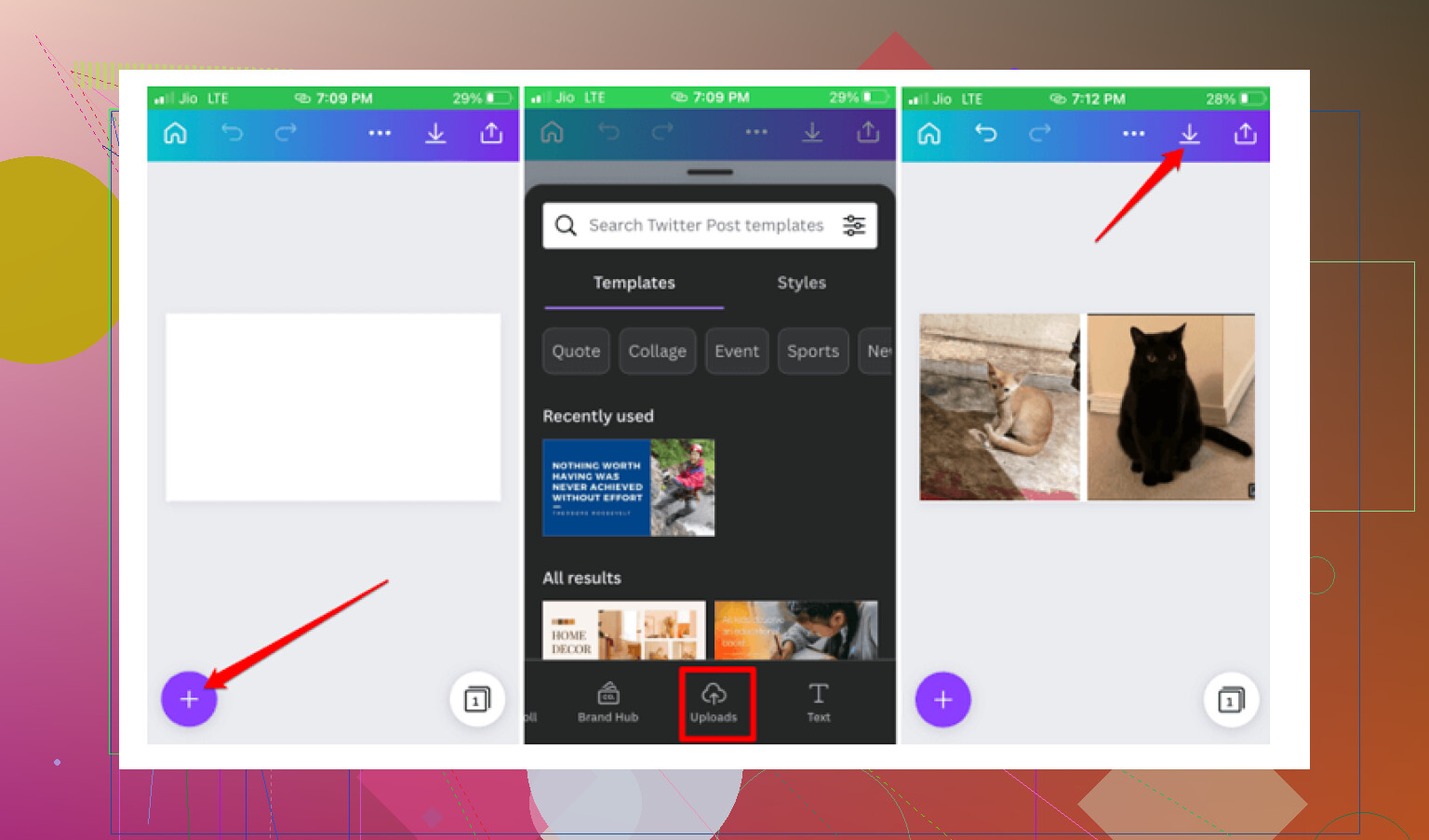
Use Instagram Layout or Canva
Both do this fast. Pick 2 images, choose horizontal layout, export. Done.
If your bigger goal is comparing near-duplicates before combining or deleting, Clever Cleaner is worth a look. Its similar-photo grouping is more useful than Apple Photos for cleanup, especailly when the shots are close but not identical.
For more on this exact iPhone Photos limitation, this Apple thread is relevent:
how to compare and combine photos on iPhone
A simple search phrase for this topic is: side by side photos on iPhone, combine two pictures into one image, compare similar photos in Apple Photos.
So, short answer. Photos app, no. Another app or a built-in layout app, yes.
Nope. The built-in iPhone Photos app still does not let you place two photos side by side and save them as one combined image. You can view pics one after another, edit them individually, and spot exact duplicates, but that’s about it. So on the core question, @mikeappsreviewer and @espritlibre are right.
Where I kinda disagree is the idea that this always needs a collage app first. If you only need a fast comparison for yourself, the easiest low-effort move is sometimes just opening one image, taking a screenshot, then opening the second and using Markup or Freeform to drop both screenshots onto one canvas. Not elegant, a little janky, but honestly faster than setting up automations half the time.
If you want a cleaner result to share, Freeform is actually underrated here. Add both photos, snap them into place side by side, then export the board or screenshot it. Less annoying than people think.
If your real problem is sorting through a pile of almost-identical shots before combining them, Apple Photos is pretty weak there. That’s where Clever Cleaner makes more sense, especially for similar-photo grouping and cleanup. Different job, but related if your camera roll is a mess.
Also, this quick video on how to put two photos side by side on iPhone might help.
Short version: Photos app alone, no. For a shareable side-by-side image, use Freeform, Pages, or a collage tool. Kinda silly Apple still hasnt built this in tbh.
No, Photos itself still won’t make a true side-by-side image you can save.
Small disagreement with @espritlibre and @kakeru though: for a super quick job, I’d skip collage apps first and use Picsew or PhotoGrid if you already have them, because they’re faster at making a clean 2-photo panel than hacking it together in office-style apps.
If your goal is comparison, not just sharing, another overlooked option is the Files app + split view on iPhone in landscape with the same two exported images. It’s not a saved collage, but it can be easier to inspect details than flipping around in Photos.
On Clever Cleaner: useful if this side-by-side idea is really part of a bigger “which photo do I keep?” problem.
Pros
- Good at grouping similar shots
- Helps clear clutter fast
- Simpler than manual review in Photos
Cons
- Not actually a collage maker
- Best for cleanup, not layout/design
- Similarity picks still need human checking
So the answer is: Apple Photos app, no. For combining two pics into one, use another app. For choosing which near-duplicate deserves to be combined or kept, Clever Cleaner makes more sense. @mikeappsreviewer was right on the core limitation.