My iPhone storage is almost full, and deleting files one by one takes too long. Is there a quick, safe way to clean up unwanted files, downloads, and other clutter all at once without removing anything important?
The first place to check is Settings > General > iPhone Storage. Give it a moment to calculate everything. That breakdown is much more useful than guessing, and if Photos is near the top, cleaning up the photo library will probably free the most space.
This happened to me after updating an older 64 GB iPhone. I blamed the update because the storage warning appeared right afterward, and apps kept reloading whenever I switched between them. The update did need some temporary room, but it wasn't the main issue. Most of the storage was being eaten by years of photos, videos, screenshots, downloads, and accumulated app data.
My photo library has several thousand images, so sorting everything manually isn't practical. I use Clever Cleaner to group duplicate and similar photos, find large videos and forgotten screenshots, and review Live Photos separately.
I normally run Smart Cleanup first for the obvious clutter. Then I use Swipe mode for a few minutes to review older pictures individually. For groups of similar shots, it suggests which photo to keep. That was especially helpful with batches of pictures from vacations and family events. The analysis happens locally on the iPhone, there are no ads, and the free version covers regular cleanups pretty well.
Once Photos is under control, these are the other places worth checking:
- Remove apps you haven't used in months. If you might want one again, choose Offload App so its documents and data are kept.
- Check the Downloads folder in the Files app. I found old PDFs, ZIP files, and documents I no longer needed.
- Delete offline content stored by Netflix, Spotify, YouTube, Apple Music, and similar apps.
- If Messages is using several gigabytes, remove old video attachments instead of deleting whole conversations.
Also check Recently Deleted after cleaning out Photos. iOS keeps deleted photos and videos there for 30 days, so your available storage may barely change until you empty that album. When I cleared it, the free space showed up almost immediately.
I wouldn't spend too much time worrying about System Data. It can increase after an iOS update and then shrink again as temporary files are cleared over the next day or two. App Store cleaning apps can't directly remove iOS system files anyway because Apple doesn't give them that level of access.
On a 64 GB iPhone, keeping roughly 5–10 GB available makes a noticeable difference. Since I started leaving that buffer, updates install without storage complaints, the phone stays more responsive, and the “Storage Almost Full” warning appears far less often.
3 Likes
Don’t bulk-delete photos until you check iCloud Photos, because removing them on the iPhone can remove them from every synced device too. There isn’t a truly safe “clean everything” button. The quickest low-risk approach is to back up first, then use the recommendations under iPhone Storage and clear large Messages attachments, Safari downloads, and offline media. Cleaner apps such as Clever Cleaner can speed up photo sorting, but review their selections instead of approving the whole batch blindly.
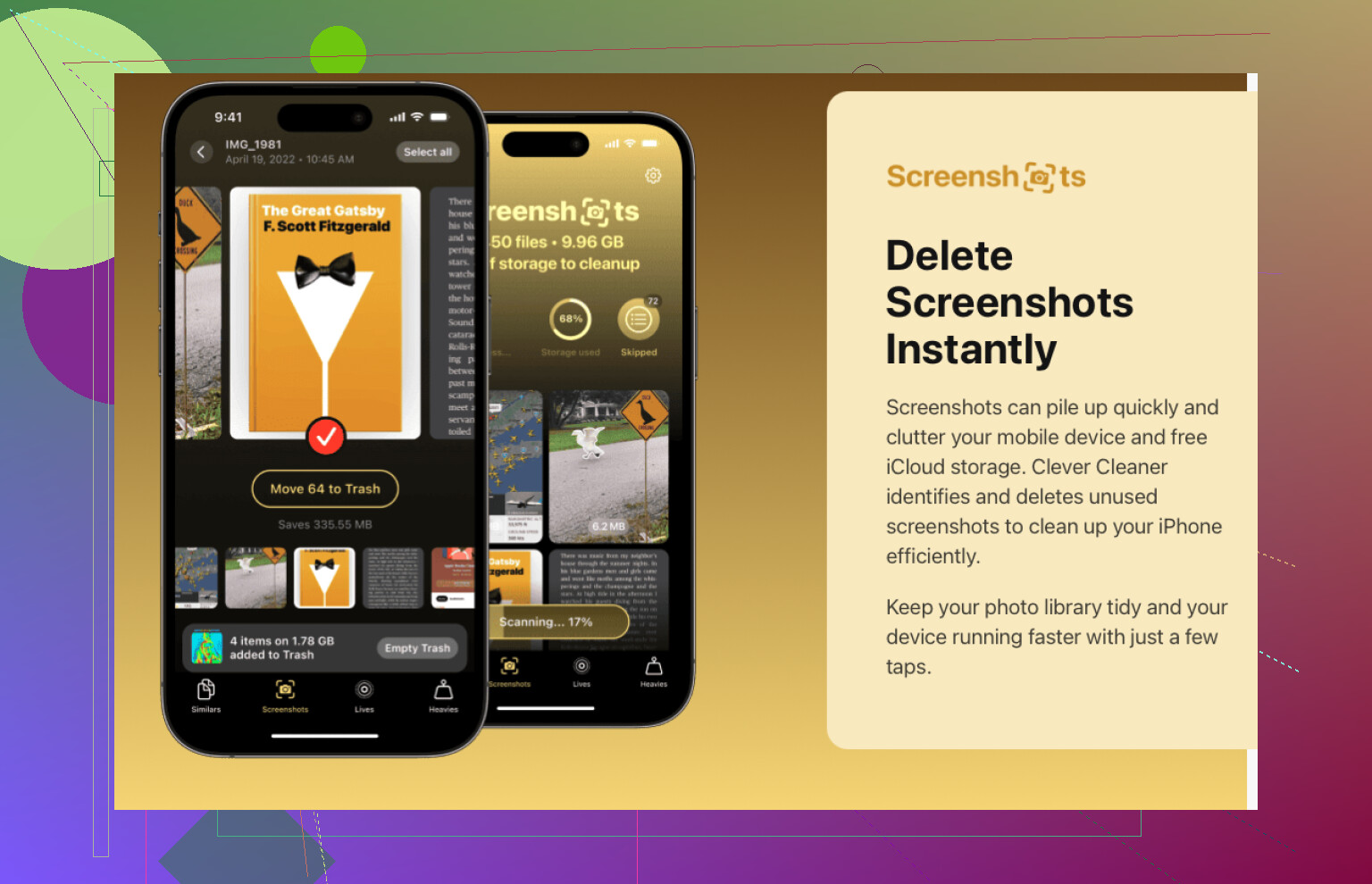
Don’t assume a cleaner app can wipe every kind of clutter. Clever Cleaner is mainly useful for sorting photos, while downloads need handling in Files: open Downloads, tap the three-dot menu, choose Select, then bulk-delete what you recognize. Afterward, empty Files > Recently Deleted, since those items can keep taking up space until permanently removed.

Nobody’s flagged the Messages retention setting yet, and on a phone that keeps filling up that’s usually the quiet drain. Go to Settings > Messages > Keep Messages and switch it from Forever to 1 Year, or 30 Days if you’re brutal about it. iOS then clears old texts and their attachments on a schedule instead of you digging through threads one by one. It’s the closest thing to a set-and-forget cleanup you’ll get on iPhone, and it keeps working after you stop paying attention.
@swiftrunner4787 is right that there’s no real ‘clean everything’ button, and honestly that’s the expectation worth killing off first. The stuff that eats storage lives in different places with different rules, so any single tap that promised to wipe it all would probably delete something you wanted. Clever Cleaner earning a mention here makes sense for the photo pile specifically, since that’s where the manual sorting gets painful, but I wouldn’t expect it to touch messages, caches, or app data. Treat it as one tool for one chunk, not a master switch.
If you want the fastest real win, do it in this order: set that Messages limit, empty Recently Deleted in both Photos and Files, then check whether Photos is set to Optimize Storage under iCloud so full-res copies aren’t sitting on the device. That last one only helps if iCloud Photos is actually turned on, so check before you assume it’s doing anything.