I accidentally deleted a partition on my SSD while managing drives, and it had important files I still need. I’m looking for advice on SSD partition recovery, what steps to take right away, and whether anyone has successfully recovered a deleted partition without making the data unrecoverable.
I did the same dumb thing once in Disk Management and wiped the wrong partition entry. My first reaction was panic. Turned out the data was still sitting there because Windows had removed the map, not the stuff itself. So if this happened to you, stop touching the drive for now.
Here’s the part I’d treat as urgent. Do not make a new partition. Do not format the empty space. Do not copy anything onto that disk. Every write cuts into your recovery odds.
Before doing anything else, check Disk Management. I’d look for two cases:
- If the partition still shows up and only lost its drive letter, add the letter back and see if the volume returns in File Explorer.
- If the area shows as Unallocated, the partition entry was likely deleted.
The order I’d use is simple:
- Stop using the drive.
- Pull off the files you care about.
- Open a sample of those recovered files and make sure they aren’t broken.
- Then either rebuild the old partition with TestDisk or make a fresh one in Disk Management.
- If you made a fresh partition, move your recovered data back afterward.
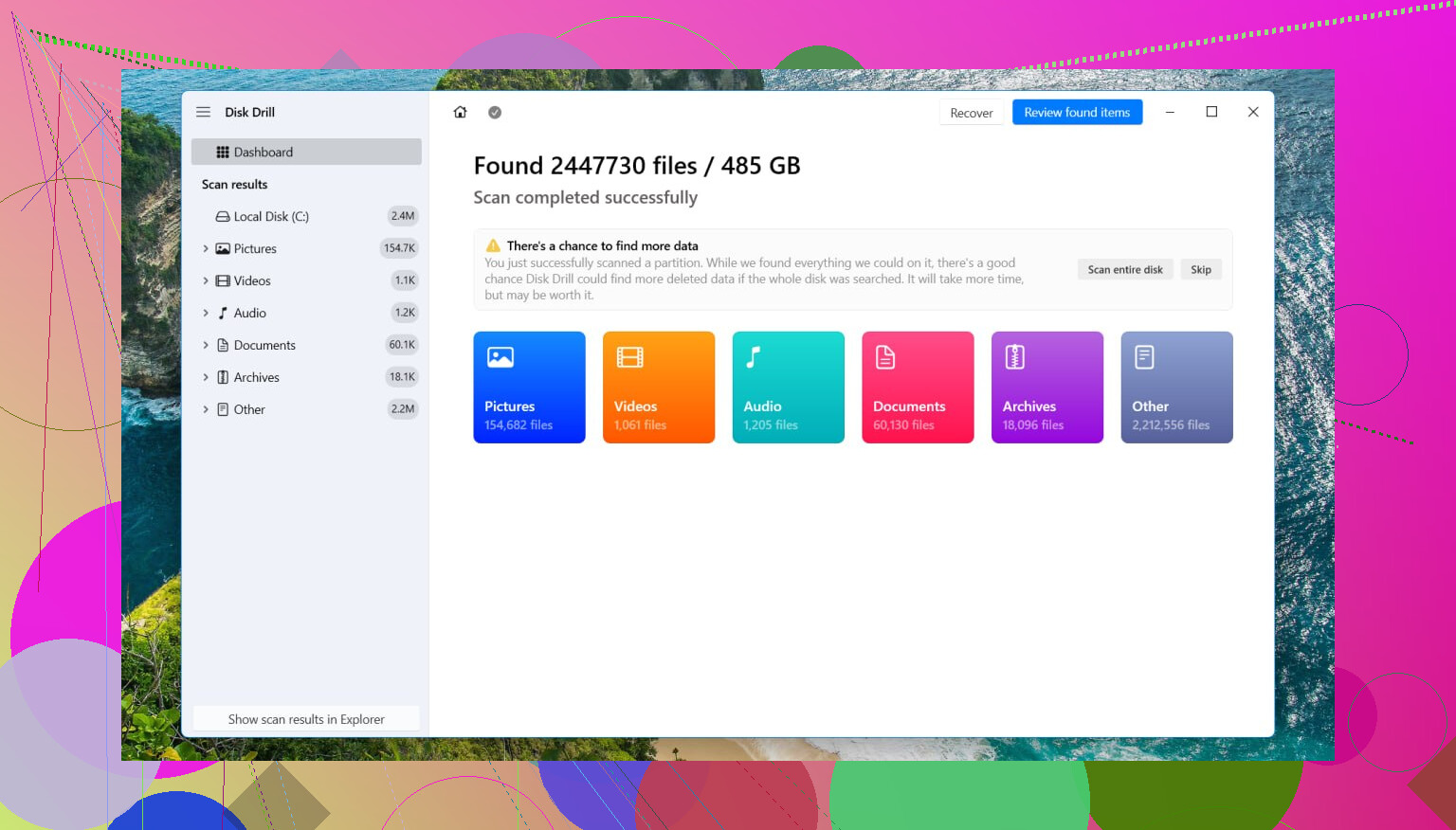
For the recovery step, I’d start with Disk Drill. What worked for me was its ability to spot deleted partitions along with loose files. On my drive it kept most folder names and layout, which saved time.
I did this on Windows 11. The menus are close enough on older Windows versions, so the flow stays about the same.
Get the files off with Disk Drill
- Install Disk Drill onto a different disk. Not the one you’re trying to save.
- Open it and pick the physical drive where the deleted partition used to live.
- Click Search for Lost Data. On an external drive, it might ask for a scan type. I’d choose Universal Scan almost every time. If the missing files are camera or drone videos, use Advanced Camera Recovery instead.
- Let the scan finish. If it finds the old partition, open it and browse through the folders.
- Preview a handful of files. I’d test photos, docs, and one larger file if possible.
- Select what you need and hit Recover.
- Save the recovered data to another drive. Do not write it back onto the same disk.
Once your important files are sitting safely somewhere else, you’ve got two paths.
Option 1: Put the original partition back with TestDisk
If you want the old partition structure back, TestDisk is the free tool I’d try first.
- Download TestDisk, extract it, and run testdisk_win.
- When it asks about the log, choose Create.
- Select the physical disk where the partition was deleted.
- Use the partition table type it detects.
- Go to Analyse, then run Quick Search.
- If it comes up empty, run Deeper Search.
- When the missing partition appears, highlight it and choose Write.
- Confirm, then restart the PC.
If nothing else has overwritten the partition table info, this sometimes brings the partition back in one piece. Mine didn’t return perfectly the first time, so I still checked everything before trusting it.
Option 2: Make a new partition and move on
If your main goal is getting the disk usable again after recovering the files, this route is easier.
- Open Disk Management.
- Right-click the Unallocated space and choose New Simple Volume.
- Run through the wizard, pick a drive letter, and choose your file system. NTFS is the usual pick on Windows.
- Keep Quick Format checked and finish.
After that, copy your recovered files onto the new partition.
One more thing, and this part matters. If the drive is an SSD, move fast. TRIM can wipe deleted blocks in the background, and recovery gets worse once tht starts happening. If it’s a spinning hard drive, the odds tend to hold up better as long as you don’t write new data to it.
13 Likes
Yes, people do recover deleted SSD partitions. I have. Timing matters more on SSDs than HDDs.
I agree with @mikeappsreviewer on the big rule, stop using the drive. Where I differ is this. I would image the SSD first if the files matter a lot. Work from the clone, not the original. SSDs run TRIM, garbage collection, and background cleanup. Every boot and mount is a risk.
My order would be:
- Shut the PC down.
- Connect the SSD to another machine as a secondary drive, or use a USB adapter.
- Make a sector-by-sector image with something like R-Studio, UFS Explorer, or ddrescue on Linux.
- Run recovery on the image.
- Recover files to a different disk.
If Windows already sent TRIM to the deleted volume, recovery odds drop hard. On many SATA SSDs, trimmed blocks read back as zeroes. NVMe drives vary by firmware. So speed maters.
Disk Drill is a solid first pass because it often finds deleted partitions and reconstructed file trees fast. I would use it for triage. If Disk Drill shows your folders and previews open cleanly, recover the important stuff first. Then worry about restoring the partition layout.
One more check. If BitLocker was on and you lost the partition entry, keep the recovery key handy. Raw recovery from an encrypted volume is way messier.
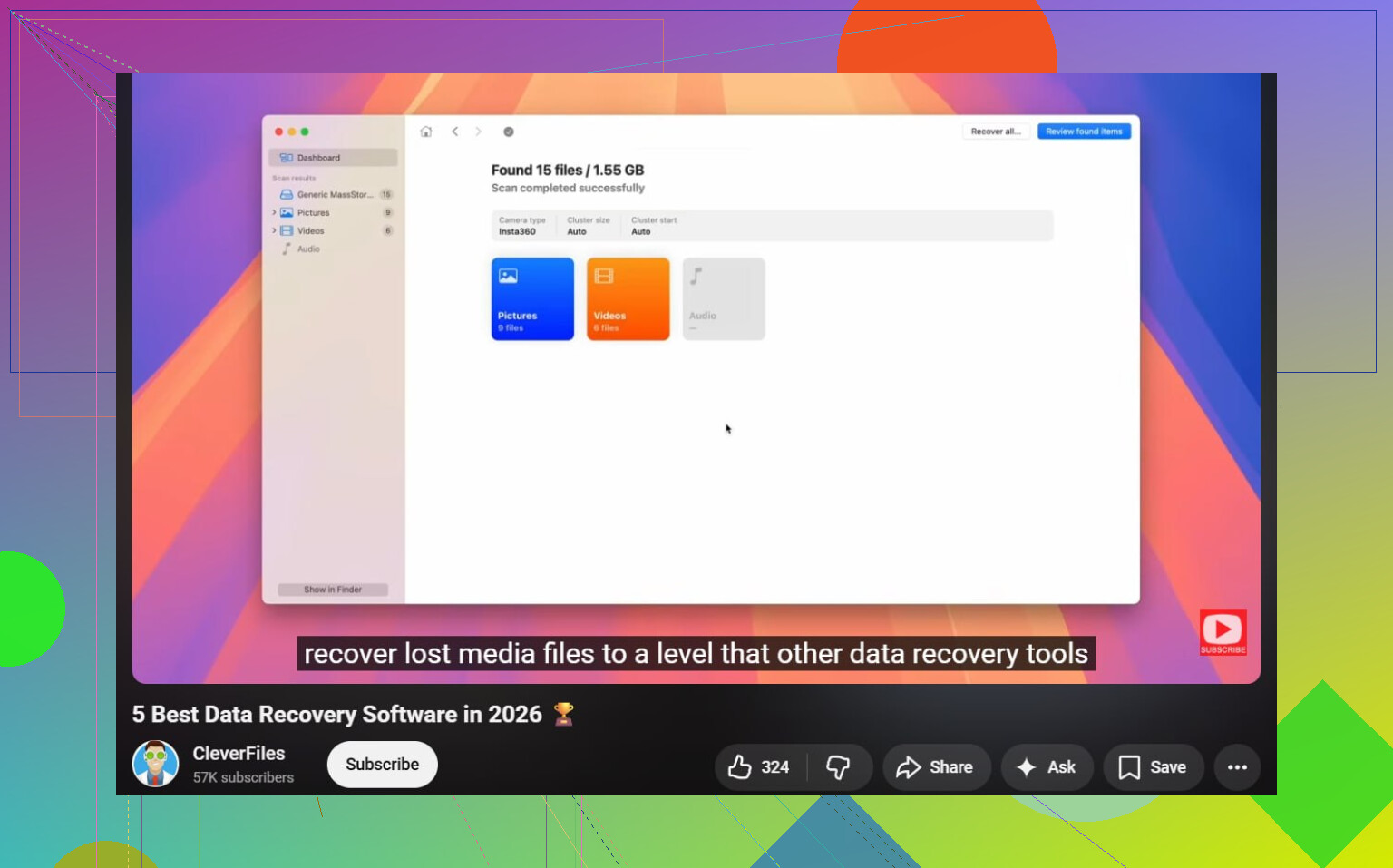
If you want extra reading, this roundup of the best data recovery software for 2026 is decent:
best data recovery software for SSD and deleted partitions
Short version, stop writes, clone first, scan the clone, recover to another disk. If TRIM already fired, file recovery gets ugly fast.
Yep, it’s possible, but SSD recovery is way less forgiving than old HDD recovery.
I mostly agree with @mikeappsreviewer and @waldgeist, but one thing I’d push back on is jumping straight into partition repair. If the files are important, I’d care less about restoring the partition and more about proving whether the data is still readable. A deleted partition entry is fixable. Trimmed NAND, not so much.
What I’d check first that hasn’t been mentioned enough:
- Look in Device Manager and SMART tools to make sure the SSD itself is healthy
- If it was an internal system SSD, stop booting from it if possible
- If the partition was exFAT or NTFS, sometimes the file system metadata is partly intact even if the partition map is gone
Also, if this happened very recently, avoid even letting Windows “help” you. Windows loves to mount stuff, index stuff, and make recovery more annoyng than it should be.
My take:
- Attach the SSD to another machine read-only if you can
- Scan the whole physical disk, not just the empty space
- Recover the most valuable files first
- Verify them
- Only then mess with partition reconstruction
Disk Drill is a solid choice here because it’s pretty good at deleted partition recovery on SSDs and usually shows fast previews, which tells you right away if you still have real data or just file ghosts. If previews fail across the board, that’s a bad sign and often means TRIM already did its thing.
One more thing people forget: if the deleted partition held virtual machines, PST files, or huge video projects, recover those first. Large contiguous files tend to expose corruption faster.
For a plain-English guide on recovering a deleted partition on SSD or HDD step by step, that explainer is worth a skim.
So yeah, succesful recovery happens all the time, but on SSDs the clock is ticking pretty hard. If the data is business/legal/family-photos level important, I wouldn’t keep experimenting too long.