My iPhone storage is almost full, and I noticed documents and data are taking up a lot more space than expected. I’ve already deleted apps and photos, but the storage still hasn’t gone down much. I need help figuring out the fastest way to clear iPhone documents and data without losing anything important.
I hit this mess on my iPhone more than once, and yeah, “Documents and Data” is where storage goes to hide. Mine got bad enough that Messages swelled for no clear reason, Photos kept reporting gigs in use after I wiped stuff out, and the phone started dragging like it was out of breath.
Once storage drops into the red, the whole device gets weird. Apps stall on launch. The camera misses fast shots. I even saw one phone keep restarting over and over. “Documents and Data” is a pile, not one item. Cached files, site data, saved sessions, old attachments, downloads you forgot were there. It adds up fast.
If your biggest offenders are messaging apps, start there. WhatsApp handles this better than most. Open its settings, go to “Storage and Data,” then “Manage Storage.” It sorts chats and files by size, which saves a lot of blind tapping. Messenger and Facebook are worse on iPhone. No proper cache wipe in iOS settings. “Offload App” won’t help much because it keeps the junk you’re trying to remove. What worked for me was deleting the app fully, then installing it again. Crude, sure, but I watched storage drop from multiple GB to a tiny fraction right after.
Photos is its own headache. I’ve had the app claim 8GB to 10GB when my library looked nearly empty. First thing I checked was “Recently Deleted,” then “Shared Albums” and “My Photo Stream.” Those stash data outside what you notice at first glance. Sometimes the storage number is wrong because indexing gets stuck. A restart fixed it once for me. Another time I had to switch “iCloud Photos” off, wait a bit, then turn it back on so the local cache would rebuild.
Streaming apps are another easy miss. YouTube, Netflix, Apple TV, stuff like that. Their storage is often offline media. On YouTube in particular, I found downloads sitting there when I thought I had none. You have to open each app and clear downloads inside the app itself. If you want a quicker sweep, open Settings, then iPhone Storage, and look at the list from largest to smallest. Safari is worth checking too. Its website data alone freed a few hundred MB for me.
I wasted a dumb amount of time doing this by hand every few weeks. What finally clicked was how closely the lag tracked with storage pressure. After that I tried a cleanup tool and kept using it because it saved me from the usual scavenger hunt. The one I landed on was Clever Cleaner.
What I found useful was the way it surfaces the big stuff first. The “Heavies” section puts your largest photos and videos up front, so if a few 4K clips are eating space, you see them fast. There’s also a “Similars” section for near-duplicate photos. Mine caught those bursts and repeat shots I kept meaning to sort later, then never did.
I cared more about privacy than fancy features, so I checked how it handled scans. What mattered to me was on-device processing. My photos weren’t being shipped off somewhere else to be analyzed. It also showed the file sizes clearly before deletion, which made it easier to decide what was worth removing and what wasn’t.
After I cleared space, the phone stopped feeling clogged. Lag dropped off. Recording video stopped triggering the “Storage Almost Full” warning every five minutes. If you’re stuck doing this manually, I’d start with the built-in app storage list, wipe problem apps the hard way when needed, then clear “Recently Deleted” at the end so the space comes back for real.
20 Likes
Fastest fix for “Documents and Data” on iPhone is usually a reset of the stuff iOS does not purge well.
Do this in order.
-
Check System Data after a reboot.
A restart often forces storage to recalc. I’ve seen 2GB to 6GB drop after this alone. Sounds dumb, works more than it should. -
Remove old iPhone backups from the phone.
Settings, your Apple ID, iCloud, Manage Account Storage, Backups. Old device backups sit there and people miss them all the time. -
Clear Mail downloads.
If you use Apple Mail, delete and re-add the account. Mail caches attachments hard. For heavy inboxes, this frees a lot. Same issue with Outlook sometimes. -
Delete large message attachments from the filter view.
Settings, General, iPhone Storage, Messages, Review Large Attachments. Faster than opening chats one by one. @mikeappsreviewer covered app bloat well, but I don’t agree with reinstalling every big app first. Check attachment hubs before the nuke option. -
Reset Safari advanced data.
Settings, Safari, Advanced, Website Data. Then clear Reading List offline files if you saved pages for travel or work. -
Files app.
Browse, On My iPhone, Downloads. A ton of “deleted” stuff still sits there. ZIPs, PDFs, video exports, all the boring junk. -
If Photos storage looks wrong, sync it.
Plug into Wi-Fi and power for an hour. iOS cleanup often lags. People delete 20GB and expect instant results. iPhone storage is annoyngly slow to update.
If you want a faster sweep for media clutter, Clever Cleaner is worth a look for duplicate photos, big videos, and similar shots. If privacy matters, this safety breakdown is useful: see why Clever Cleaner is rated safe by security researchers.
If storage still won’t drop, last resort is encrypted backup, erase iPhone, restore backup. That clears stuck caches better than random fiddling. It’s a pain, but it works.

Biggest thing I’d add to what @mikeappsreviewer and @andarilhonoturno said is this: sometimes the space is not really “Documents and Data” in the way people think. A lot of it is synced junk, pending uploads, failed downloads, and caches that only clear after iOS finishes housekeeping. So before you start deleting half your phone, check the stuff that gets stuck in limbo.
What helped me fastest:
- Make sure you have at least a little free space first, even 1 to 2 GB
- Turn off Low Power Mode
- Connect to Wi-Fi and charger
- Leave the phone locked for 30 to 60 mins
That sounds lazy, but iOS often purges temp files only when idle. Super annyoing, but true.
Stuff I’d check that usually gets missed:
-
Voice Memos
Long recordings can sit there forever and don’t get noticed. -
Podcast downloads
Apple Podcasts is sneaky with auto-downloads. Same for Spotify if you saved playlists offline. -
GarageBand, iMovie, CapCut, Canva, Lightroom
Creative apps hoard exported files and project caches like little goblins. -
Notes app attachments
Scanned PDFs, embedded images, old docs. People forget Notes can eat gigs. -
Books app
Downloaded audiobooks and PDFs count too.
One place I kinda disagree with @mikeappsreviewer on is deleting apps right away. Reinstalling works, sure, but I’d save that for apps you know are bloated. Otherwise it turns into a tedious re-login marathon.
If your goal is the fastest media cleanup, Clever Cleaner is actually useful for spotting duplicate pics, similar shots, and huge videos without doing the whole manual hunt. Also, for anyone researching whether it’s worth using, this page sums up real user experiences pretty clearly: see what users say about Clever Cleaner for freeing up iPhone storage.
Short version: don’t just delete apps and photos. Let iOS settle, check hidden downloads, then target media-heavy apps. If storage still looks fake after that, backup + restore is the nuclear fix.
One thing I’d add to what @andarilhonoturno, @cacadordeestrelas, and @mikeappsreviewer already covered: check app-specific storage limits before deleting anything. A lot of apps let you cap cache or downloads inside the app, which is faster than full reinstall.
Fast wins people miss:
- Music app downloaded songs
- Maps offline maps
- Instagram/TikTok drafts
- Telegram local cache size setting
- Chrome downloads and saved files
- Files app trash, not just Recently Deleted in Photos
I also slightly disagree with the “just reboot and wait” approach if you’re under 1 GB free. Sometimes iPhone won’t clean up properly until you create space manually first.
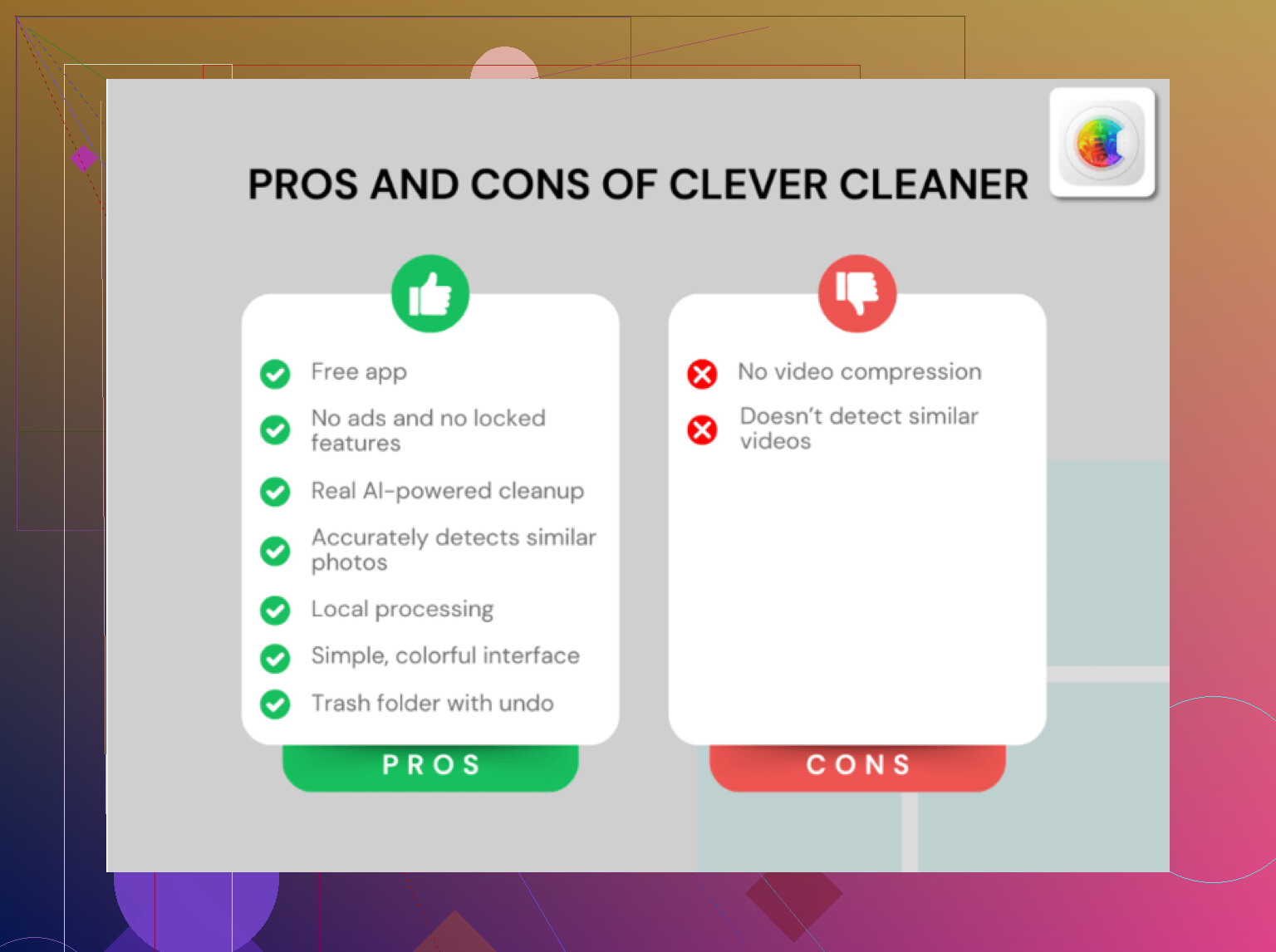
If you want the quickest photo/video sweep, Clever Cleaner is decent.
Pros:
- Finds duplicates and similar shots fast
- Good for large videos
- Easier than digging through Photos manually
Cons:
- Mostly useful for media, not system junk
- You still need to review before deleting
- Won’t fix corrupted iOS storage reporting
My order would be: Files trash, offline downloads, message attachments inside third-party apps, then media cleanup with Clever Cleaner, and only after that consider reinstalling bloated apps or doing backup and restore.