My iPhone suddenly showed a memory full message, and now I can’t take photos, download apps, or update iOS. I already deleted a few files, but the storage still seems full. I need help figuring out the fastest way to free up space and stop this warning from coming back.
I ran into this on my iPhone too, and yeah, the full storage warning and app crashes usually show up together. When your phone is packed, iOS runs out of room for temp files, cache, updates, all the junk it needs to keep things moving. Then stuff starts hanging, freezing, or closing on its own.
First thing, make sure the warning is real. A lot of fake alerts show up in Safari or after some sketchy ad on YouTube. They copy Apple’s look and try to spook you into tapping something dumb. Check it the normal way.
Settings > General > iPhone Storage
Wait for the bar to load. If you still see a few GB free, the popup was fake. If the bar is maxed out, then yep, your storage is the problem.
One thing people miss all the time, deleting photos does not free space right away. iPhone throws them into Recently Deleted and keeps them there for 30 days. So you delete a bunch of videos, look back at storage, and nothing changed. Been there. Annoying.
Open Photos, scroll to Utilities, open Recently Deleted, then clear it out with Delete All. If you removed a pile of large videos and storage still looks bad, this is often why.
If you already emptied that folder and the phone still says it is full, check System Data. Apple used to call it Other. Same mess, different label. This includes cache files, logs, leftovers from apps like Safari, Instagram, Spotify, TikTok, and whatever else has been squatting on your phone for months.
A restart helps more than people think. I know it sounds too simple, but I did it and saw space come back. Rebooting forces iOS to clean up some temporary garbage. For apps with huge caches, the usual fix is uglier. Delete the app, install it again. iOS does a bad job giving you direct cache controls, so reinstalling is often the cleanest route.
I had this on an iPhone 13 a while back. The phone got slow enough to feel broken. Typing lagged. Opening Messages felt delayed. Swiping was choppy. I started digging through photos, videos, the Files app, old downloads, old message attachments. Total slog.
After wasting too much time on manual cleanup, I tried a cleaner app. The one I stuck with was Clever Cleaner.
I don’t trust most of these apps, so I expected the usual trap. Free install, then a paywall in 20 seconds. This one didn’t do that. No subscription wall, no ad spam from what I saw, and it handles stuff on the device, which mattered to me because I did not want my photo library shipped off somewhere.
The parts I found useful were pretty simple.
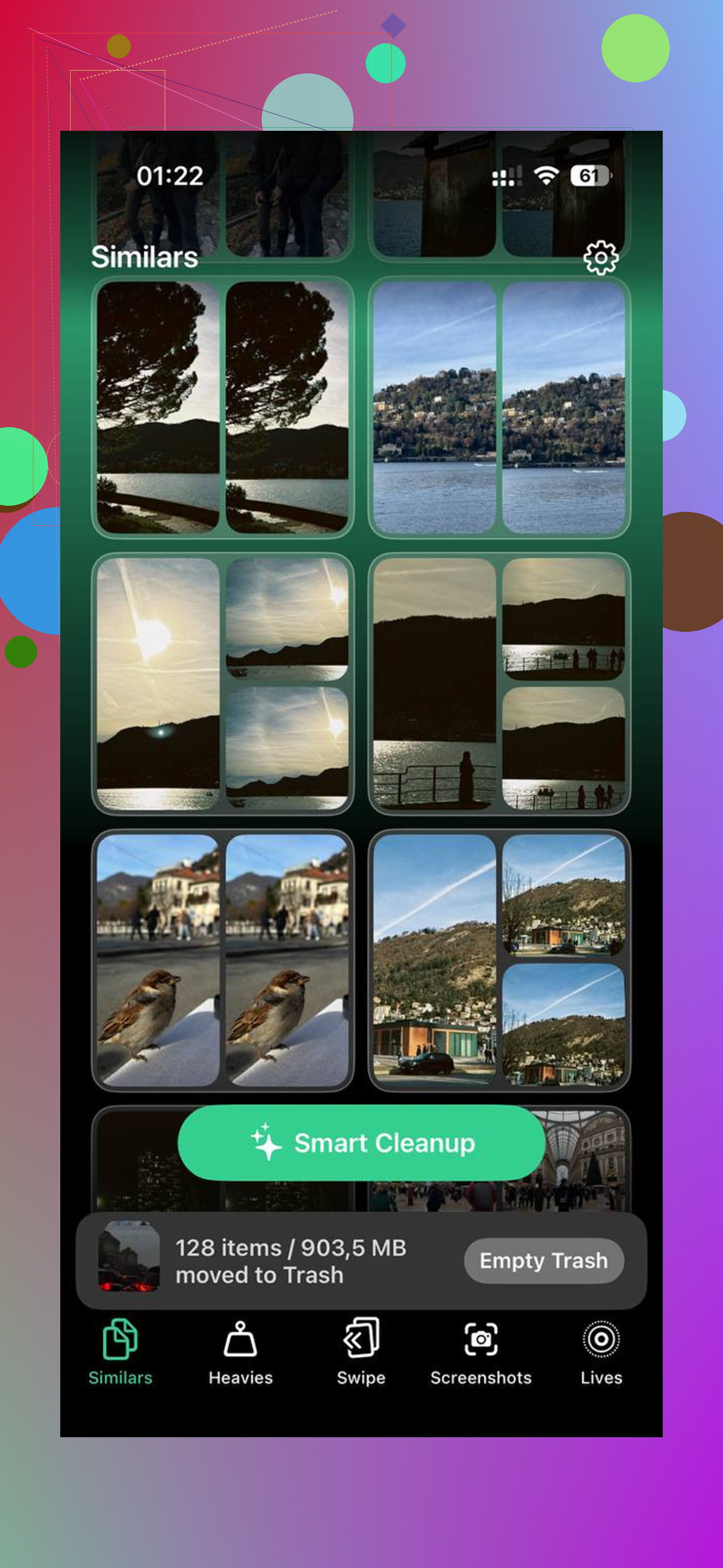
Similars:
It grouped near-duplicate photos. Stuff like six shots of the same receipt, five blurry pet pics, ten versions of the same sunset. It picked a best shot and let me wipe the rest fast.
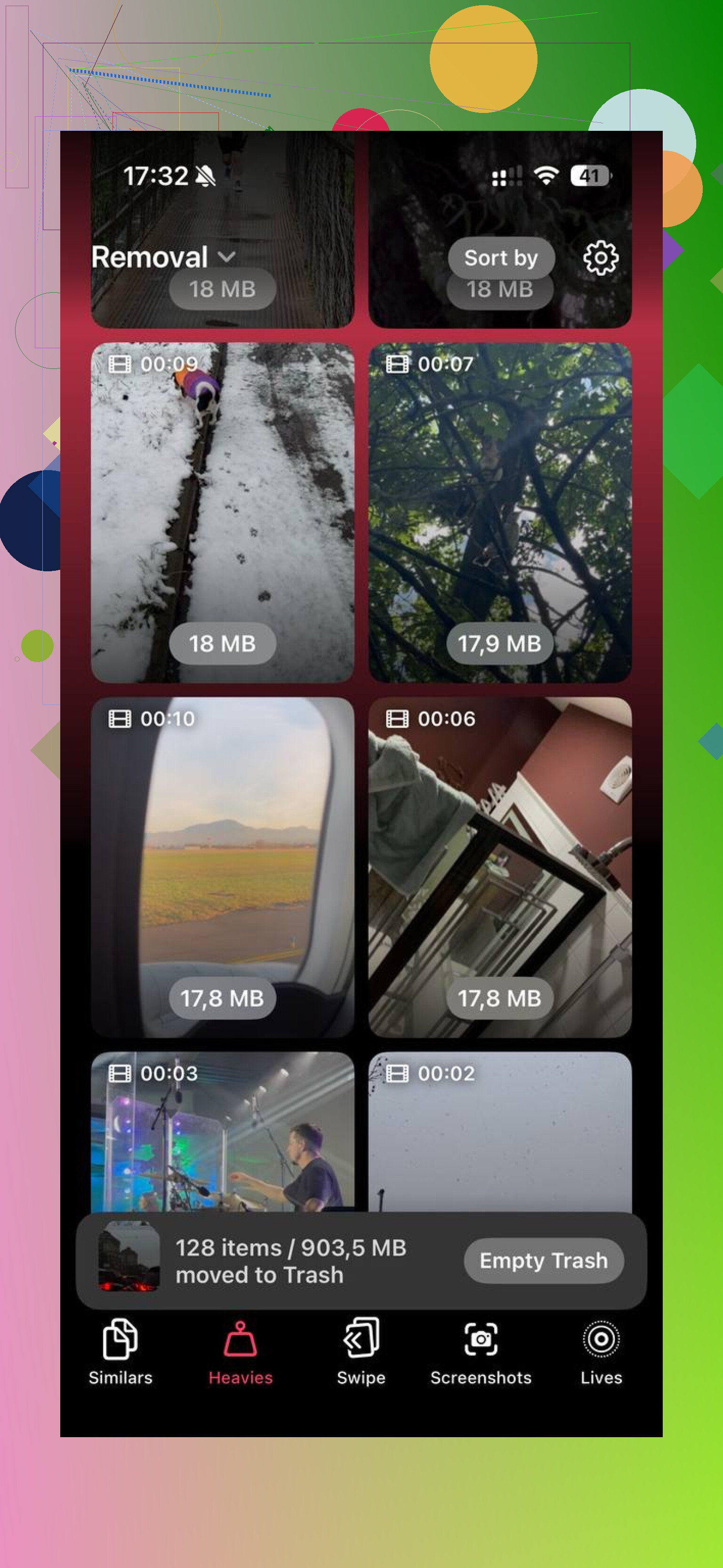
Heavies:
This one sorted photos and videos by size. That helped more than anything. I found giant 4K clips eating hundreds of MB each, plus old screen recordings I forgot existed. Seeing exact file sizes made the choices easier.
After I cleared around 15 GB, the phone stopped dragging. Apps stopped crashing too. For me, the lag dropped off right away.
If you already did the normal cleanup, emptied Recently Deleted, removed app junk, offloaded stuff, maybe used a cleaner, and System Data is still huge, you might be stuck with one of those weird iOS storage bugs. At that point, the ugly fix is backup, wipe, restore.
Back up to iCloud or your computer.
Factory reset the iPhone.
Restore from the backup.
It takes time, yeah. Still, it tends to reset all the broken storage accounting and clear out junk iOS refused to let go of.
If I were doing this again, I’d go in this order:
- Check storage in Settings and ignore random browser popups.
- Empty Recently Deleted in Photos.
- Restart the phone.
- Delete and reinstall bloated apps.
- Look through big files, videos, downloads, and message attachments.
- Use a cleanup tool if sorting it by hand is taking forever.
- Backup and reset if System Data stays massive.
Start with Recently Deleted and a reboot. Those two fix more than people expect. After that, go after the large files first. Way faster than poking through every thread in iMessage one by one.
17 Likes
Fastest fix, free up 3 to 5 GB in one pass. iOS updates and photo processing need working space, not zero-space survival mode.
I’d skip deep manual hunting first. @mikeappsreviewer covered the usual cleanup path. I disagree on one part, deleting and reinstalling a bunch of apps is slow if you need a fast result today.
Do this instead.
- Open Settings > General > iPhone Storage.
- Tap Messages. Delete large attachments first. Old videos in text threads eat tons of space.
- Tap Downloads in the Files app. Remove ZIPs, PDFs, video files.
- Remove offline content from Spotify, Netflix, YouTube, Podcasts.
- If you use mail apps, delete large attachments or remove and re-add the account. Mail cache gets stupidly big sometimes.
- Turn on Offload Unused Apps. It keeps docs, removes the app binary.
If photos are the issue and you want speed, use Clever Cleaner. It’s faster than sorting 8,000 pics by hand. Near-duplicates and large videos are the low-hanging fruit.
This guide on the best AI cleaner apps for iPhone storage cleanup shows how this kind of cleanup performs in real testing.
If your storage total still looks wrong after freeing space, sync with Finder or iTunes once. I’ve seen iOS recalculate storage after a wired sync. Weird fix, but it works somtimes. If not, backup, erase, restore. That fixes the fake “full” state more often than people want to admit.
Fastest fix in my expereince is not “delete random stuff,” it’s freeing the kind of space iOS can use right away.
I’d actually push back a little on @mikeappsreviewer and @caminantenocturno here. App reinstalls and deep message cleanup work, sure, but they’re kinda slow if you need the phone usable ASAP.
Try this order:
- Force restart the iPhone.
- Turn off Photos sync for a minute if it’s stuck processing.
- Record one short video, then delete it. Weird trick, but sometimes it forces storage recalculation.
- Open Safari and clear History and Website Data.
- Remove any pending iOS update file in Settings > General > iPhone Storage. Those can be huge.
- Check Voice Memos. People forget those exist and they can eat gigs.
Also, if your phone is full because of photo clutter, Clever Cleaner is probly the quickest route since it finds large videos and duplicate shots faster than doing it manually. If you want a better idea of how that works, this full Clever Cleaner iPhone storage cleanup walkthrough shows it pretty clearly.
One more thing, “memory full” on iPhone usually means storage, not RAM. Apple wording confuses everybody lol. If you free up at least 5 to 10 GB, the phone usually stops acting broken. If it still says full after that, then yeah, backup and restore is probably the real fix.
I’d skip one thing from @caminantenocturno and @himmelsjager: tricks like recording a short video or toggling sync can help, but they’re hit-or-miss. Fastest reliable move is to target categories iOS hides in plain sight.
Check these that people overlook:
- Books app downloads and imported PDFs
- GarageBand, iMovie, CapCut project files
- WhatsApp or Telegram media storage inside each app
- Podcast episodes marked “saved”
- Safari Reading List offline pages
- Old device backups stored on the phone from transfer attempts
Also, open Settings > Accessibility > Spoken Content if you ever downloaded voices. Enhanced Siri and accessibility voices can eat a shocking amount.
If photo clutter is the main issue, Clever Cleaner is worth a look because it surfaces duplicates and giant videos quickly.
Pros:
- fast visual cleanup
- good for duplicate photos and heavy videos
- easier than manual sorting
Cons:
- mainly helps media, not every kind of storage bloat
- you still need to review before deleting
- less useful if your problem is System Data or app caches
So my order would be: hidden app media first, then local downloads, then Clever Cleaner for photos/videos. If storage still won’t drop after that, the problem is probably corrupted System Data, and that’s when reset/restore beats more cleanup.