I’m trying to streamline my workflow on my Mac and feel overwhelmed by all the productivity app options—task managers, note apps, time trackers, and focus tools. I’ve tried a few random ones but end up uninstalling them because they don’t really stick or integrate well. What Mac productivity apps have genuinely improved your daily work, and why do you recommend them?
I’ve kind of landed on a setup of apps that mostly behave like background utilities instead of capital-S Software. I honestly can’t tell if it’s efficient or if I’ve just spent too long tinkering with it until it finally stopped annoying me.
What follows is the current state of the machine, after way too many experiments.
The Quiet Utilities That Do All The Work
So, a lot of what keeps my Mac tolerable is stuff I barely notice anymore. It is just there, doing boring jobs I would absolutely rage about if I had to do them manually.
Rectangle
Rectangle is basically my answer to the question: ‘Why is macOS still pretending window snapping is an advanced feature?’
I mapped Cmd + Option + Right Arrow to slam my browser to the right half of the screen. Same for left. After that, my desktop stopped looking like I’d just shaken a bag of windows and dumped it across the monitor.
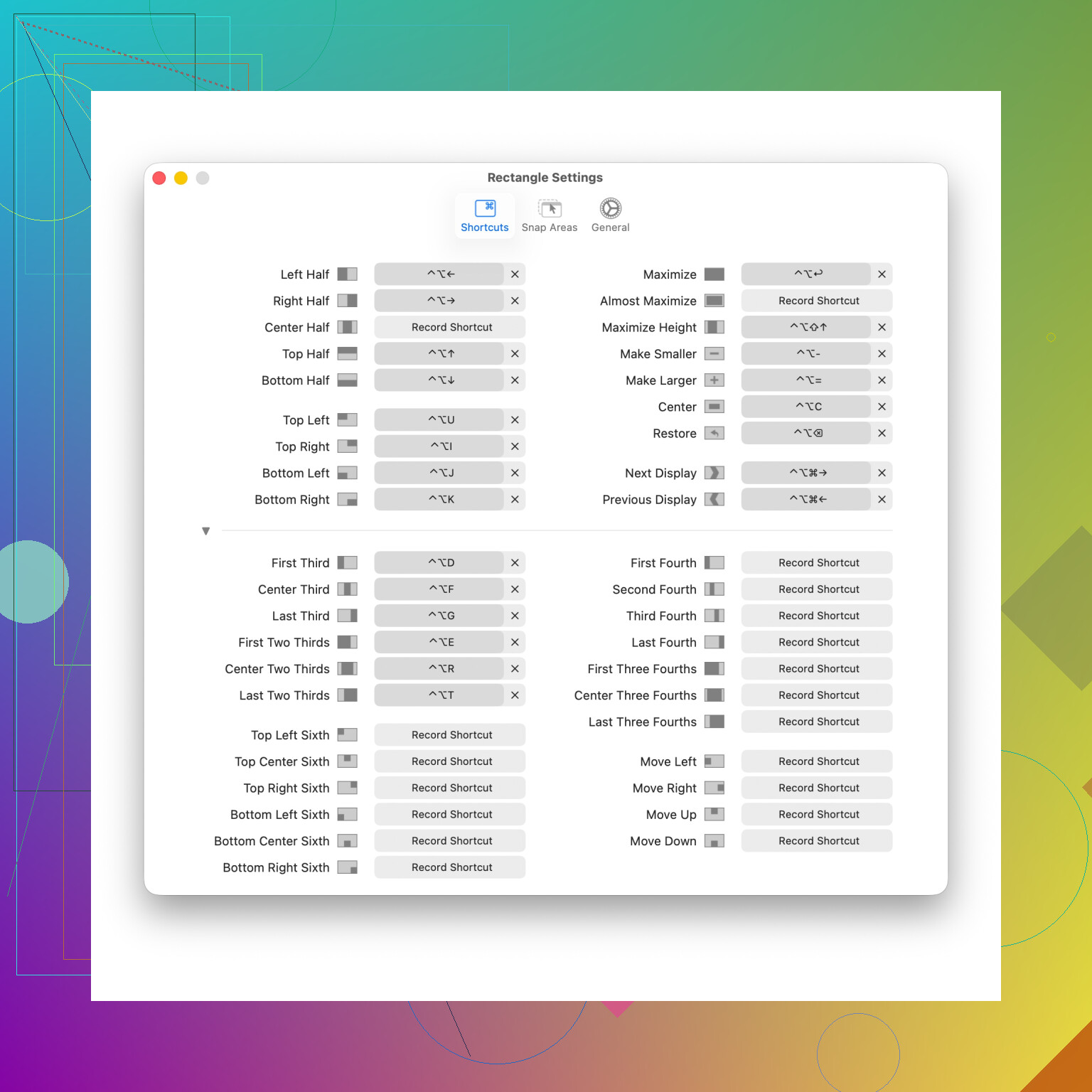
The difference between ‘I drag this window around until it sort of fits’ and ‘shortcut, done’ is huge when you do it 50 times a day. It’s one of those apps you forget exists until you sit down at a fresh Mac and realize the OS still expects you to align things like it’s 2003.
Keyboard Maestro
Keyboard Maestro is where I accidentally fell into automation territory.
I built one macro that:
- Launches my three main work apps
- Arranges them into a layout I like
- Sets the front app to whichever I’m actively using that day
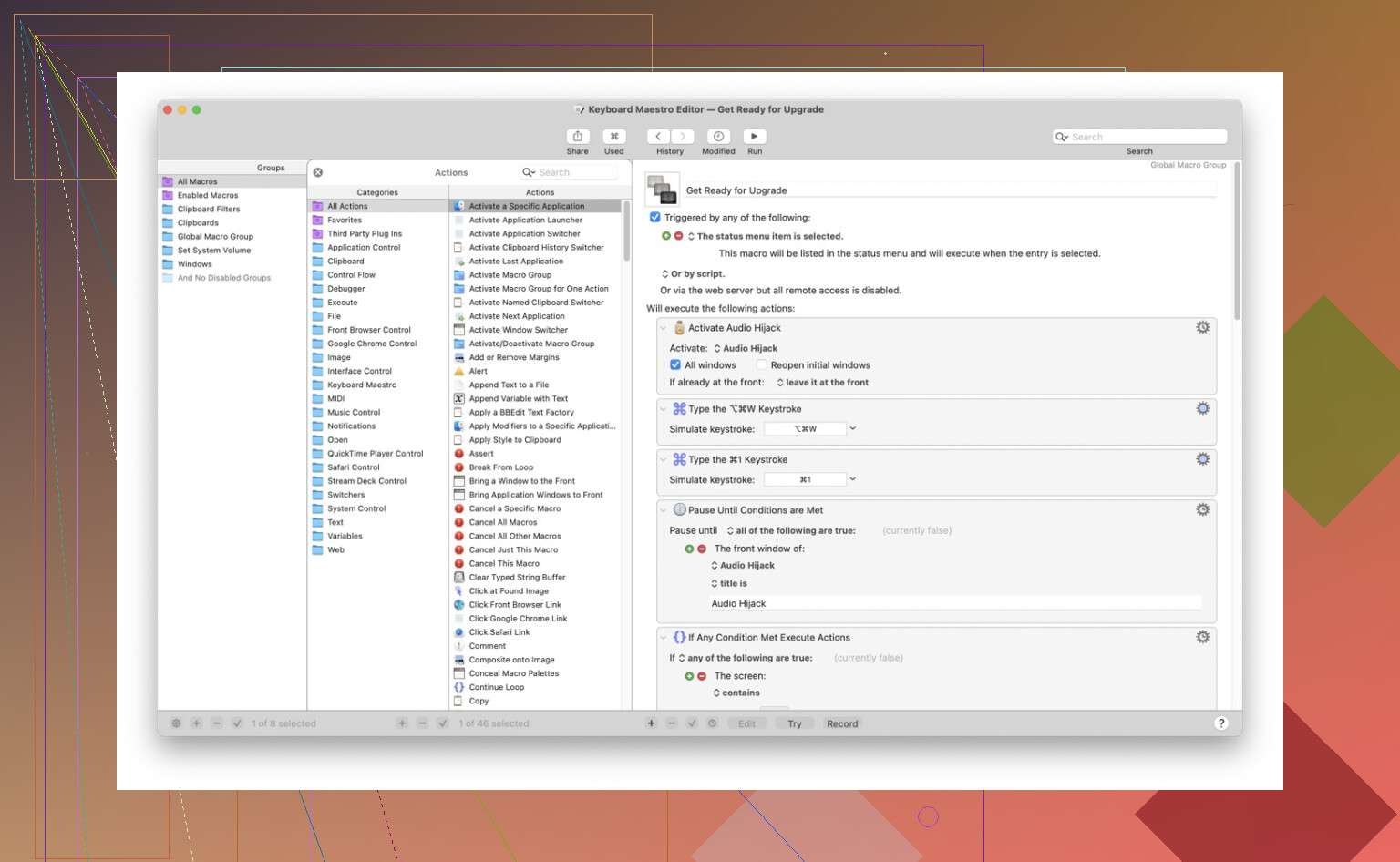
It was not plug-and-play. I burned an hour tinkering with delays, window conditions, ‘if app is already running’ weirdness, all that. But when I hit the hotkey and my workspace just snaps into place, it feels like I hired a tiny invisible intern.
Now when I sit down to work, there’s no ritual of ‘open this, drag that, close that, where did Slack go.’ I hit one shortcut and it’s all summoned like a preset.
Backblaze
Backblaze is the app I never think about but always keep paying for.
It just sits in the background, quietly uploading my junk to wherever their servers live. The only time it enters my awareness is when I glance up and see the little ‘Backup in progress’ indicator.
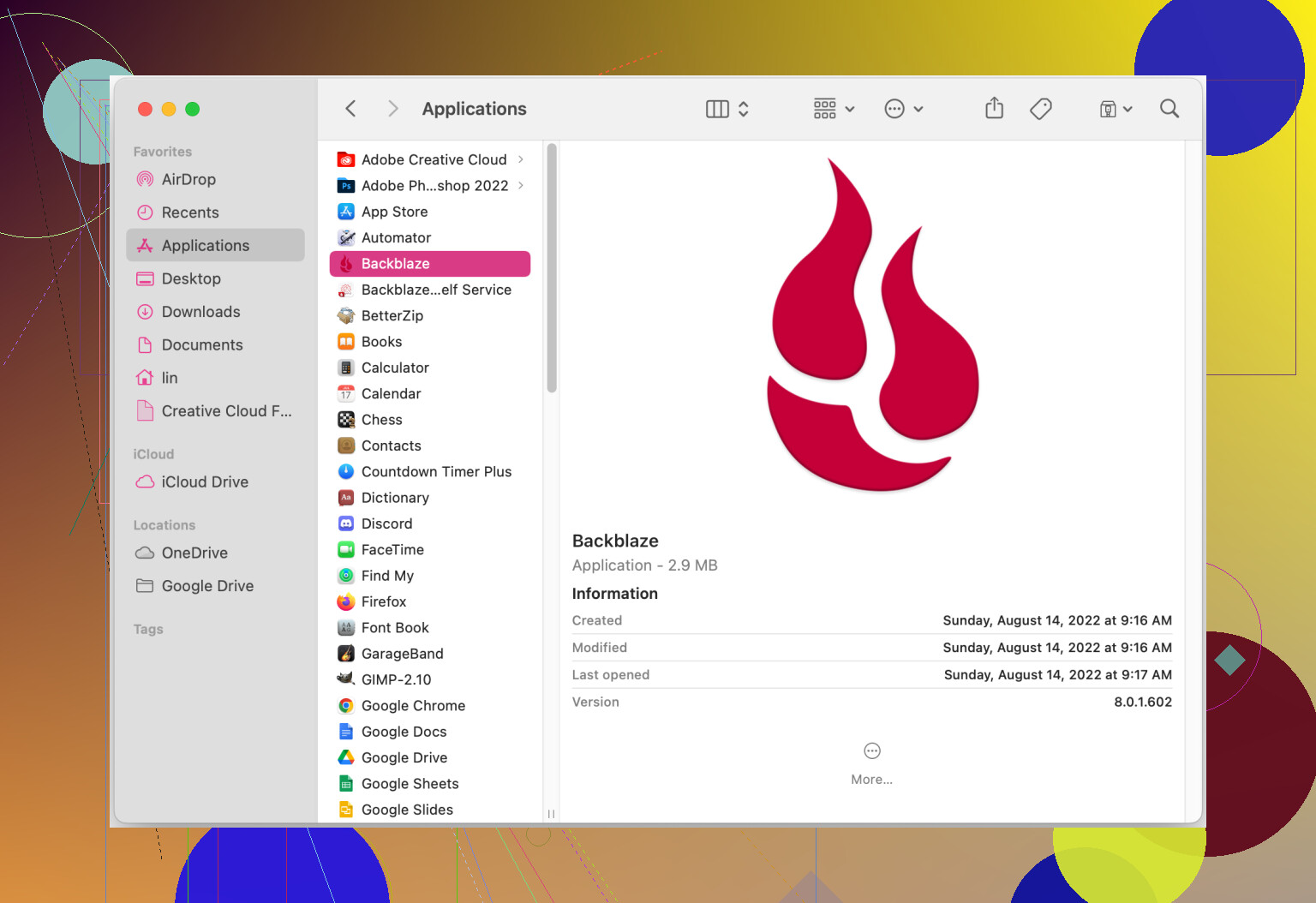
The peace of mind is real, though. Every time my external drive makes a suspicious click or my Mac’s fan suddenly spins up, I have that moment of ‘If this thing dies right now, do I lose everything?’ and then remember: no, it’s mirrored off-site. I don’t obsess over versioning, I just want ‘my stuff is not gone forever’ coverage, and this gets me there.
Replacing Finder With Something Less Annoying
At some point I admitted to myself that I was spending too much time wrestling with Finder. So I tried a few replacements and stuck with one.
Commander One as a File Manager
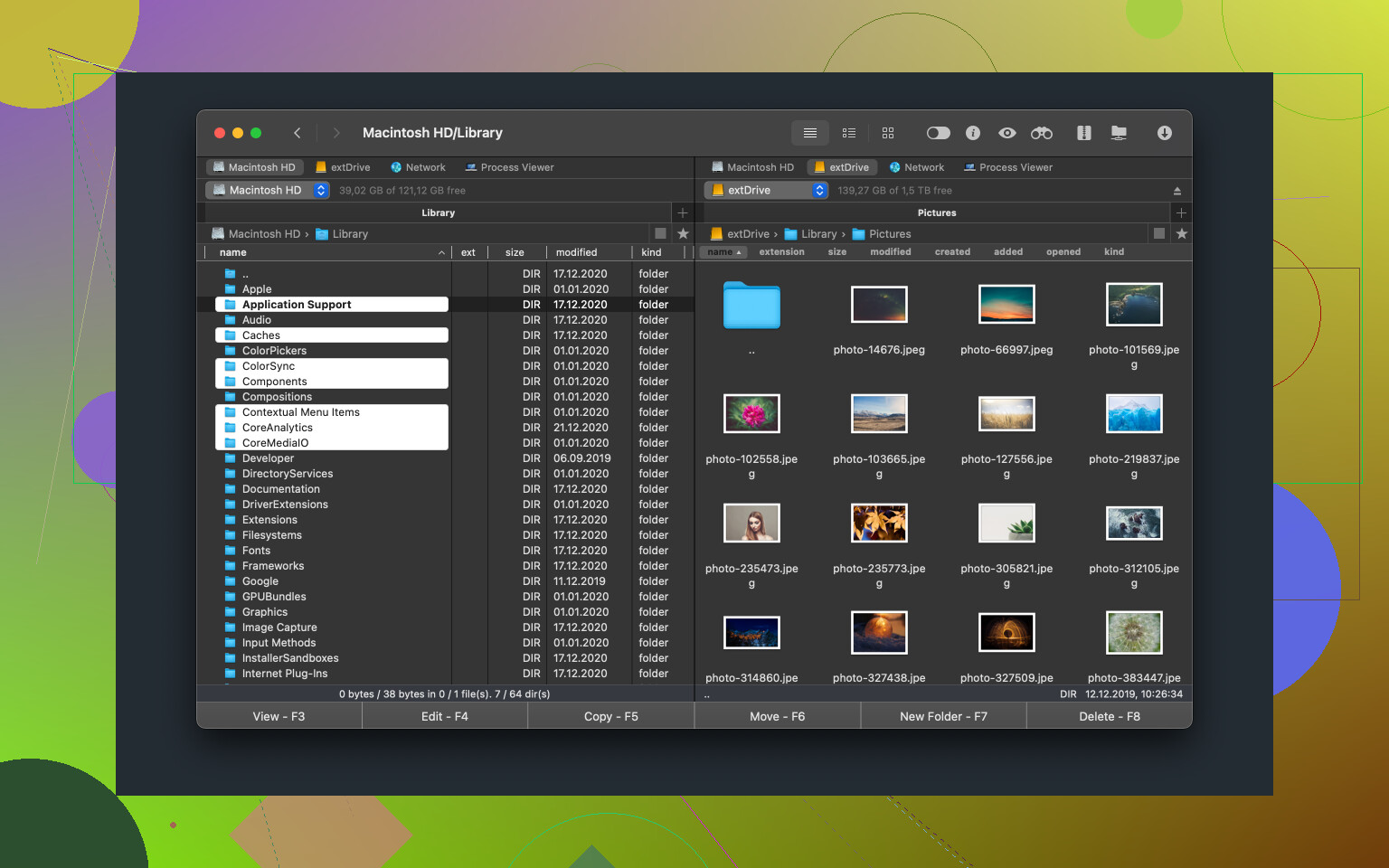
I ended up on Commander One because I missed having a proper dual-pane setup. Two folders, one window, drag files across. Old-school, but my brain likes it.
With side-by-side panes, I can organize a project way faster. No three overlapping Finder windows, no mystery where-did-that-folder-go moments. Just left side, right side, move things over.
I realized how much time I’d wasted doing the window shuffle the day I spent 20 minutes cleaning up a mess of assets and didn’t feel my blood pressure spike.
The part that really sold me, though, was treating archives as if they were normal folders. It lets me open .zip and .7z archives like directories, poke around, and yank out the one file I need.
No more:
- Double-click archive
- Wait for extraction
- Have a random folder appear somewhere
- Open that just to grab a single .txt
- Delete the whole thing when I’m done
Now I just open, peek, drag, done. I’m still confused why that isn’t how macOS handles archives by default.
Bonus: Built-in Process Viewer
When my fans kick up and the laptop sounds like it’s about to taxi down a runway, I used to open Activity Monitor, wait for it to load, sort by CPU, hunt the offender.
One day I found the process viewer inside Commander One, which loads quicker in practice on my machine. I used it to find a random ‘print helper’ process chewing through 15% CPU for absolutely no reason. Killed it there on the spot, no app switching.
Not saying it replaces Activity Monitor completely, but it’s nice having a lighter-weight option already open in the file manager I’m using anyway.
Privacy & Daily Routine Stuff
This is the less glamorous, more ‘I don’t want my life to be a security incident’ chunk of the setup.
1Password
1Password is one of those tools I argued with myself about because of the subscription model. But the reality is I have hundreds of logins at this point and my brain taps out around password number five.
Centralizing everything into 1Password made things livable. The big shift was moving my 2FA codes in there too. Before that I was juggling a separate authenticator app, copying codes, timing out, reloading, swearing quietly.
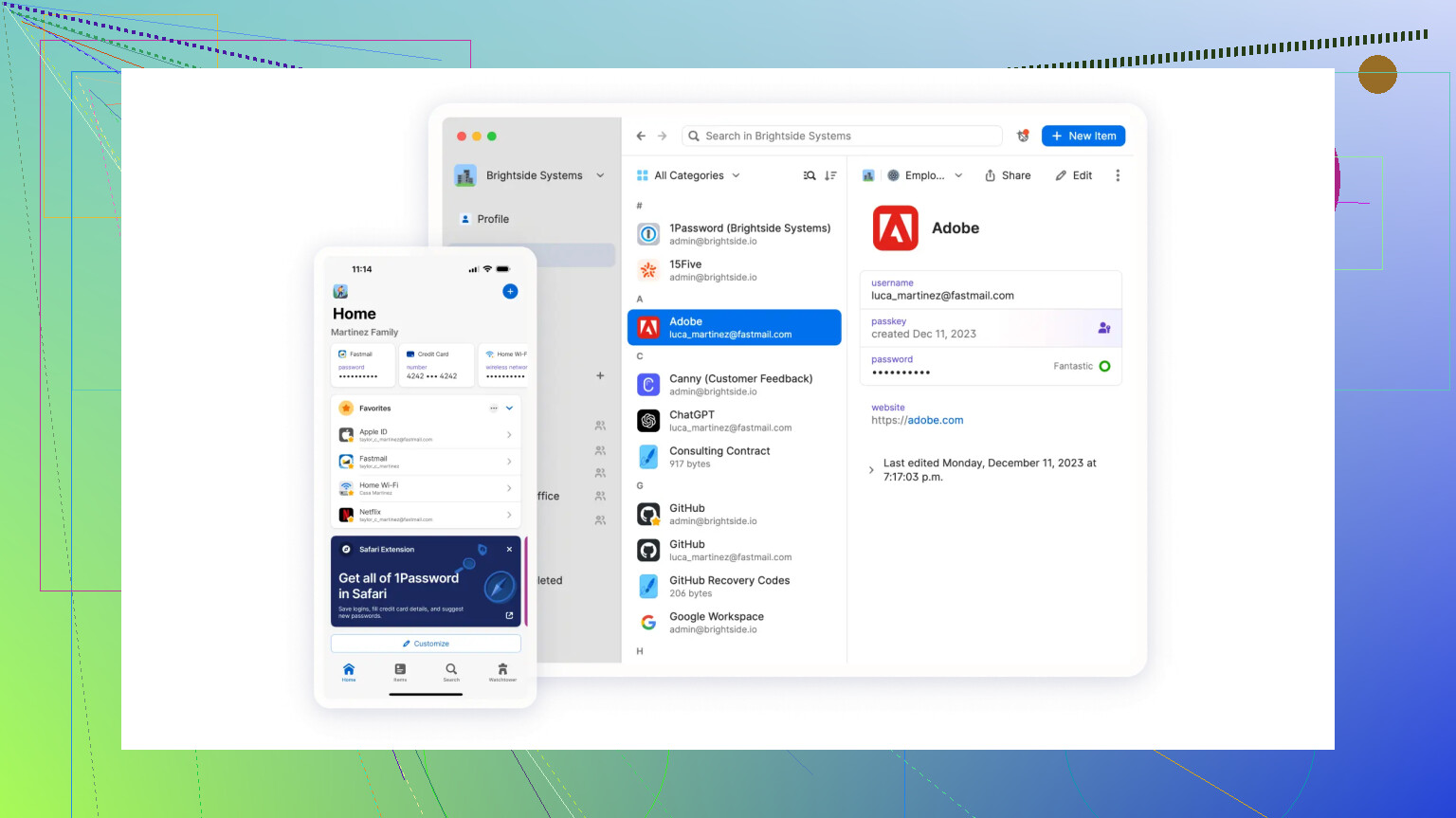
Now it’s just: open the vault, autofill login, click for the 2FA code in the same place. No digging through a different app on my phone trying to match Which Code Goes With What.
I don’t care about having the most beautiful UI or whatever; I just want not to lock myself out of my own accounts.
Proton VPN
Proton VPN mostly lives in my menu bar for when I wander out to work in public.
At home, I don’t bother much. But at the coffee shop with open Wi-Fi, I flip it on by reflex now. It eats maybe 5% of my connection speed on average, which I notice only if I’m pulling something huge like a massive game update or a big build for work.
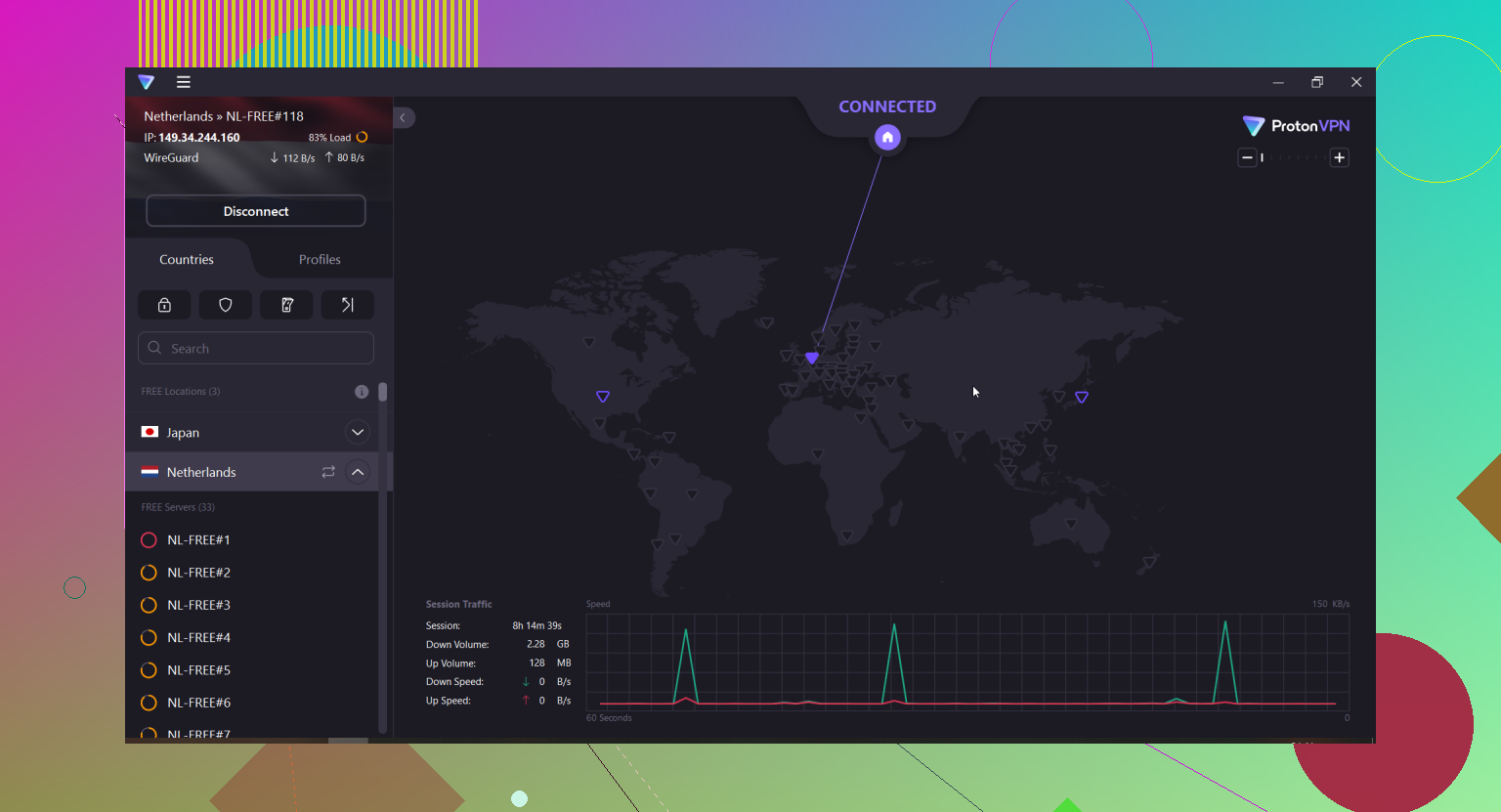
On normal browsing, streaming, docs, whatever, it feels the same. It’s not that I imagine someone is specifically targeting me, I just don’t love the idea of my traffic drifting around unencrypted in a room full of bored people staring at laptops.
Tradeoff is simple: a tiny bit slower, a lot less ‘is some rando on this network sniffing everything I do.’
Outlook
I tried, repeatedly, to make Apple Mail my default, and every single time I wound up back on Outlook purely for the calendar side of things.
Mail by itself is fine for casual use. But as soon as meetings, invites, and time zones start stacking up, Outlook’s calendar integration just works more consistently for me. Everything from invites to reminders behaves the way I expect.
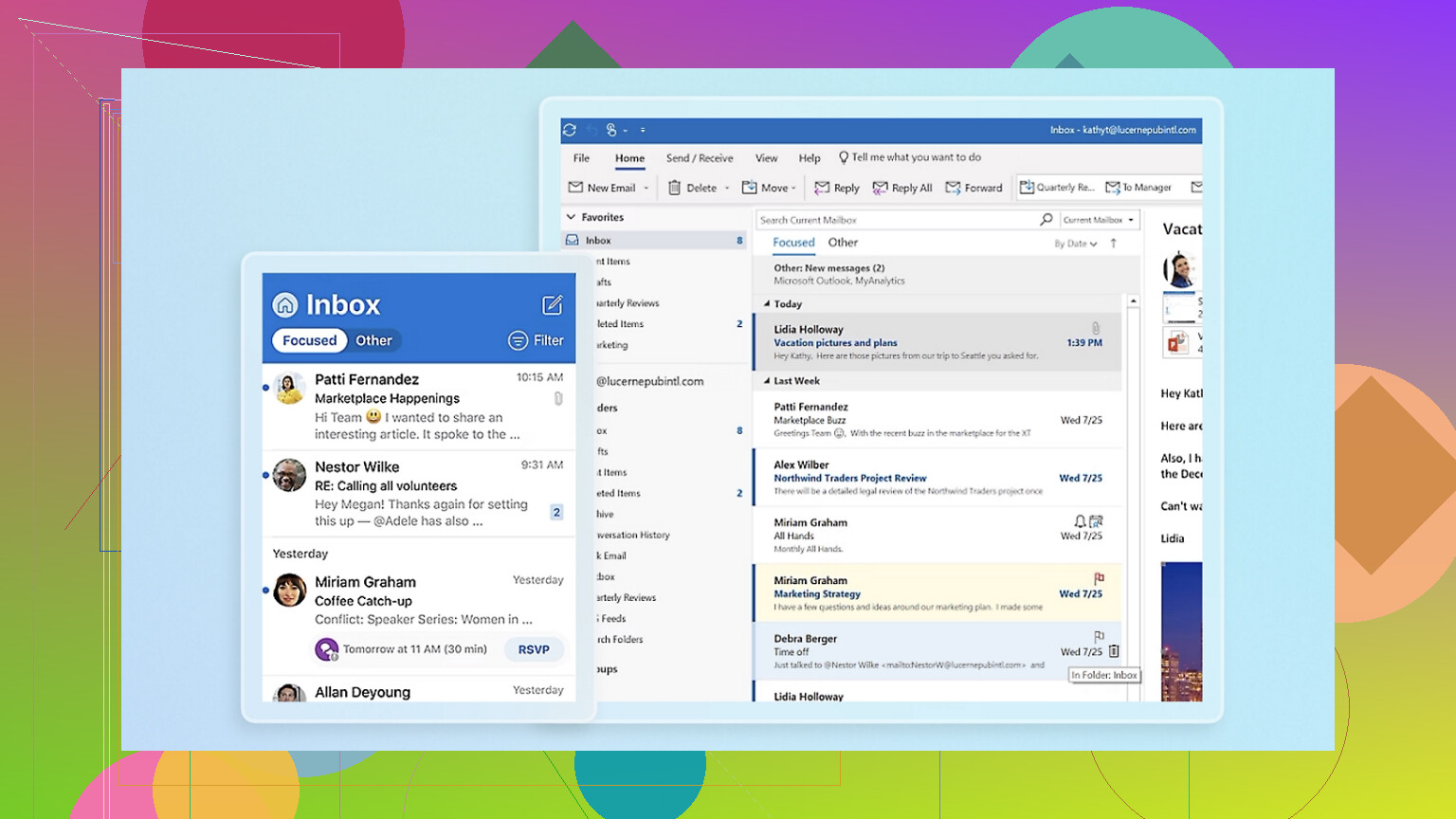
The trick that made Outlook tolerable was nuking all the ‘smart’ sorting. I turned off Focused Inbox, ‘Other’ tabs, all the ‘let us decide what matters’ junk. Once it went back to being just ‘here is your mail, in order,’ it clicked.
My setup now is:
- Outlook is the control center for time and scheduling
- Notifications trimmed way down so it doesn’t scream at me all day
- Filters kept simple, mostly for auto-filing stuff I never reply to
It is not pretty, but it keeps my meetings from stepping on each other, and that’s more important than whether the UI is perfectly minimal.
That’s basically the current loadout. Not perfect, probably not what a ‘productivity guru’ would recommend, but most of it disappears into the background, and that’s kind of the point. For more picks like these, it can be nice to wander a bit - there are lots of places with good suggestions.
15 Likes
I’m in the same “tried everything, deleted everything” club, so I forced myself into a pretty strict setup: only tools that actually change my day-to-day behavior survive longer than a week.
I like a lot of what @mikeappsreviewer is doing with background utilities, but I kinda disagree on one thing: I actually want one or two “capital-S Software” apps that I live in, instead of spreading my attention across 10 tiny helpers.
Here’s my current stable loadout on macOS:
1. Task management: Things 3
I tried OmniFocus, Todoist, Reminders, all that. Things 3 is the only one I’ve stuck with for more than a year.
What it does well for me:
- Super low friction: hit Ctrl + Space, type “email Alex about contract tomorrow 3pm,” done.
- Today vs Anytime: I only really live in “Today” and “Upcoming.” Everything else is storage.
- No weird gamification, no “levels,” no karma. Just a clean list I actually look at.
I have 3 main areas: Work, Personal, Admin. If a new app does not fit into one of those via a task, it’s not important enough.
2. Notes: Apple Notes (with boring constraints)
I tried Notion, Obsidian, Craft, Evernote (RIP) and… ended up back on Apple Notes.
Why:
- It is already there, syncs fast, and search is good enough.
- It opens instantly on Mac and iPhone.
- I am not tempted to spend an afternoon “tuning my system.”
Rules I force on myself:
- One “Inbox” note for brain dumps. I clear it once a day into proper notes or tasks.
- One “Work Log – 2026” note where I just append a date and bullet points of what I did.
- Everything long-term gets a simple folder, no fancy tags or backlink rabbit hole.
If I catch myself tweaking structure instead of writing, I delete whatever I just made. Sounds harsh, but it has worked.
3. File management: Commander One
Here’s where I 100% agree with you being overwhelmed and also with part of what @mikeappsreviewer said: Finder is… fine, until you actually do real work with lots of files.
Commander One has basically become my real workspace:
- Dual-pane layout so I can keep “Project” on the left and “Assets / Downloads / Archive” on the right. Copying, organizing, renaming is just faster.
- Treats archives like folders. I use a lot of .zip and .7z resources and being able to open them like normal directories, grab what I need, and move on is a huge time saver.
- Built-in process viewer is surprisingly handy when something starts eating CPU and I don’t feel like waiting for Activity Monitor to load.
If “productivity” for you means moving project files, exports, and reference stuff around a lot, Commander One is honestly more impactful than adding another todo app.
4. Time & focus: Timing + plain old Do Not Disturb
I burned out on “focus” apps that try to coach me.
Right now I use:
-
Timing for passive tracking
- It just watches what apps and documents I use and creates an automatic timeline.
- Once a week I spend 5 minutes categorizing the “unknown” stuff.
- Seeing “3h of Slack” in a bar chart hits harder than any pomodoro timer.
-
System-level focus
- Focus mode on macOS with only calendar + calls allowed through for my work block.
- I schedule 2 blocks per day: 90 min deep work, 60 min admin. That’s it.
- No dedicated “focus app,” just turning notifications off aggressively.
I know lots of people swear by pomodoro apps. For me the timers became another distraction. Silent calendar blocks plus Timing for guilt works better.
5. Automation & shortcuts: Raycast instead of a giant macro app
Keyboard Maestro is powerful, but it turned into a hobby project for me instead of a productivity tool. I’d spend an hour building something to save 10 seconds. So I switched to Raycast as a middle ground.
What I use Raycast for:
- Launch apps, open folders, run scripts with a few keystrokes.
- Clipboard history so I don’t fight with “oops I copied over that thing I needed.”
- A couple of tiny scripts, like “move current file to Inbox folder” or “rename files with pattern.”
Basically: minimal automation, only where the friction is obvious, not because it’s “cool.”
6. Email & calendar: Fastmail + Apple Calendar
I tried Outlook like @mikeappsreviewer, and yeah, the calendar stuff is solid, but the whole thing felt way heavier than I needed.
My combo:
- Fastmail in a browser tab (pinned).
- Apple Calendar for everything time-related.
I keep email rules super simple:
- Newsletters → “Read Later” folder.
- Everything else lands in Inbox. I process twice a day and try to leave with 10 or fewer messages sitting there.
If an email takes more than 2 minutes to deal with, it becomes a task in Things 3 with a link back to the message. That keeps mail from becoming my todo list.
How I decide if an app stays
This is what stopped the install/uninstall spiral for me:
- Does it replace an existing tool, not add another layer?
- Can I explain why I use it in one sentence?
- After 2 weeks, can I remember the keyboard shortcut without thinking?
If the answer is “no” to any of those, it goes.
If you want to test something like Commander One or Raycast or Things, I’d honestly pick one category at a time. For example:
- Week 1: Only experiment with file management. Try Commander One.
- Week 2: Only experiment with tasks. Things 3 vs whatever you use.
- Week 3: Only experiment with time tracking. Maybe Timing or a simpler tracker.
Everything else stays frozen so you can actually tell what changed instead of living in experiment soup forever.
I’m in the same “install 12 apps, keep none” camp, so I forced myself into a stupidly small toolkit. I like a lot of what @mikeappsreviewer said about background utilities and I’m with @boswandelaar on having 1–2 “main” apps, but my setup leans even more minimal.
Here’s what actually stuck on my Mac:
1. Files & projects: Commander One
If you work with a lot of files, Commander One is honestly the only “productivity” app that changed my day in a concrete way.
How I use it:
- Dual-pane: left = current project, right = “Resources / Downloads / Archive.”
- I keep one tab per active project instead of 10 Finder windows.
- Built‑in process viewer is enough to kill random stuff eating CPU without opening Activity Monitor.
macOS Finder is fine for casual use, but as soon as I’m juggling assets, zips, versions, etc, I’m faster in Commander One. It’s not glamorous, it just reduces friction every single hour.
I actually disagree a bit with @boswandelaar here: for me, file management is more important to productivity than the task manager. If my files are chaos, it doesn’t matter how pretty my todo list is.
2. Tasks: plain Apple Reminders
I’ve tried the full tour: OmniFocus, Things, Todoist, etc. They’re great, but they encourage me to “tune the system” instead of do the work.
So I went back to Apple Reminders with a brutally simple setup:
- Lists: “Today,” “This Week,” “Backlog,” “Waiting.”
- Anything with a real due date goes on my calendar, not in Reminders.
- I only look at “Today” during the day. I reorganize at night.
It’s boring and I can’t nerd out over it, which is exactly why it works.
3. Notes: Obsidian, but with rules
Here I slightly disagree with both: Apple Notes is nice, but I outgrew it. I use Obsidian, but with strict limits so it doesn’t turn into a second job:
- One daily note for scratch + quick ideas.
- One folder per “area of life” (Work, Personal, Learning).
- No crazy plugin zoo, just search, backlinks, and a couple of keyboard shortcuts.
If I catch myself redesigning my “system,” I close Obsidian and open a text file instead. That little bit of shame helps.
4. Time & focus: no fancy focus app
I ditched all the pomodoro / focus apps. They became another thing to babysit.
What I actually do:
- macOS Focus mode with only calendar + calls allowed through.
- Calendar time blocking: 2 deep work blocks a day, everything else in the gaps.
- A cheap kitchen timer on my desk if I really need a 25‑min sprint.
I know @mikeappsreviewer gets value from Keyboard Maestro; personally, all the heavy automation turned into procrastination. I’d rather have one or two dumb rules and stick to them.
5. Utilities that quietly help
Nothing fancy here, just stuff that doesn’t demand attention:
- Rectangle for window snapping (same general idea as mentioned before, but I only use three shortcuts).
- Backblaze for backup. I don’t touch it; I just pay the bill.
- 1Password because I refuse to remember passwords in 2026.
No time tracker, no habit app, no “write your goals every hour” popups.
How I stopped uninstalling everything
The filter I use now:
- If an app isn’t clearly saving me clicks every single day after one week, it’s gone.
- Only one app per category: one task app, one note app, one file manager.
- If I can’t explain why I use it in one sentence, it’s a toy, not a tool.
If you’re overwhelmed, I’d honestly start with just two upgrades:
- Replace Finder with Commander One for serious work with files.
- Pick either Reminders or Things and force yourself to live there for tasks for 30 days, no switching.
Everything else can stay default macOS until you feel a specific pain. Then you add one app to solve that pain and ignore the rest of the app zoo.
Skip new apps for 14 days. Use one paper index card beside your Mac.
Write three sections each morning:
Today: your top three tasks.
Waiting: blocked items and names.
Notes: quick thoughts worth keeping.
Finish or cross out each item. Move unfinished work to tomorrow’s card. Every Friday, review the five cards and schedule only recurring work.
This removes setup, syncing, tags, and app switching. You’ll also see your real needs. If paper feels wierd after two weeks, choose one app based on the missing feature, not online lists.
If most of your work bounces between Mac and phone, half this thread falls apart, since a dual-pane file manager and Keyboard Maestro macros do nothing for you on iOS. Commander One earns its keep only if you’re genuinely shuffling files all day. For everyone else the real win is just @jeff’s index card, then adding one app when you actually feel a specific pain.