My external hard drive shows that a lot of storage space is being used, but many of my files and folders suddenly disappeared. I’ve already reconnected the drive and checked basic settings, but the missing files still aren’t showing up. I need help figuring out whether the files are hidden, corrupted, or if the drive is starting to fail.
If Windows still sees the drive and it shows up like normal, I’d take small comfort from that. From what I’ve seen, this often points to a file system mess, missing directory entries, or some other logical issue, not a drive that is flat-out dead. I had one do this a while back. Looked empty. The data was still sitting there.
What I would not do first is try to repair it.
Recover your files first. Mess with repairs later.
A few things to avoid right away:
- Do not format the drive, even if Windows throws up the format prompt.
- Do not write anything new to it.
- Skip CHKDSK for now. It fixes some errors, sure, but it also rewrites parts of the file system, and I’ve seen people make recovery harder by running it too early.
Before you jump into recovery software, check the simple stuff:
- Turn on Hidden items in File Explorer.
- Look at used space on the drive. If the used capacity looks close to what it was before, your files are often still there, only not showing up properly.
- Swap the USB cable or try a different port. Boring check, still worth doing. I’ve had a bad cable fake a bigger problem.
If the files still don’t appear, and there’s no backup, I’d move to recovery.
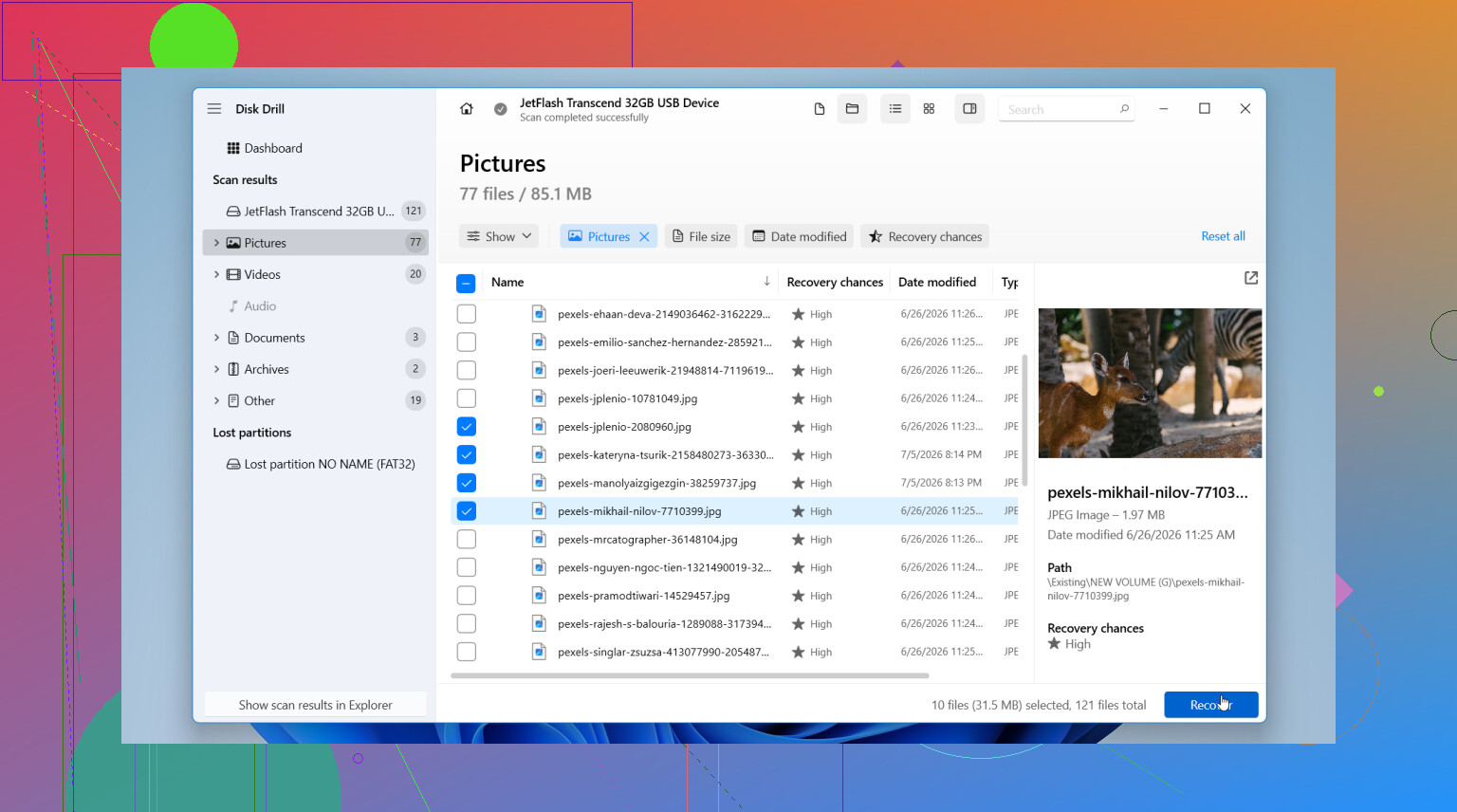
I’d start with Disk Drill. I used it because the layout was easy to follow and it includes disk imaging, which matters more than people think. A disk image is a full copy of the drive, sector by sector. If your external drive is dropping off, crawling, or acting twitchy, making an image first is the safer play. Then you scan the image instead of hammering the original drive again and again.
What I’d do, step by step:
- Install Disk Drill on your internal drive, or on some other healthy disk. Do not install it onto the problem drive.
- Launch it and pick the affected external drive.
- If the drive feels unstable, make a disk image first with the built-in tool. Scan the image after.
- If the drive seems steady, hit Search for lost data.
- When it asks for scan type, pick Universal Scan. I’d use this almost every time. It rolls multiple recovery methods into one pass, so you’re not stuck guessing. It checks for deleted files, damaged file system records, lost partitions, and file signatures.
- Let the scan finish. On a big drive, this drags. Still better to wait.
- Go through the results. Preview a few files you care about and see if they open.
- Recover everything to a different drive. Not back onto the same external drive. Ever.
If you’re on Windows, Disk Drill gives up to 100 MB free recovery, which is enough to test whether your missing files are showing up before you spend anything.
After you get the important data off, then deal with the original drive. Reformat it if you want to test it. If it keeps acting weird after that, I wouldn’t trust it again. I’d replace it.
One big exception here. If the drive is showing physical failure signs, stop. I mean clicking, grinding, random disconnects, long freezes, or vanishing from Windows altogether. At that point, software is not your friend. Repeated scans on a failing drive sometimes push it further downhill.
If the files matter a lot, family photos, work archives, old project folders, stuff you can’t redo, I’d skip the do-it-yourself route and go to a pro recovery shop. They have tools regular software doesn’t. It costs a lot, yeah. Still cheaper than losing something you can’t get back.
22 Likes
Used space + missing files usually points to one of three things. Corrupt file system, bad partition table, or files got flagged hidden/system by malware or a glitch. So the data blocks still exist, but the directory info is damaged or not showing.
I agree with @mikeappsreviewer on one big point. Do recovery before repair. I slightly disagree on waiting too long to verify drive health, though. Check SMART first with a read-only tool like CrystalDiskInfo. If you see reallocated sectors, pending sectors, or CRC errors, stop poking at the drive and copy data off fast. CRC counts often mean cable or port issues too, so swap both if needed.
A few checks people miss:
- Open Disk Management. See if the partition size looks normal and has the right file system.
- Run WinDirStat or TreeSize as admin. Sometimes folders exist but permissions or attributes hide them.
- Check ownership and permissions on the root of the drive.
- Scan for malware if files turned hidden out of nowhere.
If file listing stays broken, use Disk Drill or another recovery tool on a different PC drive, then save recovered files elsewhere. If you want a simple guide for how to recover files from a corrupted hard drive, this helps: see how to recover files from a corrupted hard drive.
One more thing, if the drive disconnects or freezes, stop. Thsoe are bad signs.
Used space + missing files usually means the data blocks are still on the drive, but the file system index is messed up, or the files got their attributes/permissions changed. So yeah, “empty” doesn’t always mean empty.
I mostly agree with @mikeappsreviewer and @espritlibre about not rushing into repairs, but I’d add one thing before recovery scans: check whether the files were moved into a FOUND.000 folder or turned into weird shortcuts. That can happen after corruption or malware, and people miss it all the time.
Also, from an admin Command Prompt, you can try a non-destructive visibility check first:
attrib -h -r -s /s /d X:\*.*
Replace X with your drive letter. This can unhide files if they were marked hidden/system. Don’t do this if the drive is constantly disconnecting tho.
If that doesn’t help, recovery is the next move. Disk Drill is a solid option here because it’s easy to sort recovered files by path and type, which helps when folders vanished but storage is still occupied. I’d recover to another disk only, not back to the external.
One small disagreement with the “scan immediately” approach: if the drive is making even tiny weird noises or taking forever to open folders, stop poking at it and image it first, or hand it off. People push dying drives way too hard and then wonder why things got worse. Seen it happen, not fun.
If you want a real-world external hard drive data recovery example, this post is worth a look: external hard drive data recovery success story.
After recovery, I’d wipe the drive, run the manufacturer diagnostic, and honestly maybe retire it. Drives that pull this stunt once tend to get sus again later.