Safari on my iPad has suddenly become very slow, with pages taking forever to load and sometimes freezing, while my other apps run normally. I’ve already checked my Wi-Fi and restarted the iPad, so I need help figuring out if this is a Safari setting, a cache problem, or something else causing the slowdown.
I ran into this with my own iPad, and the restart part fooled me too. A reboot clears temporary memory, sure, but it does not fix the stuff piling up underneath. If you installed an iPadOS update recently, give it a little time first. Mine stayed sluggish for half a day after one update while it rebuilt indexes and sorted background data. During that stretch, opening Mail felt weirdly slow.
If the slowdown sticks around, I’d check storage before anything else. This was the main problem on mine. Once the device gets crowded, performance drops in annoying ways. Apps take longer to open. Safari hangs. Animations start feeling delayed. Apple likes some free space available, and from what I saw, once storage gets close to full, the system starts tripping over itself. Newer iPadOS versions also lean on storage for memory swap, so if your space is packed, that extra buffer is gone.
On my iPad, the mess was boring stuff. Screenshots. Duplicate photos. Old videos I forgot existed. A few giant files were doing most of the damage. I only found them after I stopped guessing and looked at file sizes.
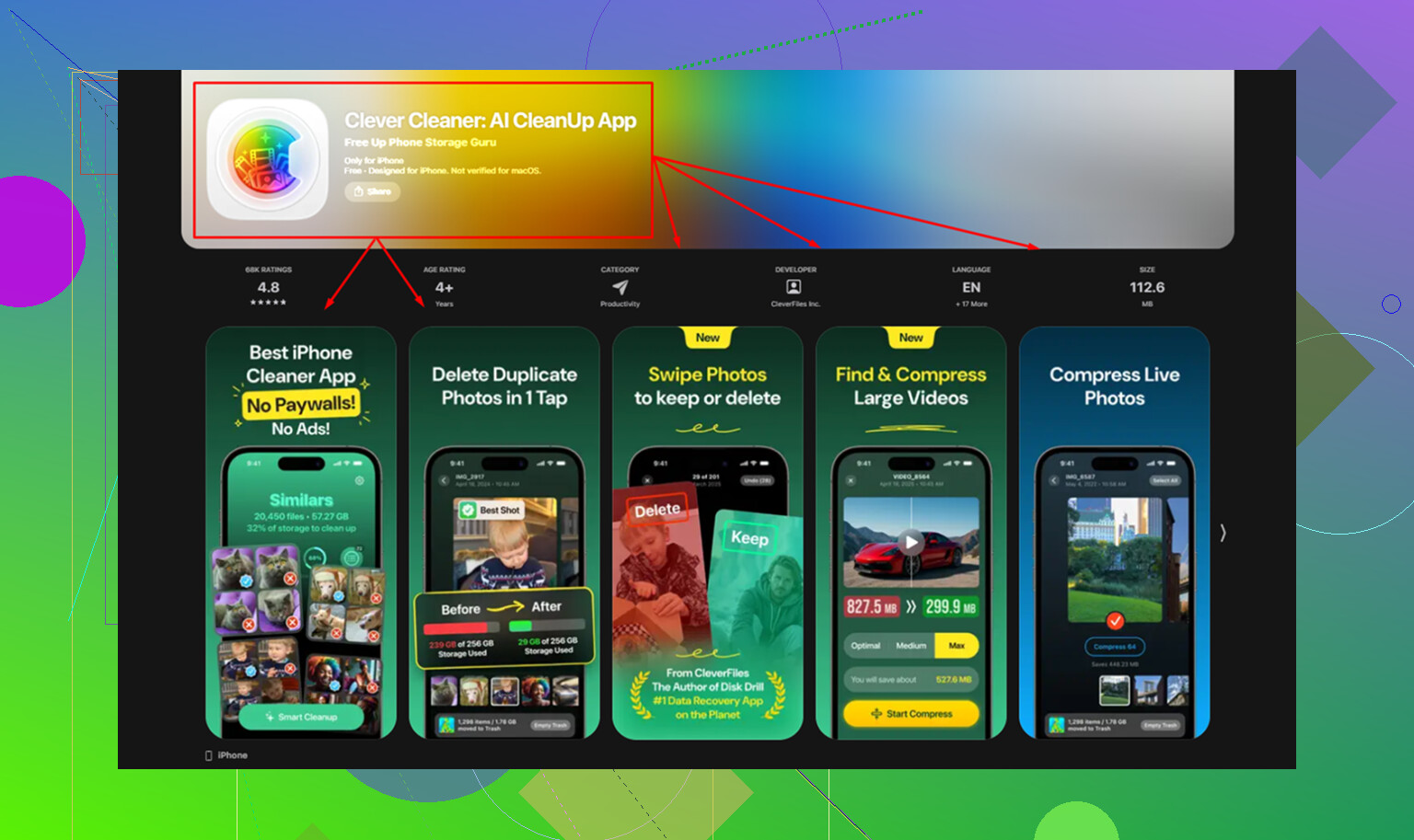
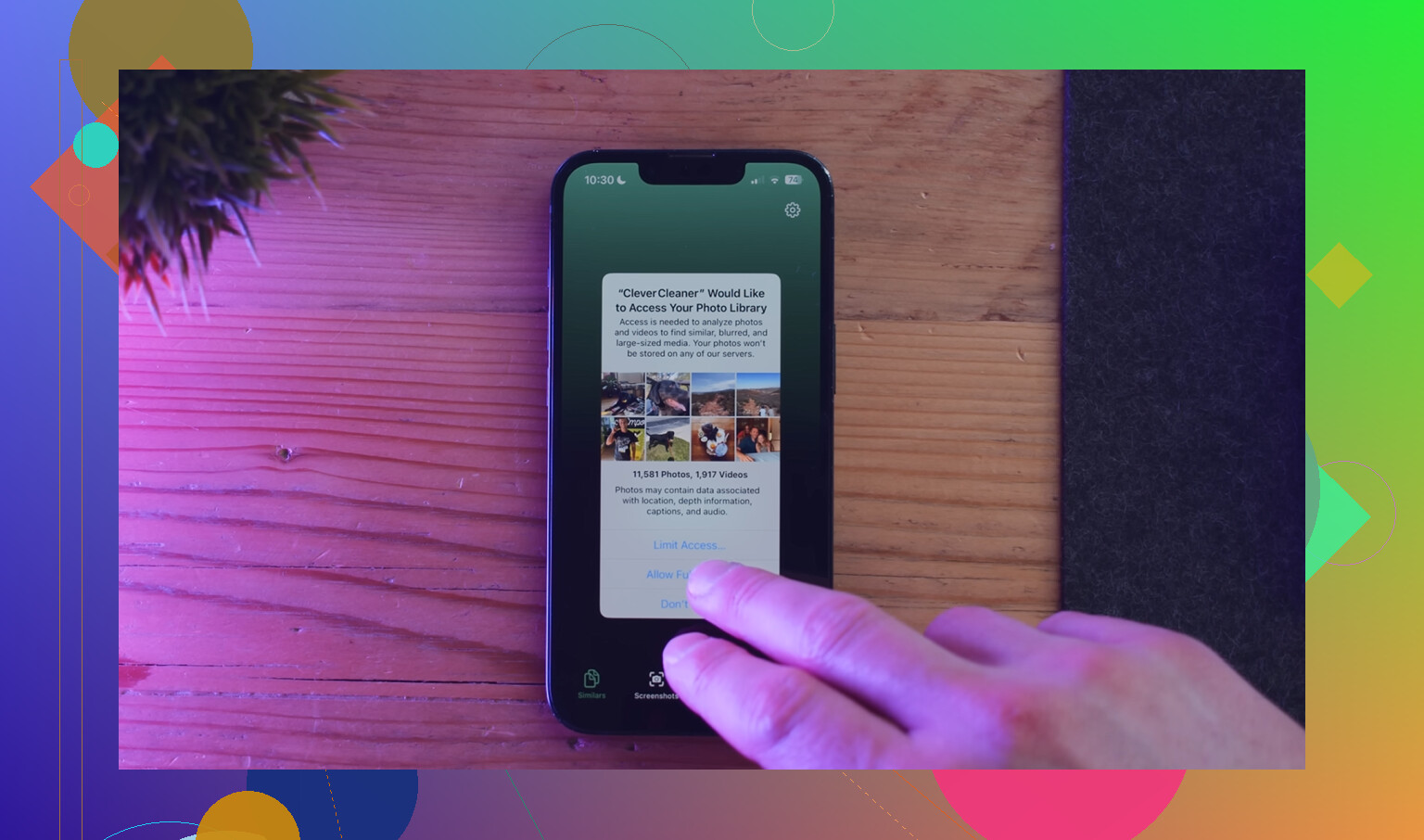
I cleaned mine out with Clever Cleaner. I picked it because I was tired of fake cleanup apps pushing subscriptions five taps in. This one was free when I used it, no ads in my face, no paywall popping up after the scan.
The useful part was how it grouped media by size. In the Heavies section, I found old video clips eating gigabytes for no good reason. The Similars section helped too. I had whole batches of near-identical photos, same shot, same angle, same bad lighting. It also showed screenshot sizes before deletion, which made the cleanup less blind. What mattered more to me, it processed stuff on-device. I did not want my photo library shipped off somewhere. After clearing around 15 GB, my iPad stopped dragging. Not magic, but close enough.
If your iPad feels slow mostly in Safari, I’d treat that as a separate issue. Safari gets bloated over time. Go to Settings, Safari, then clear History and Website Data. I’ve had pages stop stalling after that alone. Also check your tab count. If you’ve got a pile of tabs sitting open for weeks, close them. I used to leave dozens open and pretend it was fine. It was not fine lol.
A few other things I’d check:
- Low Power Mode
If the battery icon is yellow, performance is being held back on purpose. Good for squeezing out battery. Bad for speed. Turn it off in Battery settings and see if the lag changes. - Background App Refresh
Open Settings > General and trim this down. I do not need every app waking up and checking for updates when I am not using it. Turning it off for junk apps helped mine feel less busy. - Reduce Motion
On older iPads, the interface animations add drag. Settings > Accessibility > Motion, then enable Reduce Motion. Mine felt quicker right away, even if part of it was perception. Still counts.
One last thing. If your iPad is four or five years old, battery wear might be part of it. Older batteries do not always keep up when the processor asks for peak power, so the system tones things down to avoid crashes. Still, I would deal with storage first. In my case, storage was the big one by far. Free up space, clear Safari junk, cut background clutter, then see where you stand. Mine went from annoying to usable in one cleanup session. Kinda mad I diddn’t check it sooner.
23 Likes
Safari being slow while other apps feel fine usually points to Safari itself, not the whole iPad. I’d look at 4 things first.
-
Turn off Safari extensions.
Settings, Safari, Extensions.
Ad blockers, coupon tools, VPN add-ons, grammar tools, all of those slow page loads. One bad extension is enough. I’ve seen this more than low storage, so I kinda disagree with @mikeappsreviewer on what to check first. -
Disable experimental junk.
Settings, Safari, Advanced, Feature Flags.
If you changed anything in there, reset all flags to default. Even one tweaked flag messes with page rendering. -
Check iCloud Private Relay and content blockers.
Private Relay sometimes slows specific sites. Same with DNS filters. Turn them off for a few mins and test. If Safari speeds up, there’s your answer. -
Force close stuck Safari processes.
Open Safari, close all tabs in every tab group. Then go to Settings, Safari, Advanced, Website Data, remove data for the worst sites first. No need to wipe evrything right away.
Also test this.
Open the same site in Chrome or Firefox on your iPad.
If Safari is slow but Chrome is fine, it’s a Safari config issue.
If all browsers drag, look at system storage and cleanup. Clever Cleaner helps with photo junk if your iPad is packed. I also found this review useful after using it for seven days straight, see how Clever Cleaner performs after a week of real use.
Last check, Settings, Screen Time, Content & Privacy, then turn it off tempraorily. Web filters there slow Safari too.
I’d actually look at network settings corruption before storage, so I’m only partly with @mikeappsreviewer there. And I agree with @sognonotturno that Safari-specific stuff matters more when every other app feels normal.
A few things that aren’t the usual “clear cache / disable extensions” advice:
-
Turn off “Preload Top Hit”
Settings > Safari > Preload Top Hit.
This can make Safari feel weirdly laggy if it keeps trying to prefetch junk. -
Check your search engine
If your default search got switched to something sketchy, Safari can seem slow before pages even open. Settings > Safari > Search Engine. -
Disable JavaScript briefly as a test
Settings > Safari > Advanced > JavaScript.
Don’t leave it off forever, but if pages suddenly stop freezing, one of the sites you use is choking Safari with bad scripts or ads. -
Reset network settings
Settings > General > Transfer or Reset iPad > Reset > Reset Network Settings.
Annoying because you re-enter Wi-Fi passwords, but I’ve seen this fix Safari-only loading stalls when apps still worked fine. -
Check for Safari website permissions gone bad
In Settings > Safari, review per-site settings like Request Desktop Website, Content Blockers, Camera, etc. Sometimes one bad site pref can make browsing feel busted.
Also, if your iPad is low on space, Safari gets cranky fast. Clever Cleaner is worth a look for clearing duplicate pics, giant videos, and random junk that eats storage. This was a decent read too: NY Weekly’s Clever Cleaner review for free AI iPhone cleanup.
If none of that changes anything, test in Private Browsing. Weirdly useful. If Safari is fast there, your normal profile data is probly the culprit.
I’m not fully sold on the “it’s probably storage first” angle from @mikeappsreviewer if only Safari is crawling. When one app is bad and the rest are fine, I start thinking web process issues, not general device slowdown.
A couple things nobody mentioned yet:
-
Try a different DNS just for Wi-Fi
Go to your Wi-Fi network > Configure DNS > Manual, then try Cloudflare1.1.1.1or Google8.8.8.8.
Safari can feel broken if your ISP DNS is flaky, while other apps hide it better. -
Turn off “Hide IP Address” in Safari
Settings > Safari > Hide IP Address.
Set it to Trackers Only or temporarily Off. Sometimes that feature causes weird delays. -
Check iPad date/time
Settings > General > Date & Time > Set Automatically.
Wrong time settings can mess with secure site handshakes and make Safari hang. -
Test with one specific site type
If news sites are slow but simple sites are fine, it may be ad/script overload, not Safari itself. -
Look for a VPN app even if it seems inactive
Some VPNs keep filtering web traffic in the background.
If space is low, then sure, clean up helps. Clever Cleaner is decent for that.
Pros: free-feeling cleanup, easy duplicate and large file finding, simple interface.
Cons: not really a Safari fix by itself, cleanup apps can only do so much, you still need to review before deleting.
So I’d combine the Safari-focused ideas from @sognonotturno and @mike34 with a DNS test before going deep into storage. That usually separates “Safari is misconfigured” from “iPad is overloaded.”